CHAPTER 16
Content Management Application (CMA)
DL.3 Digital Light User Manual 277
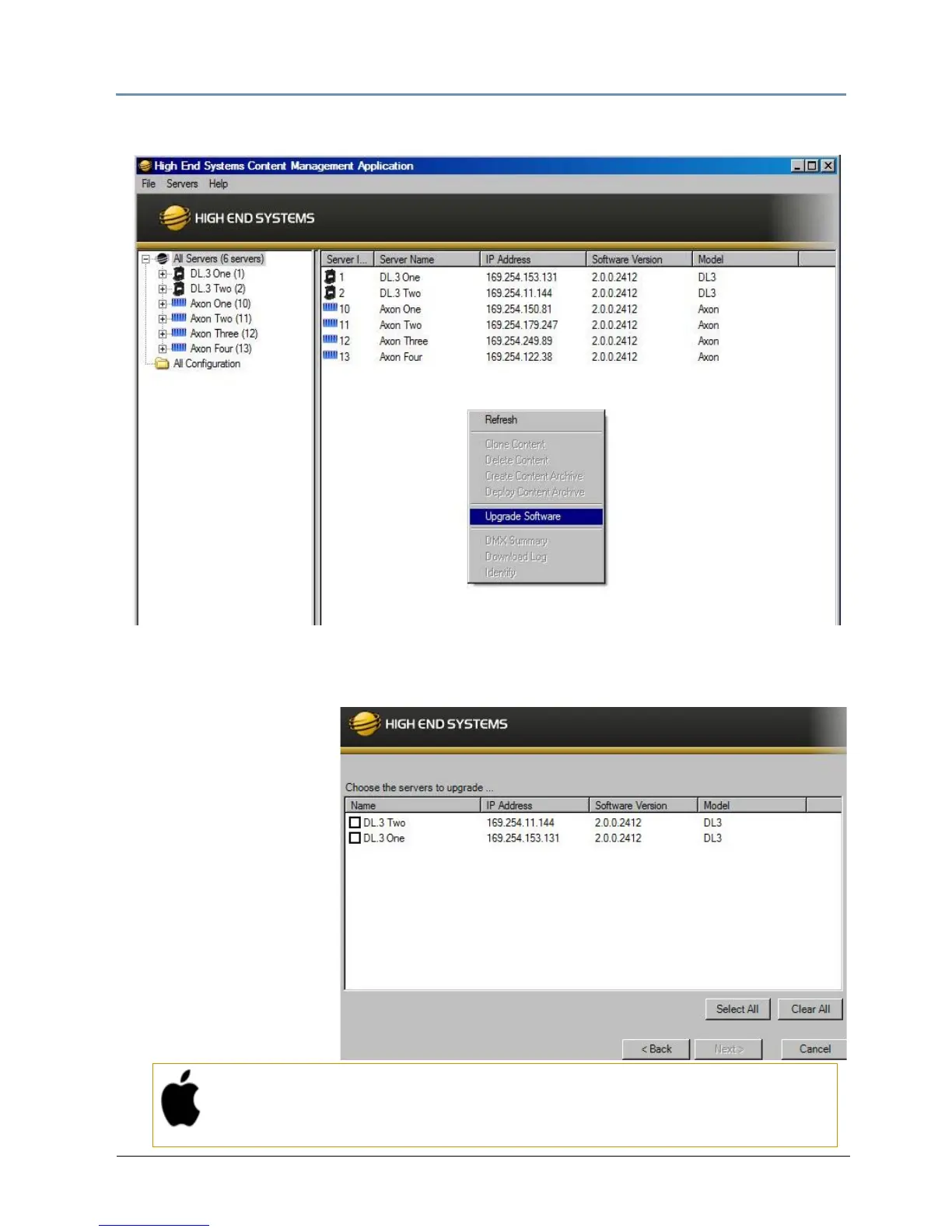
3. Click on All Servers in the left pane of the CMA Window.
4. Right click anywhere in the CMA Window or us
e the Server’s pull down menu to select
Upgrade Software. The Upgrade Wizard will prompt you to browse to the location where
you saved a copy of latest version.
5. After locating the
u
pgrade file, press
Next. The Upgrade
Wizard displays a list of
all servers
connected to
the fixture network.
6. Click in the box to the
left of
the server name
to select a server(s) for
upgrading.
7. Click Ne
xt to continue
upgrade. The server will
reboot after upgrading
the software.
Mac OS X: Upgrading Software
To upgrade multiple servers, select multiple fixtures from the All Servers
list.


 To Next Page