10A myMBRAUN App
Setting up the myMBRAUN app
MB-20-G/MB-200G-W_MB-LABmaster_MB-200 MOD_TP700
Operating Manual - V5.0 - 04/2018 - STD
Page
10A - 5
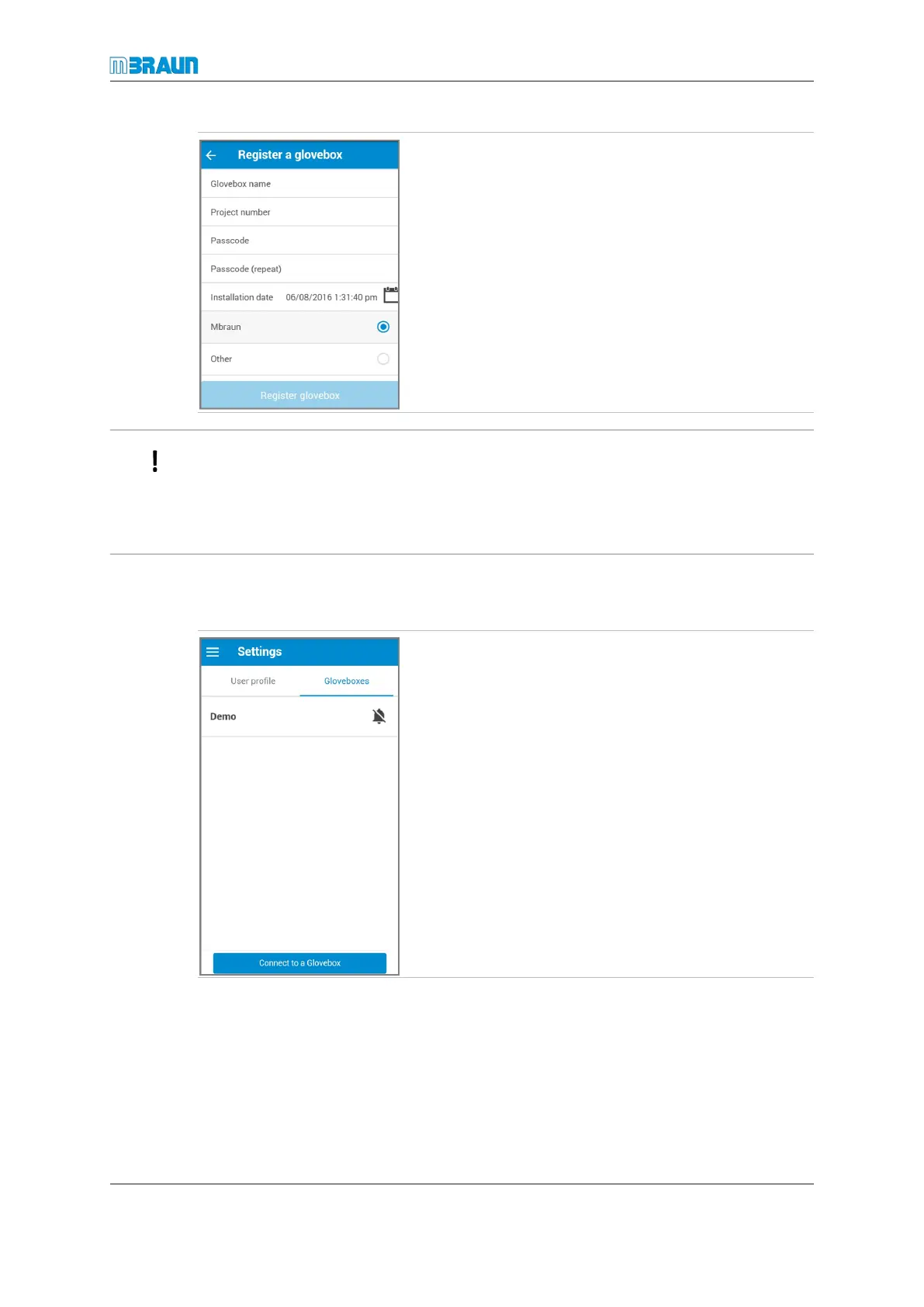
► Touch the white area next to Glovebox name.
ð The cursor blinks in the input field.
► Enter the glovebox name.
► Complete all the other input fields.
► Touch the calendar icon next to Installation date to
set the date on which the glovebox was installed.
► Touch the Register glovebox button to complete re-
gistration.
MBRAUN is set as the default glovebox supplier.
When you enter the passcode, you cannot see the entered characters.
If you enter the Passcode (repeat) incorrectly, the dots are displayed in red.
Incorrect entries are ignored by the app.
After you have entered the data correctly, you see a message about the successful regis-
tration on green background.
Registering a MBRAUN glovebox not yet registered or 3rd party glovebox
The app allows users to create notes about maintenance tasks for 3rd party gloveboxes.
► Select the Settings menu.
► Open the Gloveboxes page.
► Touch the Connect to a Glovebox button.


 To Next Page