10. Service Mode Field Service Ver. 1.0 Jun. 2008
166
Adjustment / Setting
10.4.4 Transfer Output Fine Adjustment
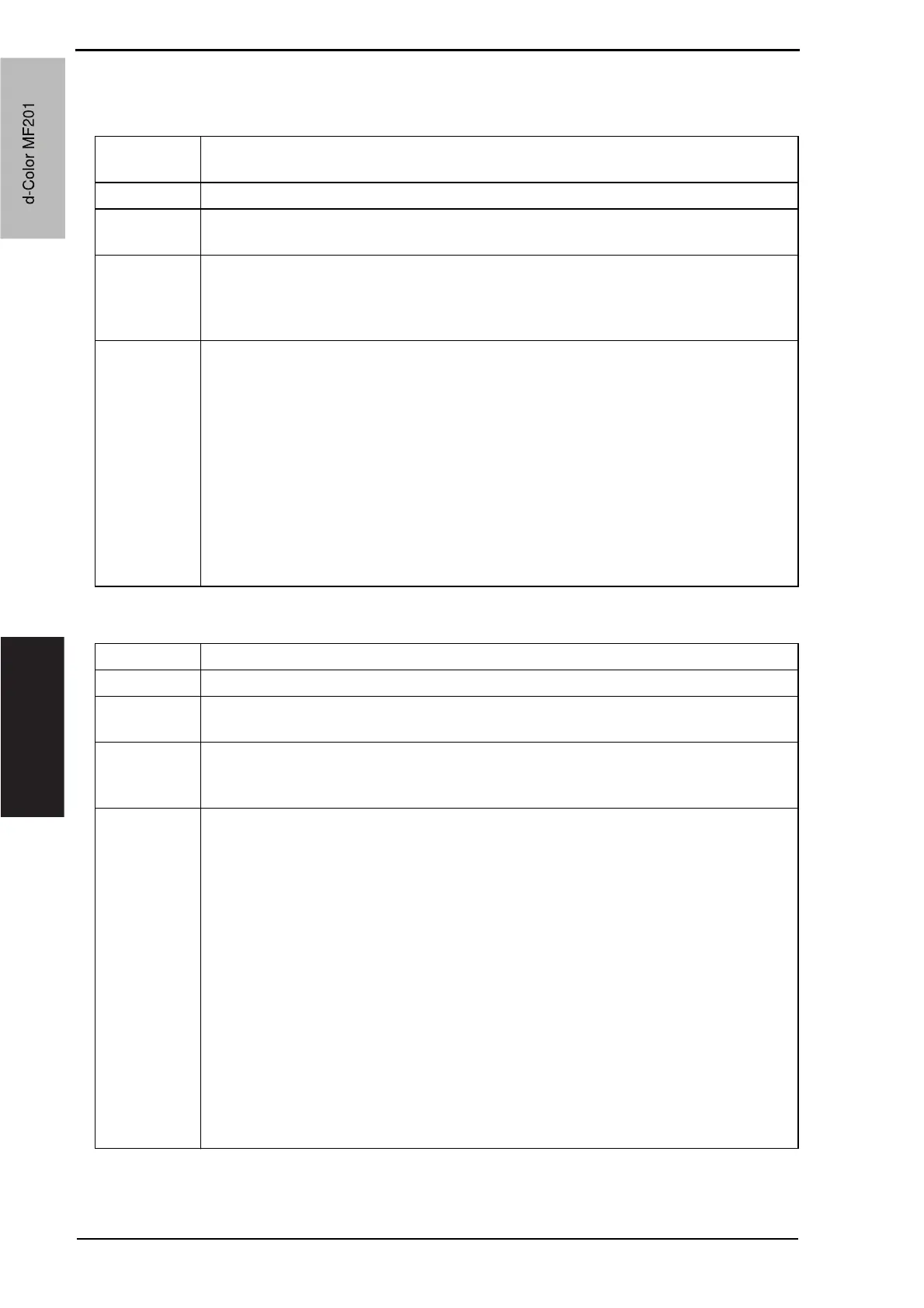
A. Secondary transfer adj.
B. Primary transfer adj.
Functions • Adjust the 2nd image transfer output (ATVC) on the 1st page and the 2nd page for
each paper type.
Use • To use when the transfer failure at the trailing edge occurs.
Adjustment
Range
• The default setting is 0.
-8 to +7 (step: 1)
Adjustment
Instructions
To increase the ATVC value (in the direction of a foggier image),
increase the setting value.
To decrease the ATVC value (in the direction of a less foggy image),
decrease the setting value.
Setting/
Procedure
1. Call the Service Mode to the screen.
2. Touch these keys in this order: [Imaging Process Adjustment] o [Transfer Output
Fine Adjustment].
3. Select [Secondary transfer adj.].
4. Select the paper type and the side of the image (1st side or 2nd side), on which the
transfer failure occurs.
NOTE
• For envelopes, only first side can be selected.
5. Enter the new setting from the [+] / [-] keys.
6. Touch [OK] to validate the adjustment value.
7. Check the print image for any image problem.
Functions • Adjust the output value for the 1st image transfer voltage.
Use • To use when white spots appeared.
Adjustment
Range
• The default setting is 0.
-8 to +7 (step: 1)
Adjustment
Instructions
Adjust the output value for the 1st image transfer voltage by;
Increasing it: Increase the setting value (white spots will decrease)
Decreasing it: Decrease the setting value
Setting/
Procedure
1. Call the Service Mode to the screen.
2. Select [Test Mode] o [Halftone Pattern] to output the red or green test pattern.
See P.265
3. When the test pattern image has white spots, adjust with the following procedure.
4. Touch these keys in this order: [Imaging Process Adjustment] o [Transfer Output
Fine Adjustment].
5. Select [Primary transfer adj.].
6. Select the color.
7. Change the setting value using the [+] / [-] keys.
8. Touch [OK] key to set the adjustment value.
Gradually increase the adjustment value to the acceptable white spots level while
checking the test pattern.
NOTE
• PC Drum memory may occur by taking measure to white spots occurred by
increasing the 1st image transfer voltage to adjust it.
Check the image on the test print or the color chart when adjusting.
d-Color MF201
Service Manual Y109660-1
d-Color MF201


 To Next Page
 Loading...