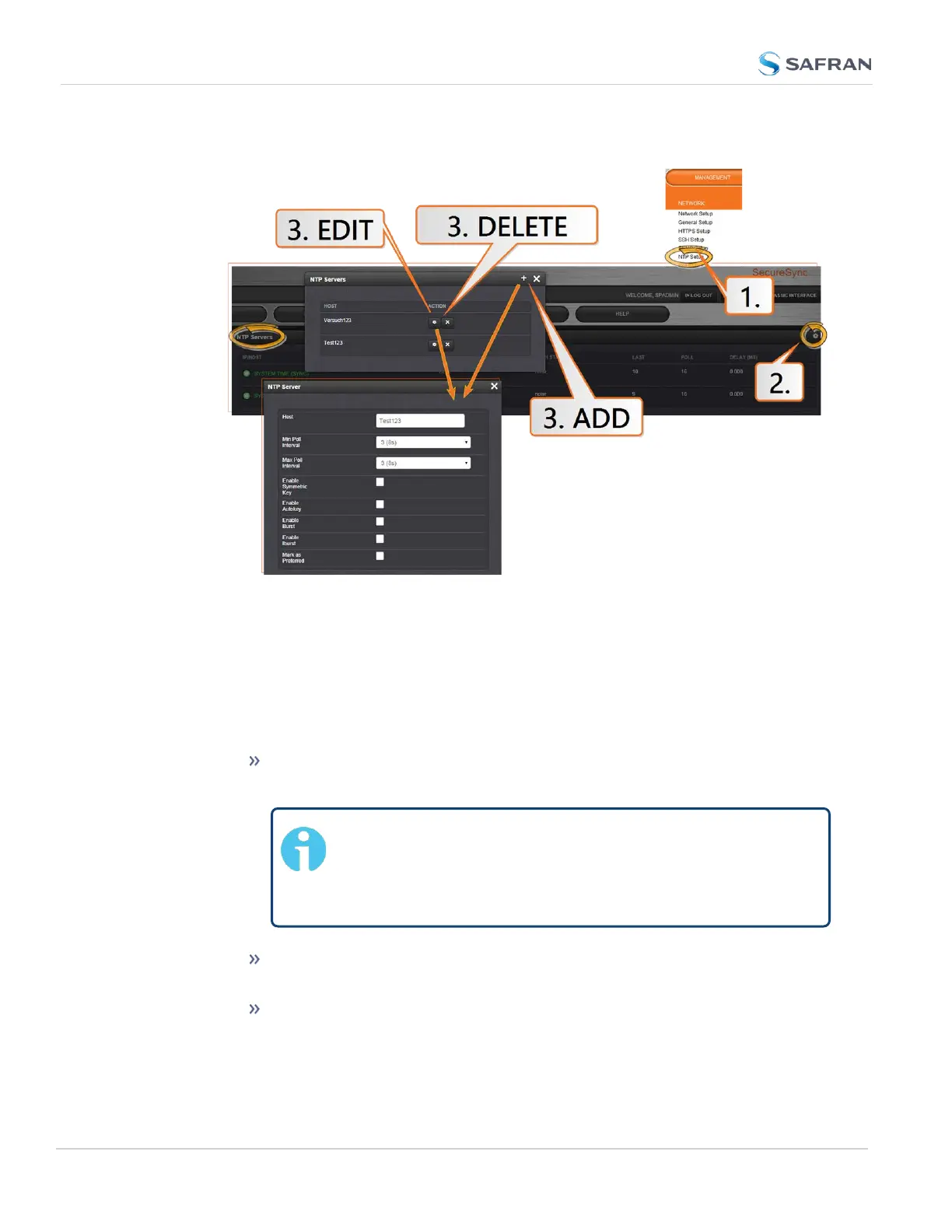
1.
Navigate to MANAGEMENT > NETWORK: NTP Setup.
2.
The NTP Setup screen appears. The NTP Servers panel displays a list of
recognized NTP servers. Click the GEAR icon in the upper right-hand
corner of the NTP Servers panel.
3.
The NTP Servers window opens. Should the list be empty, no servers have
been added yet. In the event that added servers are not displayed in the
NTP Setup screen/NTP Servers panel, they could not be resolved. Verify
the IP address. Note that System servers cannot be edited or deleted.
To ADD a new server, click the PLUS icon in the upper right-hand
corner, and proceed to the next step.
Note: In order for other NTP Servers to be a valid ref-
erence, “NTP” must be enabled as both the Time and 1PPS
references in the Reference Priority table. See "Con-
figuring Input Reference Priorities" on page205.
To EDIT an existing server, click the corresponding ACTIONGEAR
button, and proceed to the next step.
To REMOVE a server (and its associated configurations), click the X-
button next to it, then confirm by clicking OK.
126
CHAPTER 2 • SecureSync 2400 User Manual Rev. 5.2
2.15 Configure NTP



 To Next Page