3.
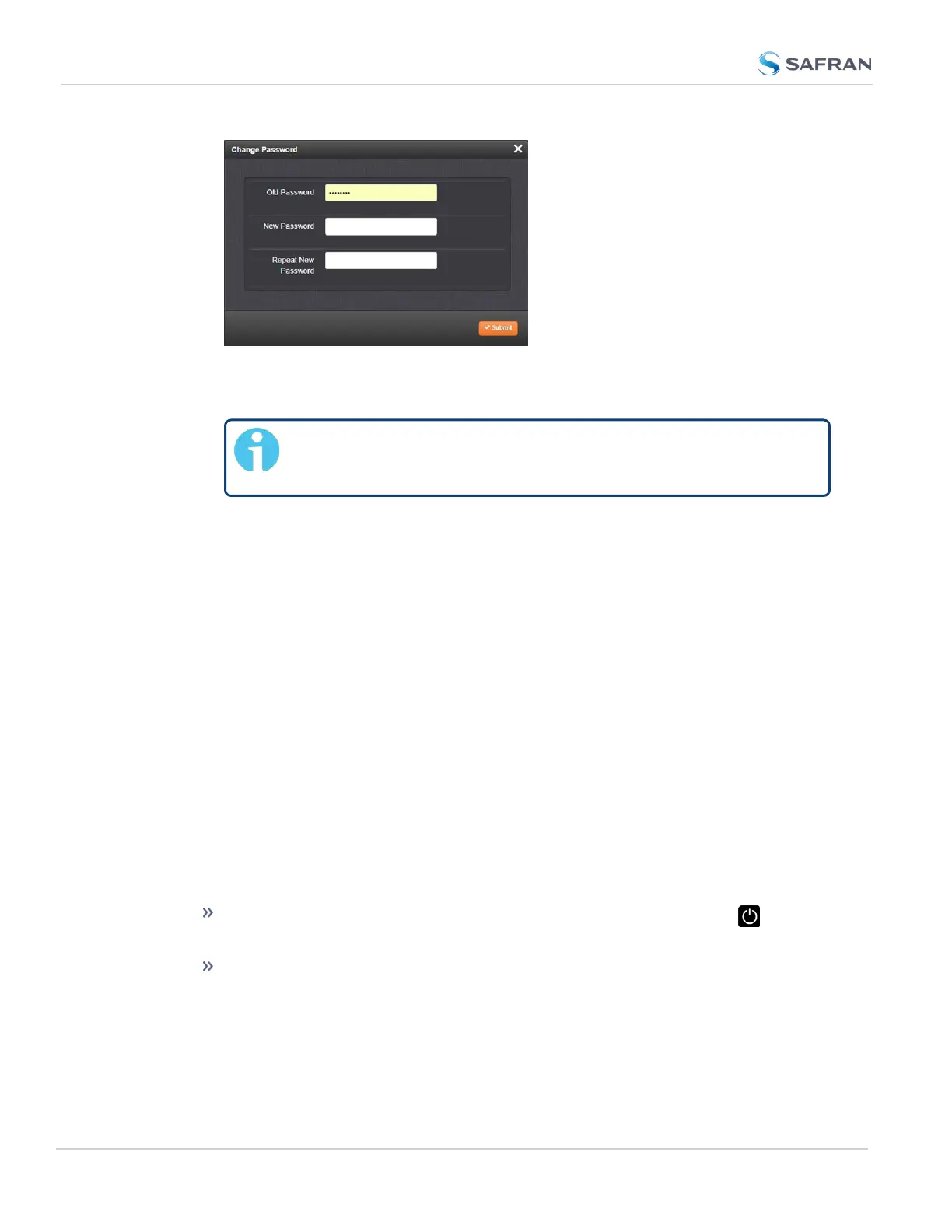
In the Old Password field, type the current password.
4.
In the New Password field, type the new password.
Note: The new password can be from 8 to 32 characters in
length.
5.
In the Repeat New Password field, retype the new password.
6.
Click Submit.
For more information, see also "Managing User Accounts" on page273.
4.3.2.3 Lost Password
If the current spadmin account password has been changed from the default
value and has been forgotten or lost, you can reset the spadmin password back
to the factory default value of admin123.
Resetting the spadmin account password does not reset any user- created
account passwords. This process only resets the spadmin account password.
Any user with administrator rights can reset the spadmin password through the
MANAGEMENT > OTHER: Authentication window.
If you do not know the password for any user with administrator rights, your only
options are:
restore the factory defaults via the front panel (press the power button
and select Restore factory defaults), or:
contact customer service to request a password reset.
Changing the "spadmin" password via Web UI
To change the spadmin password:
280
CHAPTER 4 • SecureSync 2400 User Manual Rev. 5.2
4.3 Managing Users and Security



 To Next Page