To change a user account:
1.
In the Add or Change User window the Username field will be populated.
a. To change it, type the new name.
b. To change the user account’s password, type the new password in
the Password field and confirm it in the Repeat New Password field.
Note that the password requirements are configurable, see
"Managing Passwords" below.
c. To change the user account’s user permission group, select the group
from the drop-down menu.
For more information, see also "Managing Passwords" below.
4.3.2 Managing Passwords
Caution: For security reasons, it is advisable to change the default
credentials.
4.3.2.1 Configuring Password Policies
To configure password requirements e.g., rules for minimum password length
and special characters:
1.
Navigate to MANAGEMENT > OTHER: Authentication.
2.
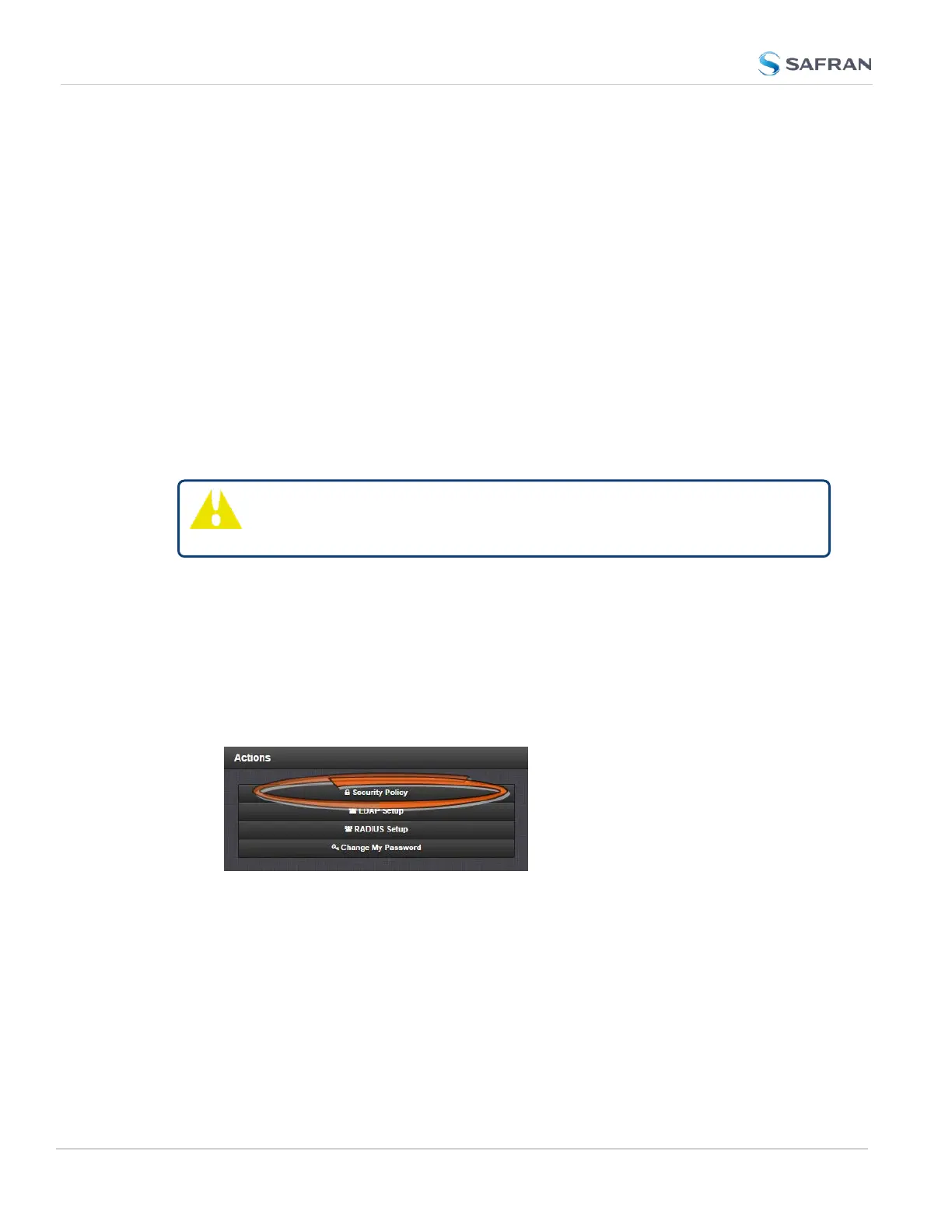
In the Actions panel, click Security Policy.
3.
The Password Security window will display. Fill in the self-explanatory
278
CHAPTER 4 • SecureSync 2400 User Manual Rev. 5.2
4.3 Managing Users and Security



 To Next Page