After resetting the password follow the procedure above to change the spadmin
password in the MANAGEMENT > OTHER: Authentication window.
4.3.3 Web UI Timeout
For security reasons, the WebUI will automatically timeout after a set number of
minutes, i.e. you will be logged out by the system, regardless of activity, and need
to actively login again.
Minimum timeout duration: 10minutes
Maximum timeout duration: 1440 minutes (24hours)
Default timeout duration: 60minutes.
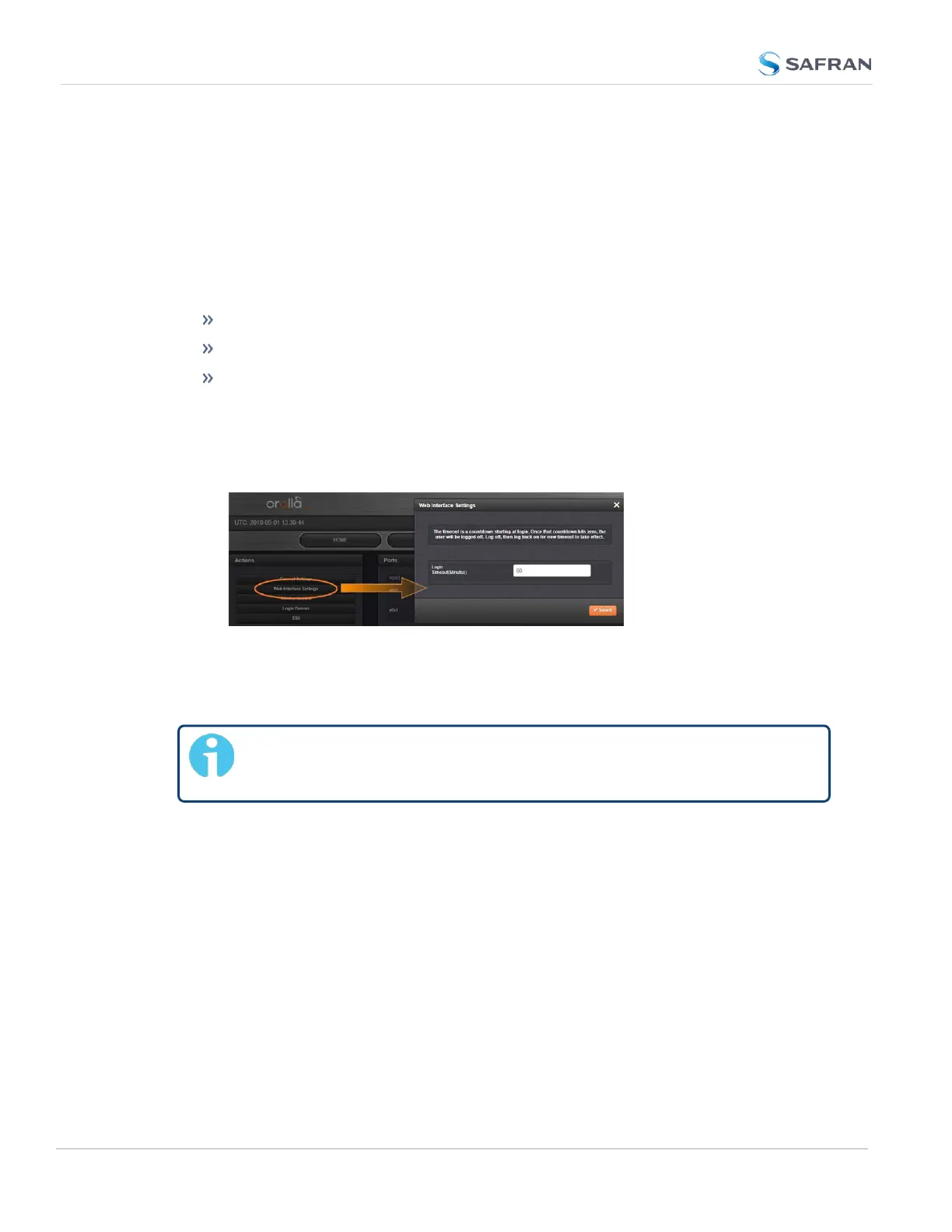
To change the time after which the WebUI will timeout:
1.
Navigate to the MANAGEMENT > Network Setup screen.
2.
In the Actions panel on the left, click on Web Interface Settings.
3.
In the Web Interface Settings window, enter the desired value in minutes.
In order for a new setting to take effect, you need to log off, and then log back in
again. This setting affects all users, not just the user changing the value.
Note: The Web UIdoes not allow simultaneous logins. Any sub-
sequent logins will discontinue any prior instances of the Web UI.
282
CHAPTER 4 • SecureSync 2400 User Manual Rev. 5.2
4.3 Managing Users and Security



 To Next Page