4.4.2.2 To lock or unlock the front panel:
1. Log on to the Web UI
2. Navigate to MANAGEMENT > Front Panel.
3. Check the box next to Lock Front Panel to lock. To unlock, verify that the box is
unchecked.
4. Click Submit
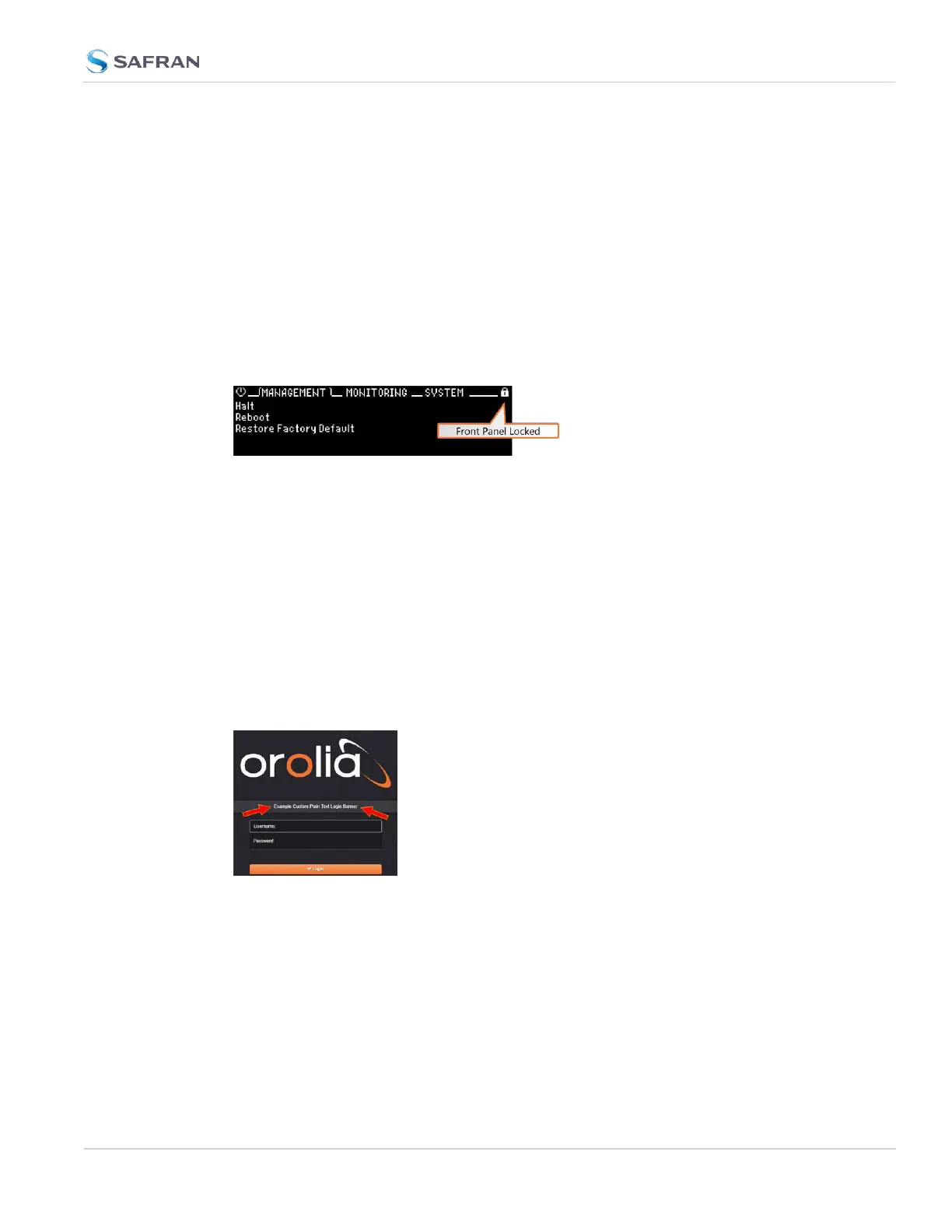
The front panel information display will lock at the last viewed screen. A small
padlock icon will appear in the upper right hand corner of the display, and will
flash brighter if any buttons are pressed on the front panel.
Figure 4-2: Locked Front Panel Display
The front panel will remain locked until it is unlocked through the Web UI or via
CLI commands.
To lock or unlock the front panel via the CLI, use the fp_lock and fp_unlock
commands (admin access is required).
4.4.3 Creating a Login Banner
A login banner is a customizable banner message displayed on the login page of
the SecureSync Web UI. The login banner can be used, for example, to identify a
unit.
Figure 4-3: Login banner (example)
To configure a login banner:
1.
Navigate to the MANAGEMENT > Network Setup screen.
2.
In the Actions panel on the left, click Login Banner.
3.
The Network Access Banner window will display. Check the box Enable
Custom Banner.
4.4 Miscellanous Typical Configuration Tasks
CHAPTER 4 • SecureSync 2400 User Manual Rev. 5.2
299



 To Next Page