b.
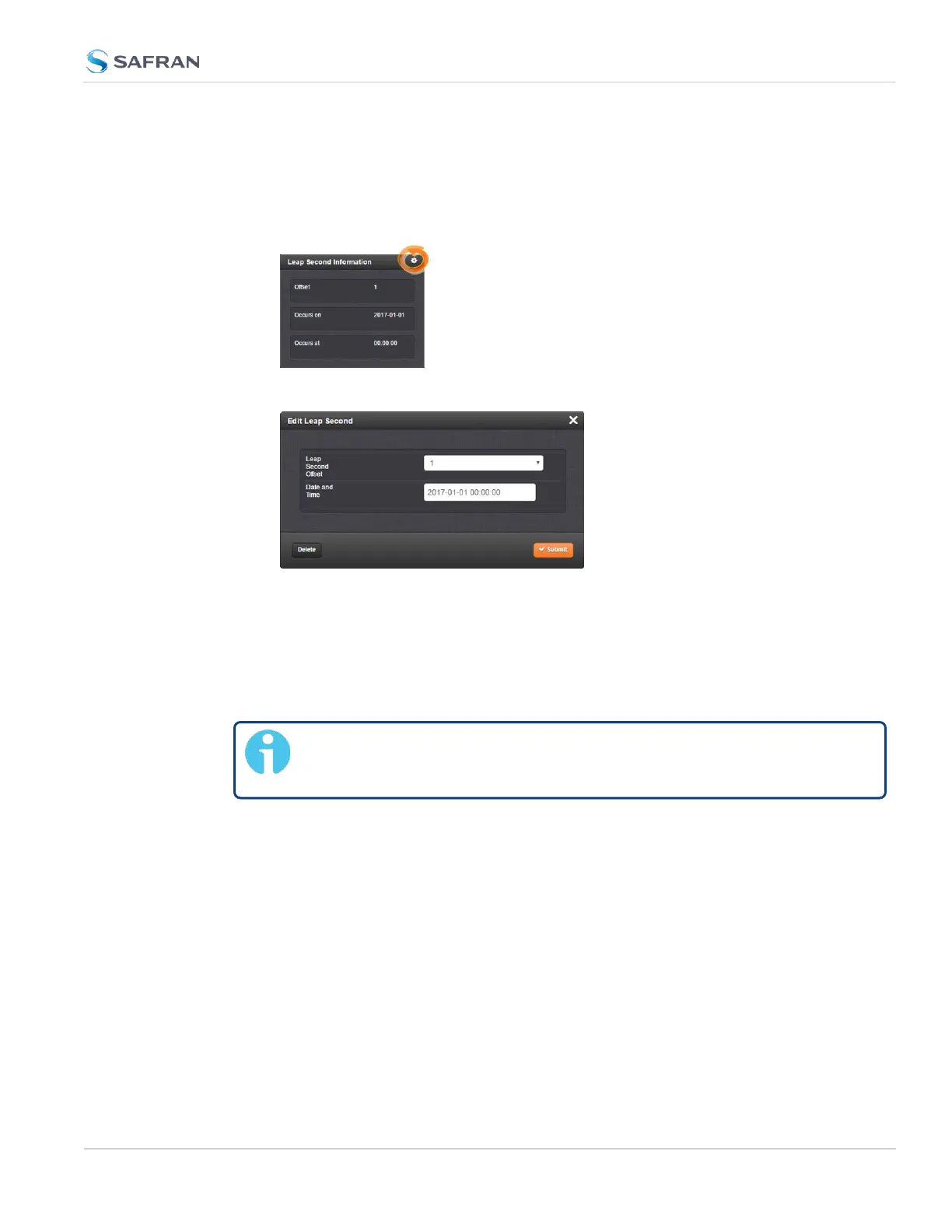
A leap second had been configured previously by a user via the Edit
Leap Second window.
2.
To access the Edit Leap Second information window, click the GEAR icon
in the Leap Second Information panel.
3.
The Edit Leap Second window will display:
4.
In the Leap Second Offset field enter the desired GPS Offset.
5.
In the Date and Time field, enter the date that the desired leap second
should occur.
6.
Click Submit.
To delete a leap second correction, click the Delete button.
Note: The Delete button in the Edit Leap Second window will only be
visible if a leap second has been set beforehand.
3.2.4 Local Clock(s), DST
The Local Clock feature allows for maintaining one or several local times. These
times will reflect a time offset, thereby accounting for Time Zone, and DST (Day-
light Savings Time) correction.
3.2.4.1 Adding a Local Clock
To add a Local Clock:
3.2 System Time
CHAPTER 3 • SecureSync 2400 User Manual Rev. 5.2
199



 To Next Page