HTTPS: This button takes you to the HTTPS Setup window. For
details on setting up HTTPS, see "HTTPS" on page81.
The Network Services panel is used to enable (ON) and disable (OFF) net-
work services, as well as the Web UI display mode, details see: "Network
Services" on page77.
The Ports panel not only displays STATUS information, but is used also to
set up and manage SecureSync’s network ports via three buttons:
INFO button: Displays the Ethernet port Status window for review
purposes.
GEAR button: Displays the Ethernet port settings window for editing
purposes.
TABLE button: Displays a window that allows adding, editing, and
reviewing Static Routes.
2.14.1 General Network Settings
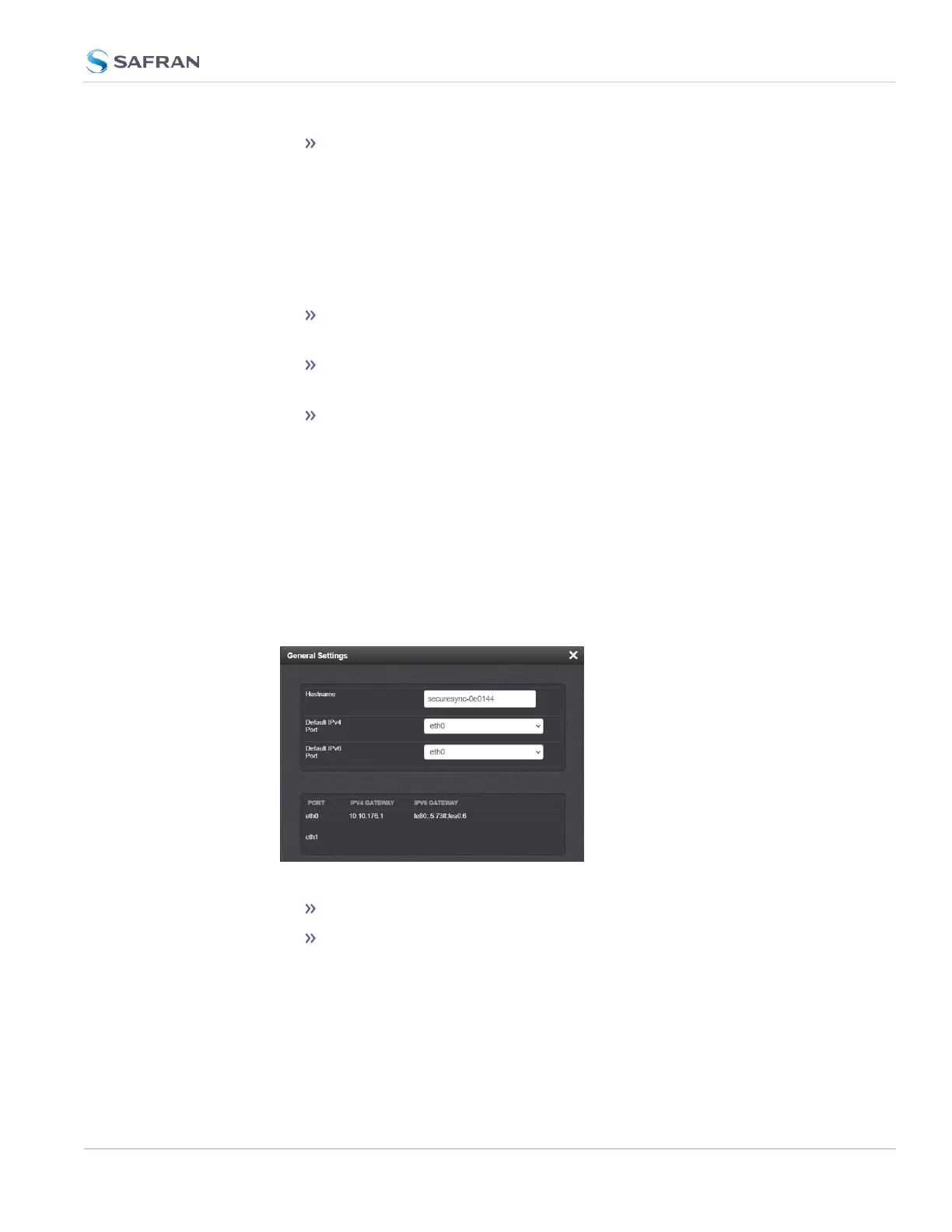
To expedite network setup, SecureSync provides the General Settings window,
allowing quick access to the primary network settings.
To access the General Settings window:
1.
Navigate to MANAGEMENT > Network Setup. In the Actions Panel on the
left, click General Settings.
2. Populate the fields:
Hostname: This is the server’s identity on the network or IP address.
Default IPv4 Port: Unless you specify a specific Port to be used as
Default Port, the factory default port eth0 will be used as the gate-
way (default gateway).
2.14 Configure Network Settings
CHAPTER 2 • SecureSync 2400 User Manual Rev. 5.2
75



 To Next Page