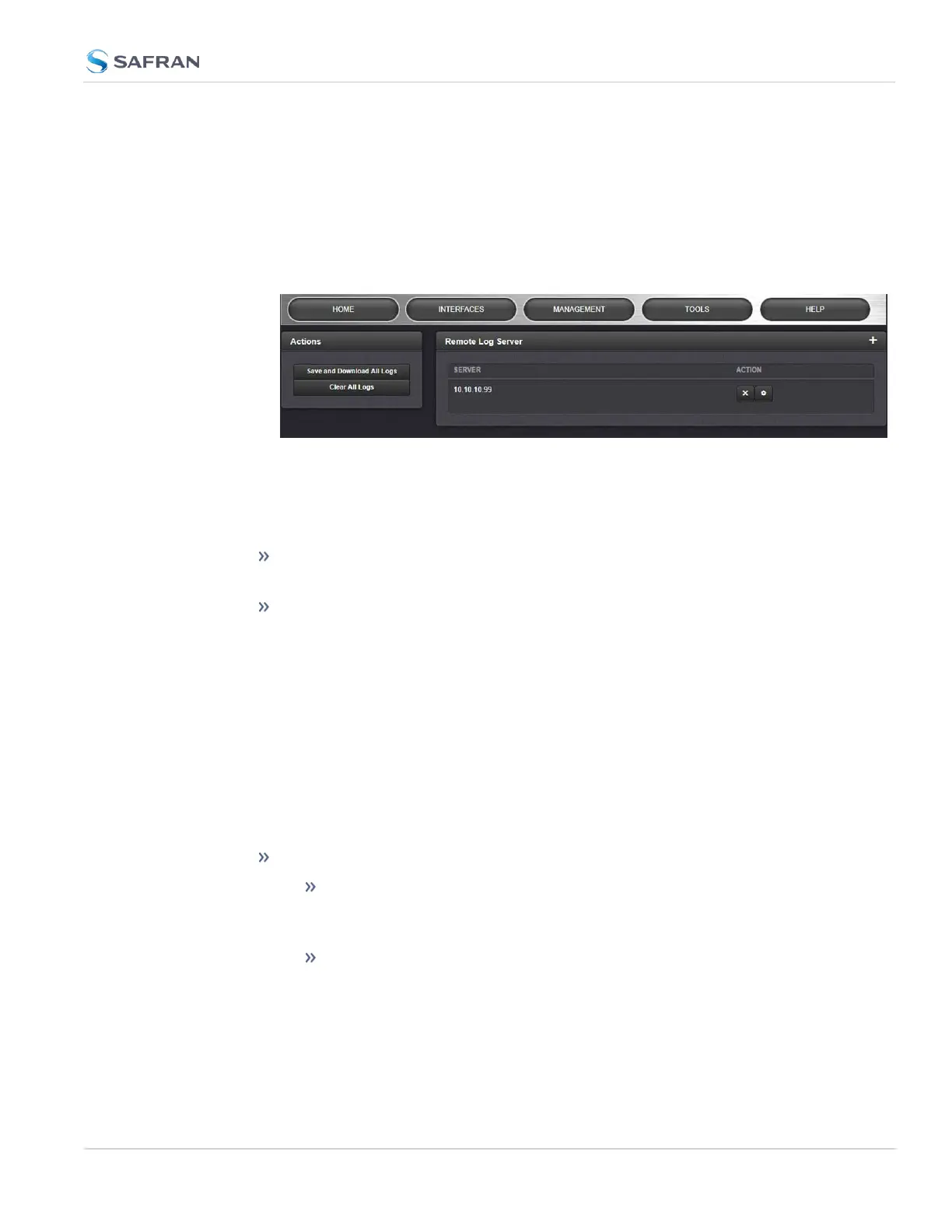
4.5.2.2 The Logs Screen
The Logs Screen provides access to settings that apply to all logs.
To access the Logs Screen:
1.
Navigate to MANAGEMENT > OTHER: Log Configuration.
2.
The Logs screen will appear, with several panels:
The Logs Actions panel
The Actions panel on the upper-left corner of the Logs screen allows you to per-
form batch actions on your logs:
Save and Download All Logs—Save and download all the logs on
SecureSync.
Clear All Logs—Clear all the logs on SecureSync.
The Remote Log Server panel
The Remote Log Server panel, which is where you set up and manage logs on
one or more remote locations. See also: "Setting up a Remote Log Server" on
page336
The Logs Settings panel
The Settings panel allows you you change log settings for your product. These
settings apply to all logs.
Persistence allows the unit to retain logs permanently.
When Persistence is ON [default] , your logs will be retained on the
disk and will always be available for troubleshooting and inform-
ational purposes.
When Persistence is OFF, logs will be overwritten over time by the
most recent information. Logs will also be removed upon reboot of
the unit.
This setting will increase the disk lifetime by reducing the amount of
permanently stored data.
4.5 Quality Management
CHAPTER 4 • SecureSync 2400 User Manual Rev. 5.2
333



 To Next Page