212
Navigation
Entering destinations
To delete all characters in the input
field
: Push the controller and
select the menu item Delete All.
All characters are deleted.
To make a new entry: Push
the
controller to move back to the
predictive speller and enter characters
as described previously.
Completing entry
Option 1: Keep entering characters
until the menu item
OK is automatically
highlighted, then press the
controller
.
The entry of the state/province is
complete. You can enter the desired
street, see below.
Option 2: Push
the controller .
Option 3: After entering at least one
character, push
the controller and
select the menu item OK manually.
After choosing option 2 or 3, the hit list
is now active.
Select an entry in the hit list.
The entry of the state/province is
complete. You can enter the desired
street.
Entering a street
Before entering a street, make sure that the
correct state/province has been entered,
see section “Entering a state/province” on
page 211.
Open the address input menu, see
section “Opening the address input
menu” on page 210.
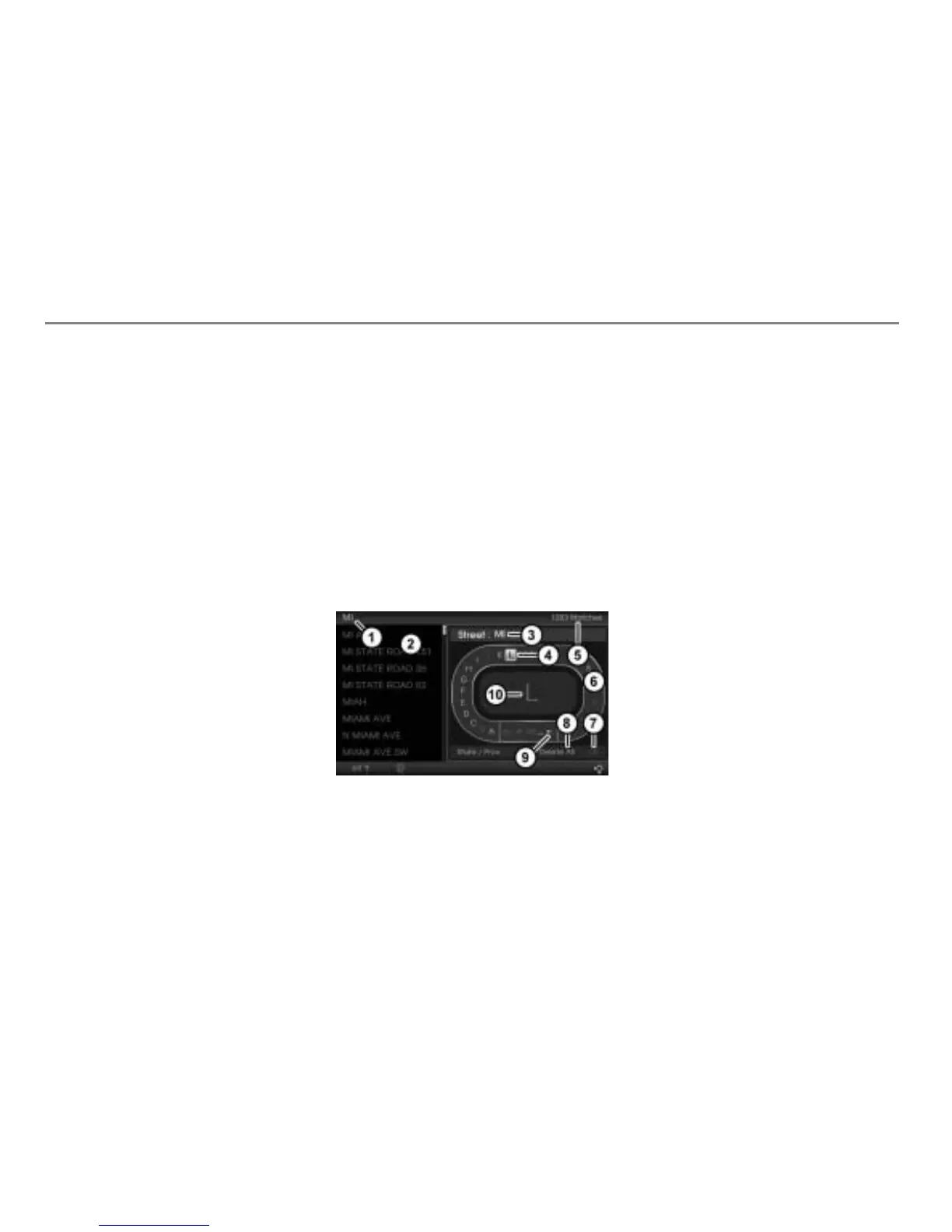
Input progress display
Hit list
Input field
Currently highlighted character
Number of hits in the hit list
Predictive speller
Confirm entry
Delete all characters in the input field
Delete the last character in the input
field
Enlarged display of the currently
highlighted character in the predictive
speller
Entering/deleting characters
To enter a character: In the predictive
speller , highlight a character and
press the controller
.
The character is entered and appears in
the input field
.
Not all of the characters displayed can be
highlighted in the predictive speller
. The
characters that can be highlighted depend
on those already entered and the data for
the digital map.
Before any character is entered, the hit list
is empty. Each time you enter a
character, the hit list is narrowed down in
accordance with the characters already
entered.



 To Next Page