Prior to Expert mode being enabled, the Network: NTP Setup page will contain
various tabs for configuring different options of the NTP Service. To prevent inad-
vertent changes from being made to a user-edited NTP.conf file via the web
pages, these NTP configuration tabs are removed from the web browser view as
long as the Expert mode remains enabled (only the Expert Mode tab is visible in
Expert Mode; all other tabs will no longer be present). Disabling the Expert mode
restores these tabs to the Edit NTP Services window.
To enable the Expert Mode, and edit the NTP.conf file:
1.
Navigate to MANAGEMENT > NETWORK: NTP Setup.
2.
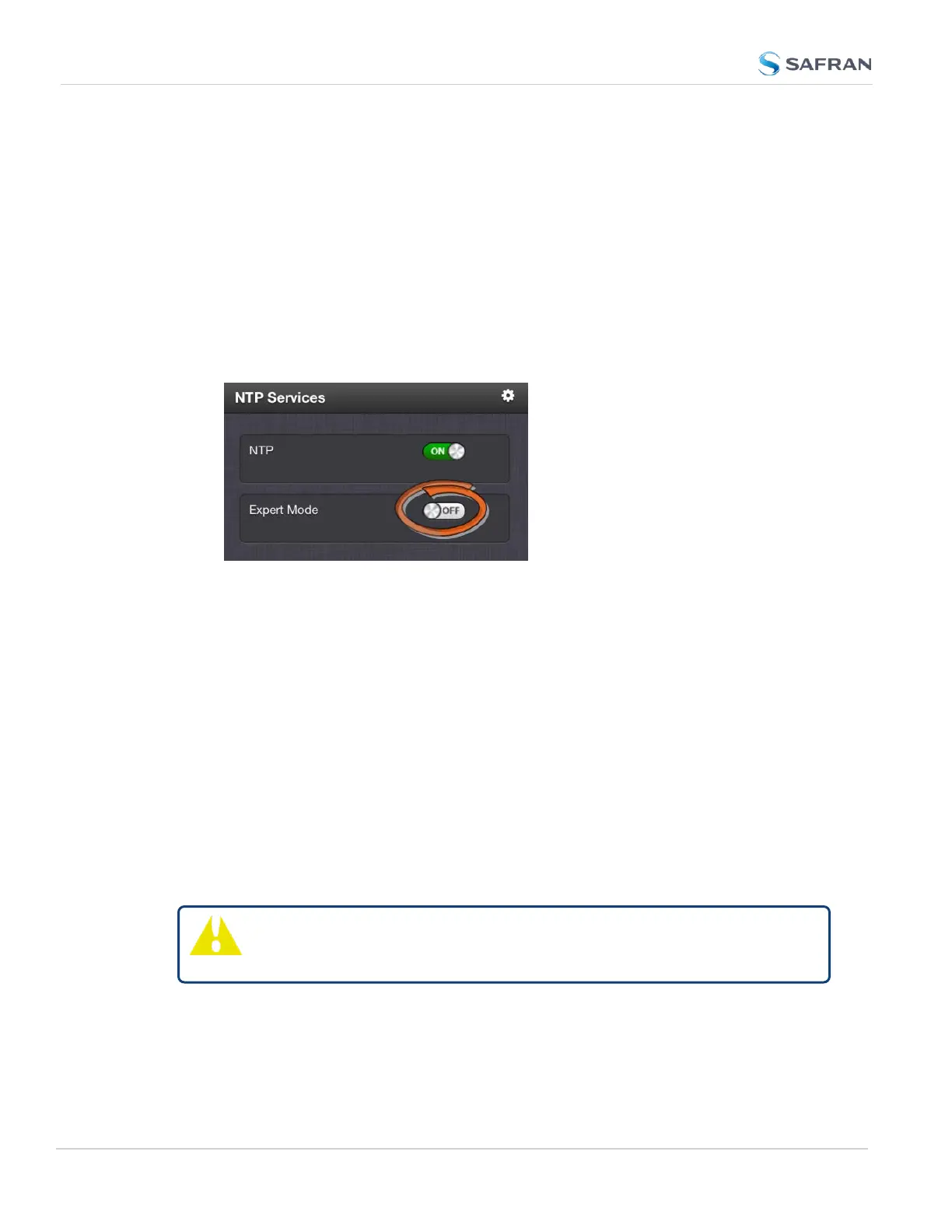
In the NTP Services panel locate the Expert Mode switch:
When enabled, the NTP Service operates in Unicast mode. In Unicast mode,
the NTP Service responds to NTP requests only. The NTP Service supports
a broadcast mode in which it sends a NTP time packet to the network
broadcast address.
3.
Click the Expert Mode switch.
4.
Confirm by clicking OK in the dialog box.
5. Click the GEAR icon.
6.
In the Edit NTP Services window, edit the file as desired in the text box
under the Expert Mode tab.
7. Click the Submit button to save any changes that were made.
8.
Disable and then re-enable the NTP service using the NTP ON/OFF switch
in the NTP Services panel. SecureSync will now use the new NTP con-
figuration per the manually edited file.
Caution: Any configurations made in NTP Expert Mode will be lost as
soon as NTP Expert Mode is disabled.
148
CHAPTER 2 • SecureSync 2400 User Manual Rev. 5.2
2.15 Configure NTP



 To Next Page