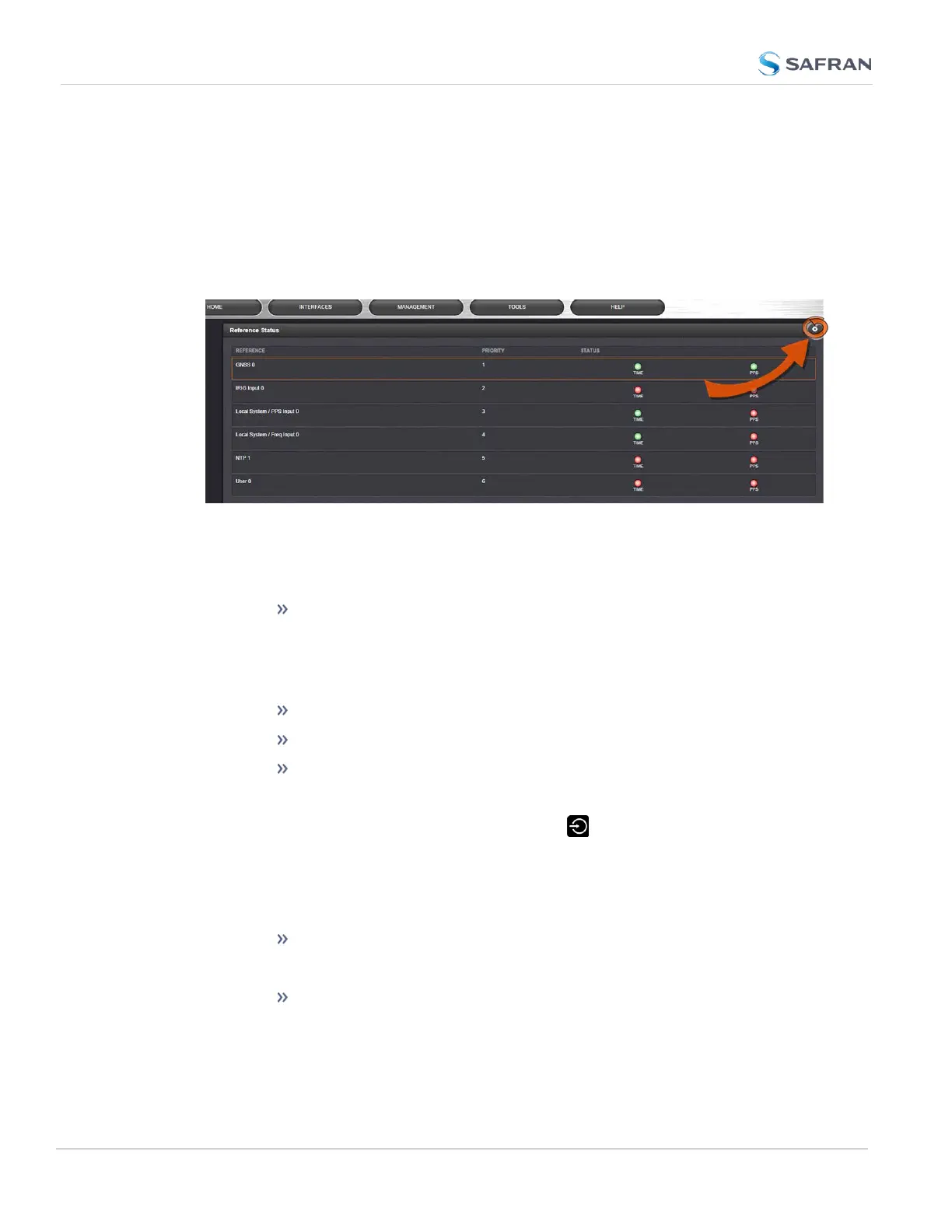
Accessing the Reference Priority Screen
To access the Reference Priority Setup screen:
1.
Navigate to MANAGEMENT > OTHER: Reference Priority.
OR:
1.
On the HOME screen, click the GEAR icon in the Reference Status panel:
2.
The Configure Reference Priorities screen will display.
The Reference Priority screen is divided into 3 areas:
a.
The Actions panel, which provides a single action:
Restore Factory Defaults
b.
The Configure Reference Priorities panel, which displays the priority of
SecureSync’s references in a table form.
In this panel you can:
Add and configure new references
Delete references
Enable/disable references
Note: It is also possible to disable and enable References via the
front panel display. Navigate to Inputs Menu > Settings and
select the reference you would like to enable or disable using the
ENTER key. You will then be able to edit the STATE to either on or
off. To confirm you choice, press the ENTER key Press ENTER
again in the confirmation menu.
Reorder the priority of SecureSync’s references
c.
The Reference Status panel
The Reference Status panel provides a real time indicator of the
status of the SecureSync’s references. It is the same as the Refer-
ence Status panel on the HOME screen of the Web UI.
206
CHAPTER 3 • SecureSync 2400 User Manual Rev. 5.2
3.3 Managing References



 To Next Page