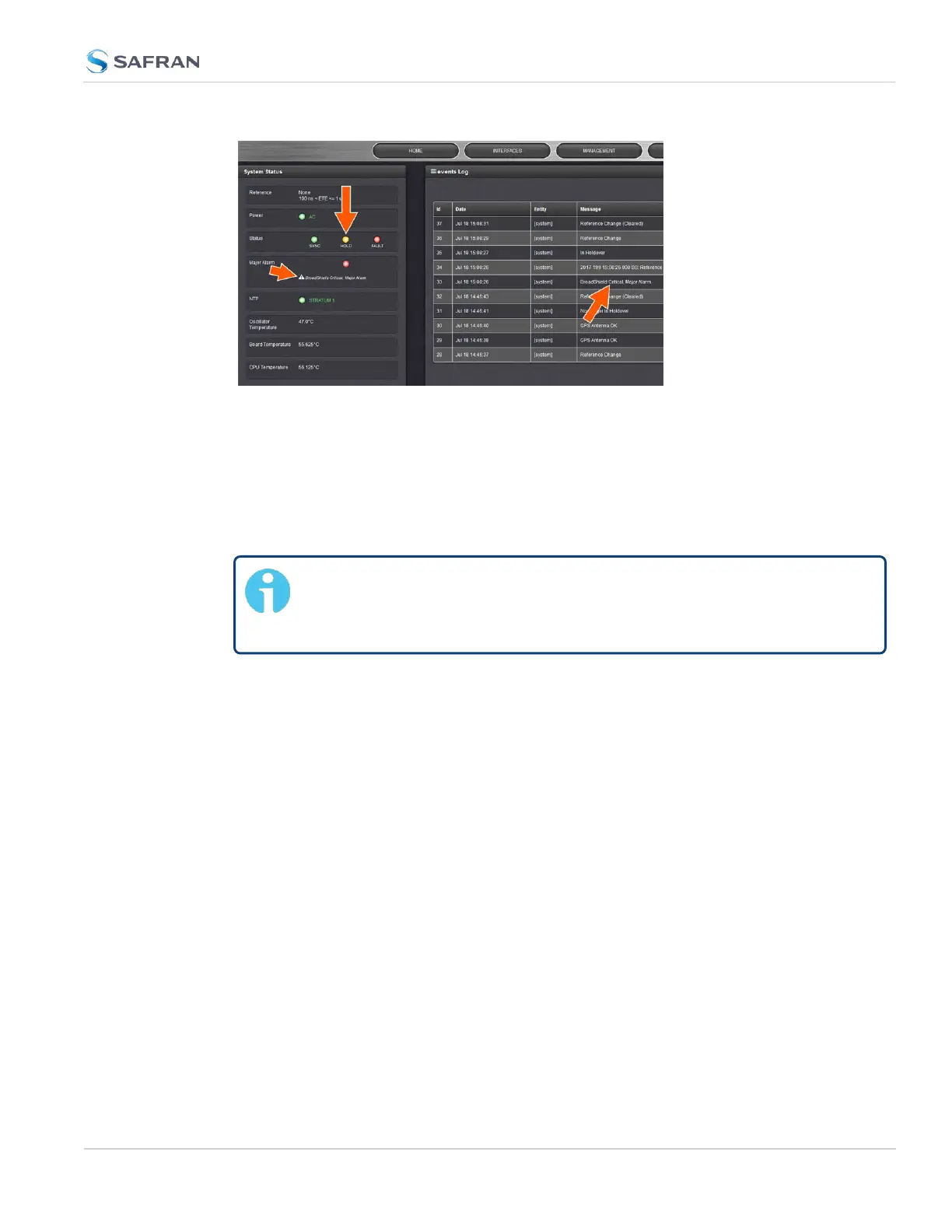
You can also configure a notification alarm, see "Enabling/Disabling the
BroadShield Service" on page217.
BroadShield Web UIMonitoring
The BroadShield Web UI will also display real time signal status information, or a
map status.
Note: If at any time you receive an error message Failed to connect
to the unit, the SecureSync Web UImay have timed out (see "Web UI
Timeout" on page282). Refresh your browser page to log back in.
To open the BroadShield user interface:
1.
Navigate to TOOLS: SYSTEM > Broadshield.
2. The embedded Broadshield Web UI will open, displaying the Dashboard
and providing access to the following panels:
DASHBOARD
The Dashboard panel displays up to 7 days of history data, and a real-time amp-
litude frequency spectrum. The headline background color indicates the current
jamming/spoofing status: red= jamming or spoofing detected; green = no alarms
at this time
3.3 Managing References
CHAPTER 3 • SecureSync 2400 User Manual Rev. 5.2
221



 To Next Page