5. To enter into a submenu body, press the down button. You will only be able
to highlight fields that can be changed.
6. If the field has arrows on either side of your selection, use the directional
arrow keys; OR:
7. If the line is highlighted, press the ENTER button to change a value, and use
the directional keys to obtain the desired setting.
8. Once your editing is done, press the ENTER button.
9. Press ENTER again to confirm your choice in the confirmation menu that
will appear on the right side of the screen.
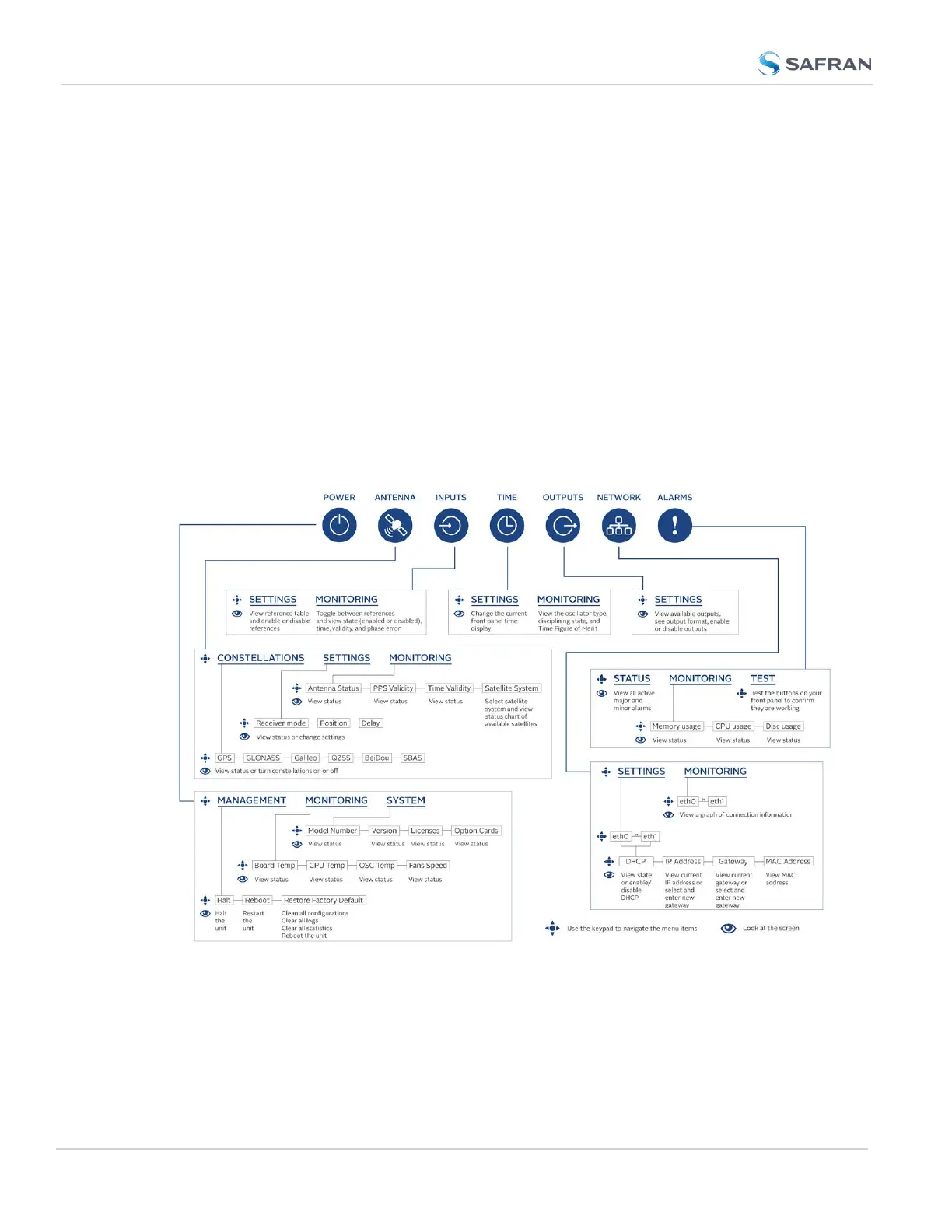
Front Panel Display: Menu Tree
The illustration below shows how the menu is organized, and which functions can
be accessed via the front panel (i.e. without using the Web UI):
Figure 1-4: Front panel menu tree
8
CHAPTER 1 • SecureSync 2400 User Manual Rev. 5.2
1.3 SecureSync Front Panel



 To Next Page