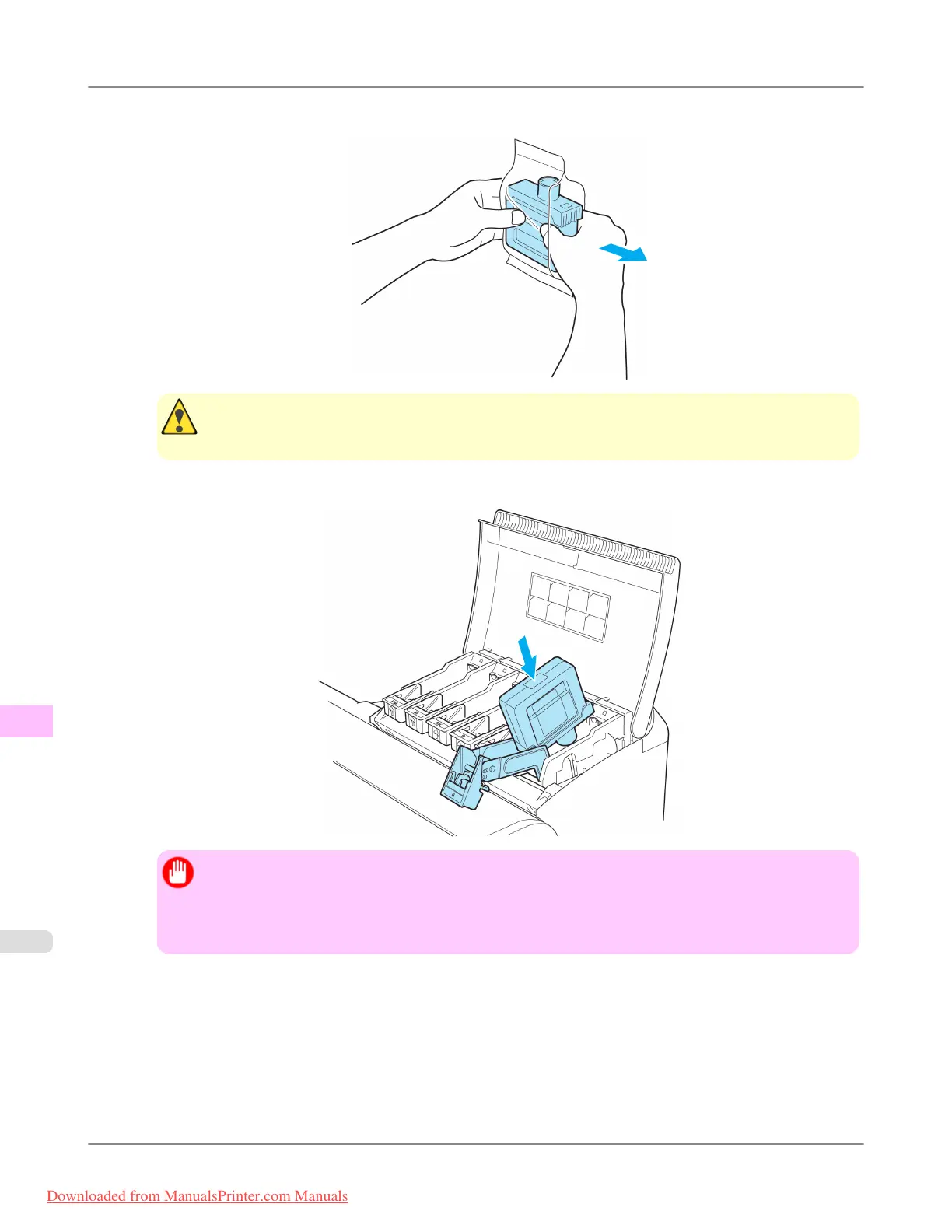
2. Open the pouch and remove the Ink Tank.
Caution
• Never touch the ink holes or electrical contacts. This may cause stains, damage the Ink Tank, and
affect printing quality.
3. Press the OK button and insert the Ink Tank into the holder facing as shown, with the ink holes down.
Important
• Ink tanks cannot be loaded in the holder if the color or orientation is incorrect.
If the Ink Tank does not fit in the holder, do not force it into the holder. Make sure the color of the
Ink Tank Lock Lever matches the color of the Ink Tank, and check the orientation of the Ink Tank
before reloading it.
Maintenance
>
Ink Tanks
>
Replacing Ink Tanks iPF8300
11
990
Downloaded from ManualsPrinter.com Manuals














 To Next Page