Sheet printing
Sheets refer to individual sheets of paper.
Insert the sheet between the Platen and the Paper Retainer.
• Enlarged/reduced printing
You can freely adjust the size of originals by enlarging or reducing originals before printing.
(See "Resizing Originals to Match the Paper Size.") →P.61
(See "Resizing Originals by Entering a Scaling Value.") →P.73
• Free Layout function
Print multiple documents from multiple applications (such as word-processing programs, spreadsheet programs, and so
on) next to each other.
(See "Printing Multiple Originals Next to Each Other.") →P.128
Loading and Printing on Rolls
These are the basic steps for loading and printing on rolls.
Follow these steps to load and print on rolls.
Note
• If you are not using the optional Media Take-up Unit when printing long documents such as banners, spread
a clean cloth or paper on the floor. Use the Output Stacker to prevent long printed documents from being
soiled by the floor after they are printed. (See "Using the Output Stacker.") →P.813
• For details on supported sizes and types of rolls, see Paper Sizes or the Paper Reference Guide. (See "Paper
Sizes.") →P.771 (See "Types of Paper.") →P.768
• If you prefer to wait for the ink to dry after printing and simply eject the document, you can deactivate auto-
matic cutting and cut the paper manually. (See "Specifying the Cutting Method for Rolls.") →P.794
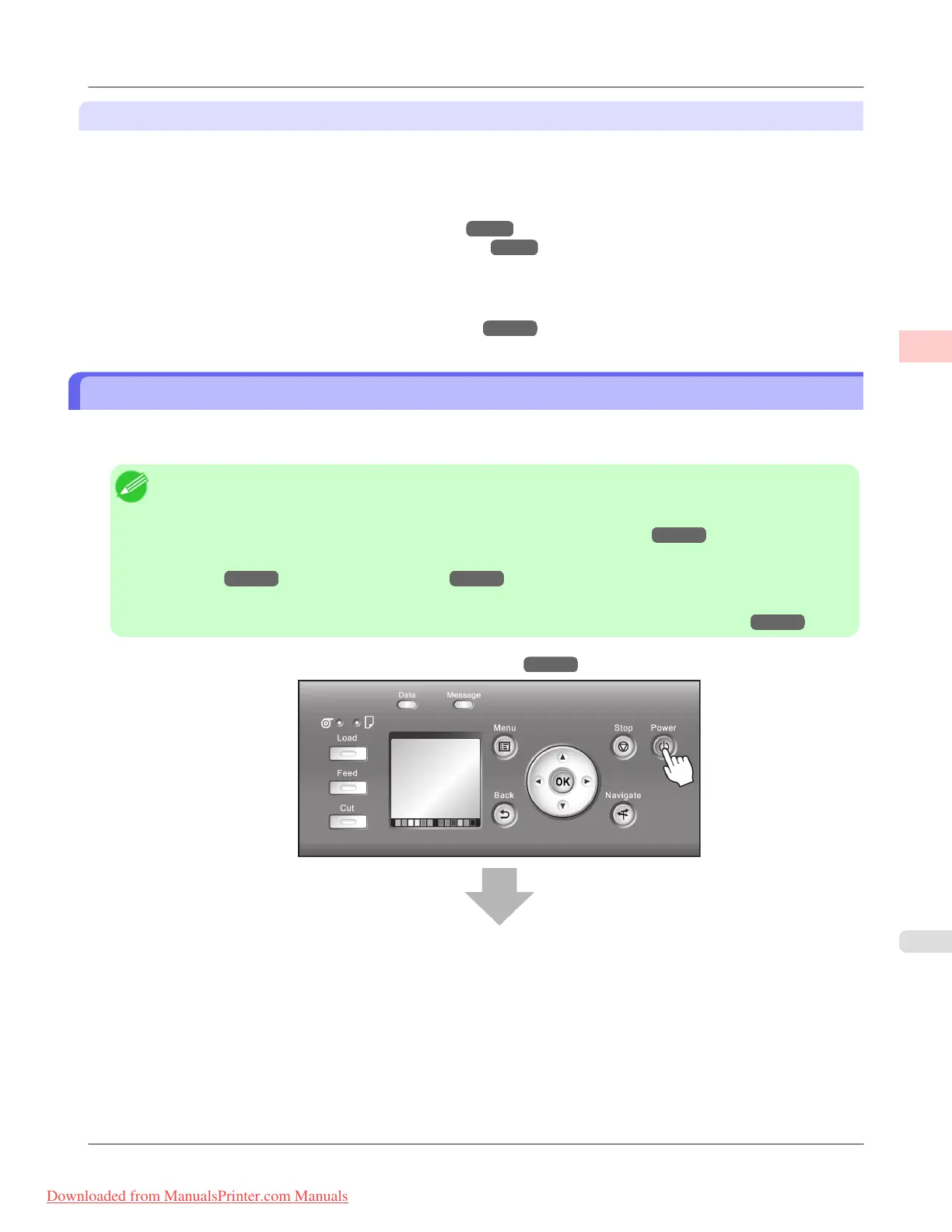
1. Turn the printer on. (See "Turning the Printer On and Off.") →P.893
Basic Printing Workflow
>
Printing procedure
>
iPF8300 Loading and Printing on Rolls
1
3
Downloaded from ManualsPrinter.com Manuals














 To Next Page