Cause Corrective Action
(See "Loading Rolls in the Print-
er.") →P.777
If this error recurs after you reload
the roll, remove the Roll Holder
from the printer, push the roll firmly
in until it touches the Roll Holder
flange, and reload the Roll Holder in
the printer.
(See "Attaching the Roll Holder to
Rolls.")
→P.774
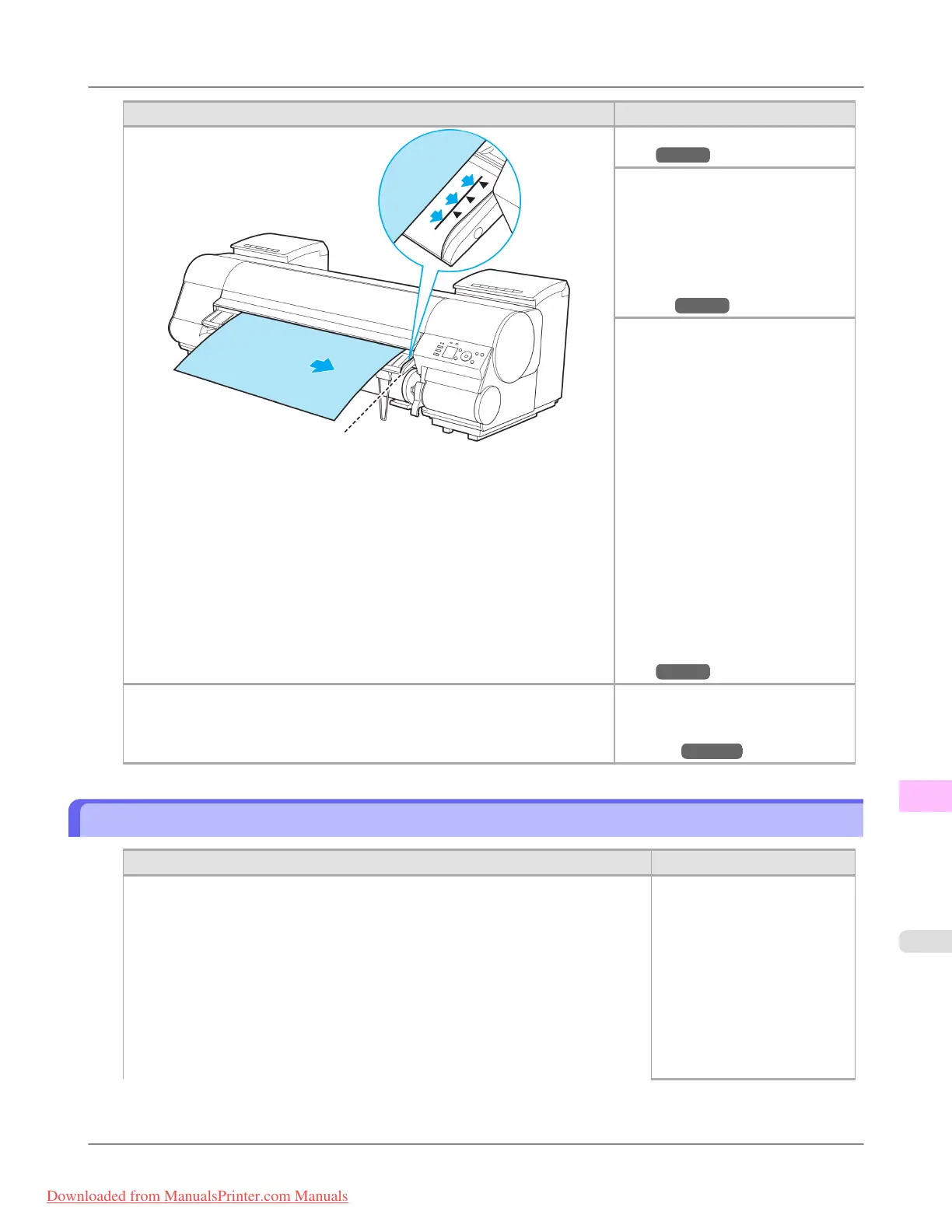
Follow these steps to reload the
sheet.
1. Lift the Release Lever.
2. Adjust the right edge of the sheet
to make it parallel to the right Pa-
per Alignment Line and the trail-
ing edge of the sheet to make it
parallel to the paper alignment
line under the Paper Retainer.
3. If "Not finished printing. Finish
printing remaining jobs?" is
shown on the Display Screen,
press the OK button.
Printing will resume, starting
from the page on which the error
occurred.
(See "Loading Sheets in the Print-
er.")
→P.802
Because the Platen is soiled with ink or other substances, the size of the clear
film cannot be detected.
Open the Top Cover and clean the
entire Platen.
(See "Cleaning Inside the Top
Cover.") →P.1026
Insufficient paper for job
Cause Corrective Action
The printer has received a print job longer than the amount of roll paper left when
ManageRemainRoll in the Control Panel menu is On.
Press ▲ or ▼ to select Print,
and then press the OK button
to resume printing.
When using the Media Take-
up Unit, press ▲ or ▼ to se-
lect Print, and then press the
OK button to resume printing.
However, the roll paper may
run out during the print job
and you may not be able to
print all of the document.
Error Message
>
Messages regarding paper
>
iPF8300 Insufficient paper for job
13
1085
Downloaded from ManualsPrinter.com Manuals














 To Next Page