Changing the Type of Paper
Follow these steps to change the type of paper specified on the printer after you have loaded paper.
If you will continue using this type of paper later, selecting Keep Paper Type > On will save the time and effort of config-
uring the media type setting when you load the paper again. The current media type settings before you select On will be
automatically selected at that time. (See "Using the Same Type of Paper Regularly.")
→P.785
Important
• For best printing results, the printer fine-tunes the feed amount for each type of paper. Be sure to select the
type of paper to use correctly before printing.
• Because the printer fine-tunes the feed amount for each type of paper, the margins and the size of printed
images may vary depending on the type of paper used. If margins and the size of images are not as you ex-
pected, adjust the paper feed amount.
(See "Adjusting the Feed Amount.") →P.845
Changing the Type of Paper
Note
• After you load a roll, the printer automatically shows a menu for selection of the type of paper on the Display
Screen. Select the type of paper and press the OK button.
If no barcode has been printed on the roll and you have set ManageRemainRoll to On, specify the roll
length after the type of paper. (See "Specifying the Paper Length.") →P.785
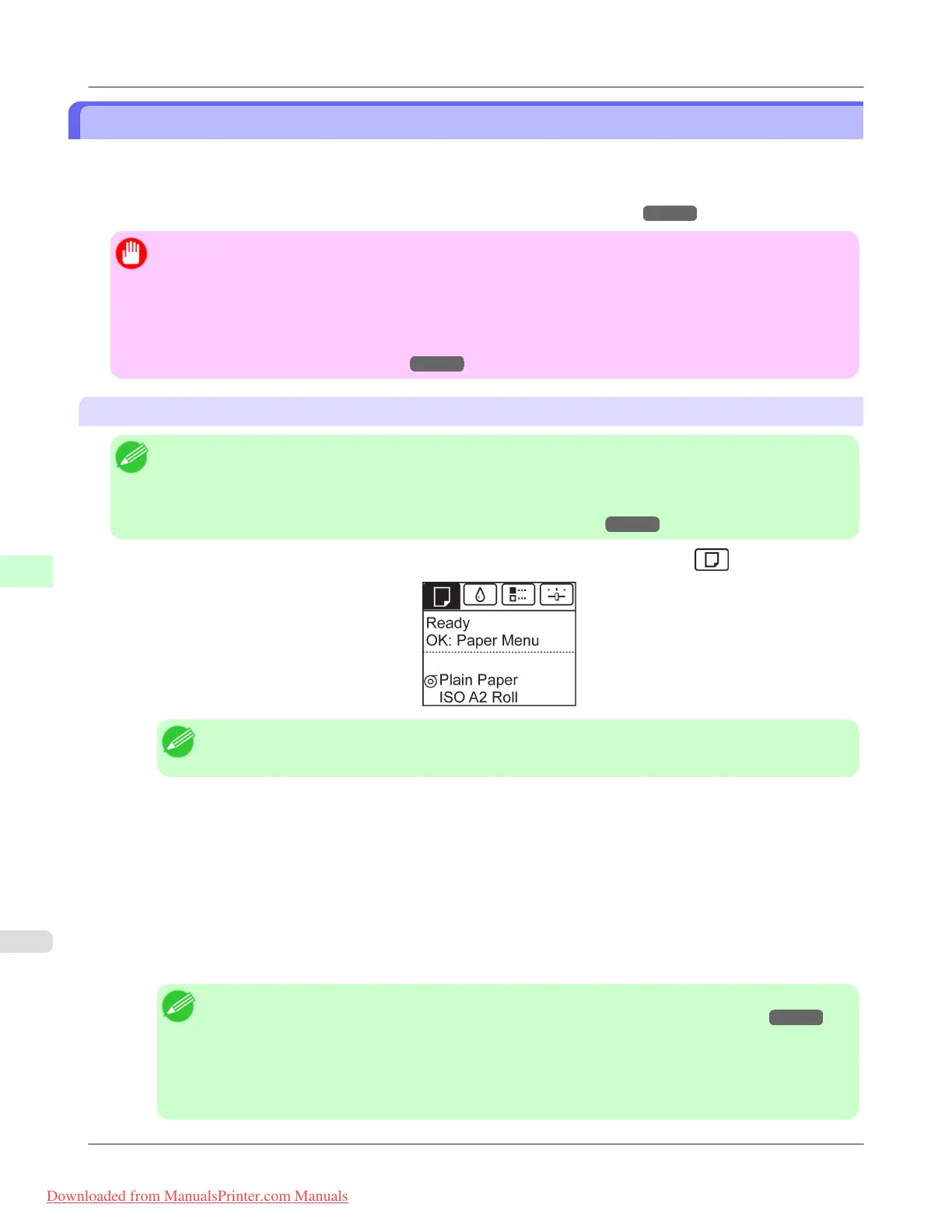
1. On the Tab Selection screen of the Control Panel, press ◀ or ▶ to select the Paper tab ( ).
Note
• If the Tab Selection screen is not displayed, press the Menu button.
2. Press the OK button.
The Paper Menu is displayed.
3. Press ▲ or ▼ to select Chg. Paper Type, and then press the OK button.
4. Press ▲ or ▼ to select the type of paper loaded ( Roll Paper or Cut Sheet ), and then press the OK button.
5. Press ▲ or ▼ to select the type of paper loaded in the printer, and then press the OK button.
Note
• For details on types of paper, see the Paper Reference Guide. (See "Types of Paper.") →P.768 By
default, Plain Paper is selected.
• If you move the Release Lever, the setting automatically reverts to the previously selected paper.
• Be sure to select the correct paper type. If this setting does not match the loaded paper, it may cause
feed errors and affect printing quality.
Handling Paper
>
Handling rolls
>
Changing the Type of Paper iPF8300
7
784
Downloaded from ManualsPrinter.com Manuals














 To Next Page