3. Enter name in Name.
Up to 31 characters can be entered.
4. Click . The name you entered is displayed in Registered Settings.
5. Click OK, and return to the Print screen.
6. Click Print to print, and click Cancel to cancel the print.
Note
• Clicking Cancel in the Print screen will not delete the registered settings.
Print Using Registered Settings (PowerPoint)
Prints using the registered settings.
1. Start Microsoft PowerPoint.
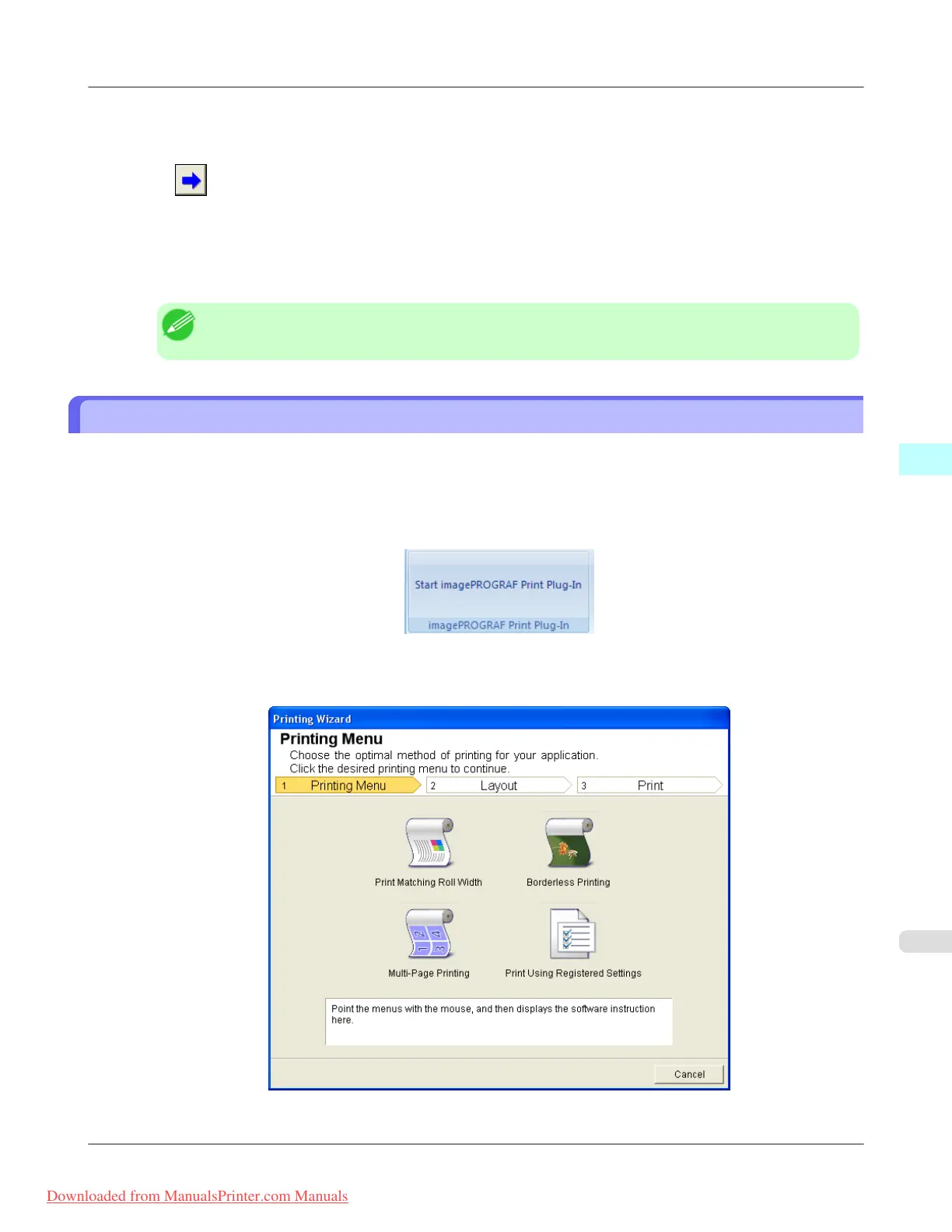
2. If Start imagePROGRAF Print Plug-In is displayed, click it.
3. Click Print from the imagePROGRAF Print Plug-In toolbar/ribbon.
The Printing Wizard dialog box is displayed.
Windows Software
>
Print Plug-In for Office
>
iPF8300 Print Using Registered Settings (PowerPoint)
4
403
Downloaded from ManualsPrinter.com Manuals














 To Next Page