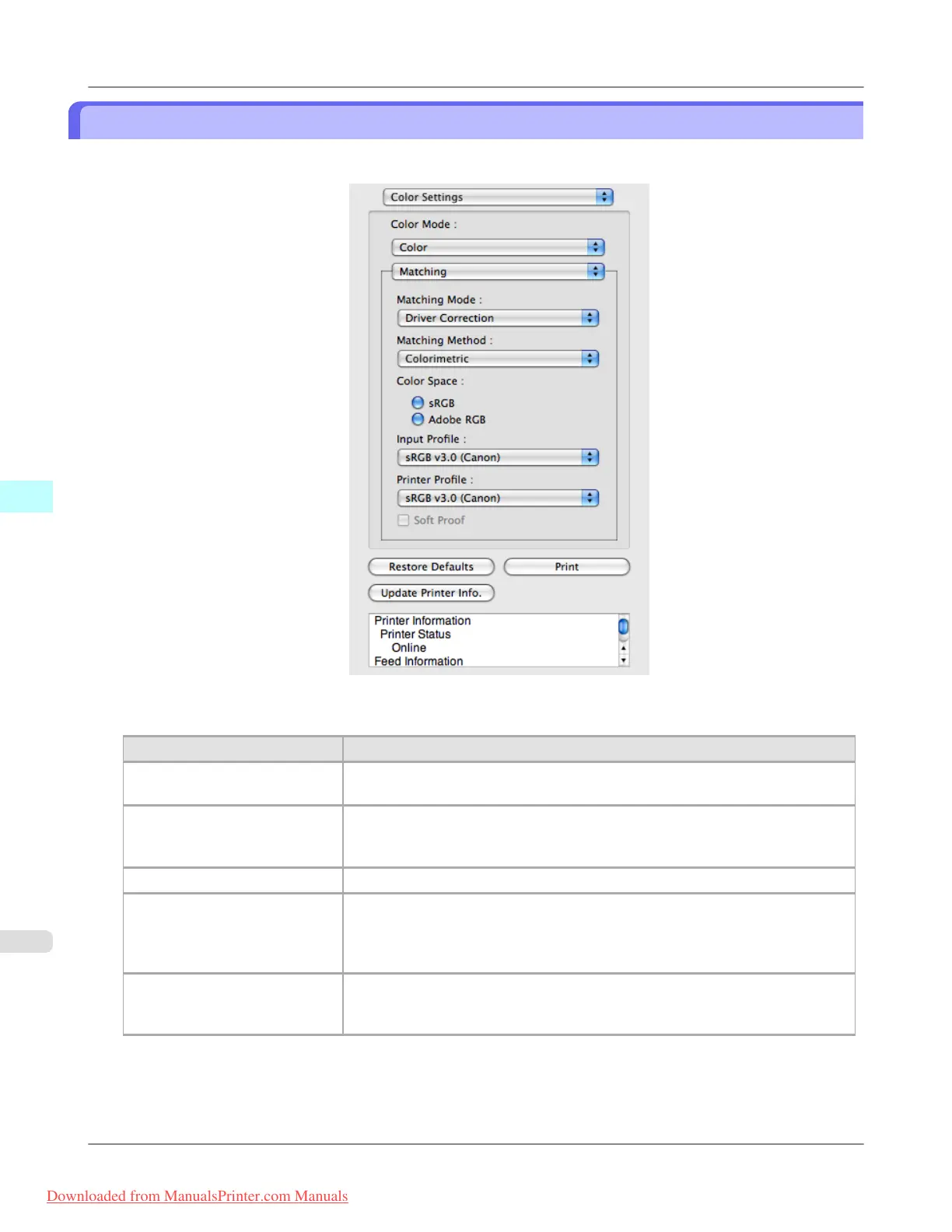
Driver Matching Mode
1. Under Matching Mode, select Driver Matching Mode.
2. Click the Matching Method list, and then select a setting.
Setting Details
Auto Automatically selects the best color matching method for each Image, Graphics,
Text.
Perceptual Color-matching optimized for printing typical photos attractively. Smooth grada-
tion is a feature. This is also an easy-to-use mode when performing color adjust-
ment using application software.
Saturation Color-matching optimized for printing posters, etc., vividly.
Colorimetric Color-matching optimized for printing image data with accurate colors in input
color space. This is the easiest-to-use mode when you want to adjust the color and
print. However, gradation may be lost for colors of wider range than the color re-
production range of the printer. Generally, this is also called relative colorimetric.
Perceptual (People, Dark
Areas)
Color-matching optimized for printing subdued photos such as indoor shots of
people or dark scenes. Along with preventing the gradation loss of dark areas, you
can realize photos of people in warm tones.
Mac OS X Software
>
Free Layout
>
Driver Matching Mode iPF8300
5
560
Downloaded from ManualsPrinter.com Manuals














 To Next Page