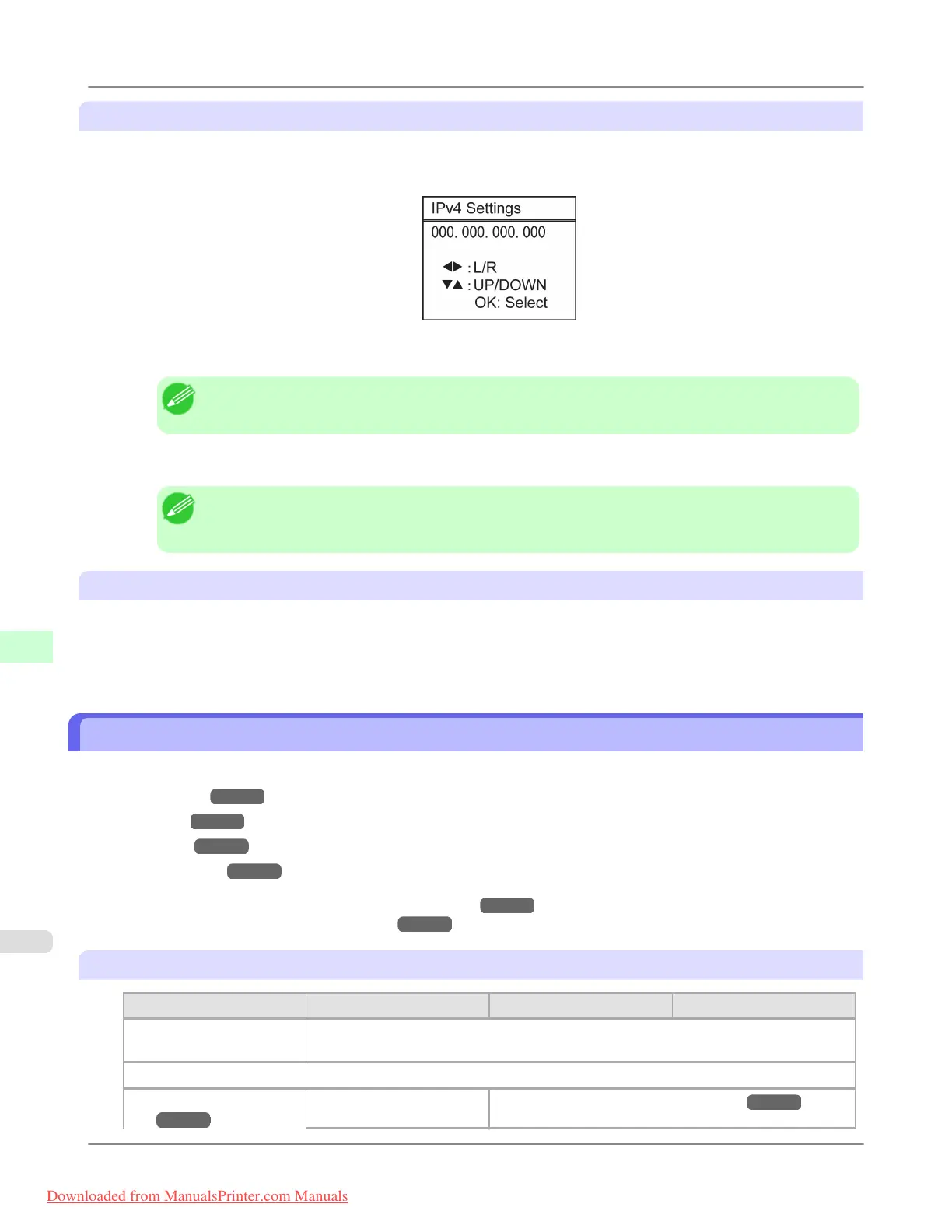
Specifying numerical values
Follow these steps to enter numbers. In this example, network settings items are entered.
1. Press the ◀ or ▶ button to move to the next field for input.
2. Press the ▲ or ▼ button to enter the value.
Note
• Hold down ▲ or ▼ to increase or decrease the value continuously.
3. Repeat steps 1 and 2 to complete the settings, and then press the OK button.
Note
• If a confirmation message is displayed regarding the setting you entered, press the OK button. The
setting is applied, and the printer is now in Standby.
Executing menu commands
Menu commands can be executed as follows.
1. Press ▲ or ▼ to select the action to execute, and then press the OK button.
The menu command is now executed.
Menu Structure
The menu structure is organized by tabs, as follows. Values at right indicated by an asterisk are the defaults.
• Paper Menu →P.904
• Ink Menu →P.906
• Job Menu →P.906
• Set./Adj. Menu →P.907
For instructions on menu operations, see "Menu Operations." →P.902
For details on menu items, see "Menu Settings." →P.912
Paper Menu
First Level
Second Level Third Level Fourth Level
Load Paper Roll Paper
Cut Sheet
Eject Paper
Chg. Paper Type
(*1 →P.906 )
Roll Paper (The type of paper is displayed here.) (*1 →P.906 )
Printer Parts
>
Control Panel
>
Menu Structure iPF8300
9
904
Downloaded from ManualsPrinter.com Manuals














 To Next Page