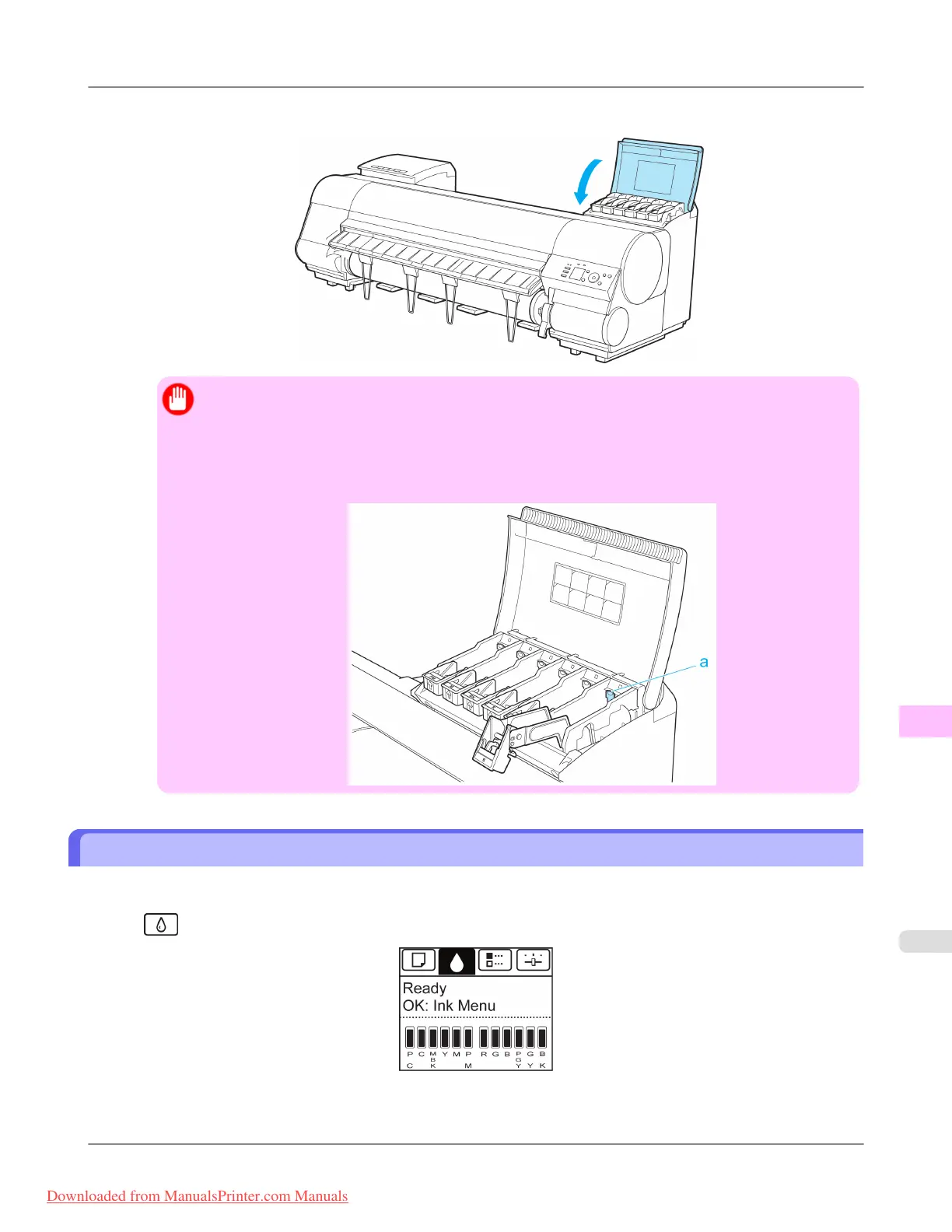
6. Close the Ink Tank Cover.
Important
• After Ink Tank replacement, always close the Ink Tank Cover. If the Ink Tank Cover cannot close,
some Ink Tank Lock Lever may not be closed completely. Make sure all ink tank lock levers are fully
closed.
• To close the Ink Tank Cover when no Ink Tank is installed (as when moving the printer), push the
release lever (a) as shown while returning the Ink Tank Lock Lever to the original position.
Checking Ink Tank Levels
On the Display Screen, you can check how much ink is left in the ink tanks.
To check remaining Ink Tank levels, access the Tab Selection screen on the Control Panel and press ◀ or ▶ to select the
Ink tab (
).
Maintenance
>
Ink Tanks
>
iPF8300 Checking Ink Tank Levels
11
995
Downloaded from ManualsPrinter.com Manuals














 To Next Page