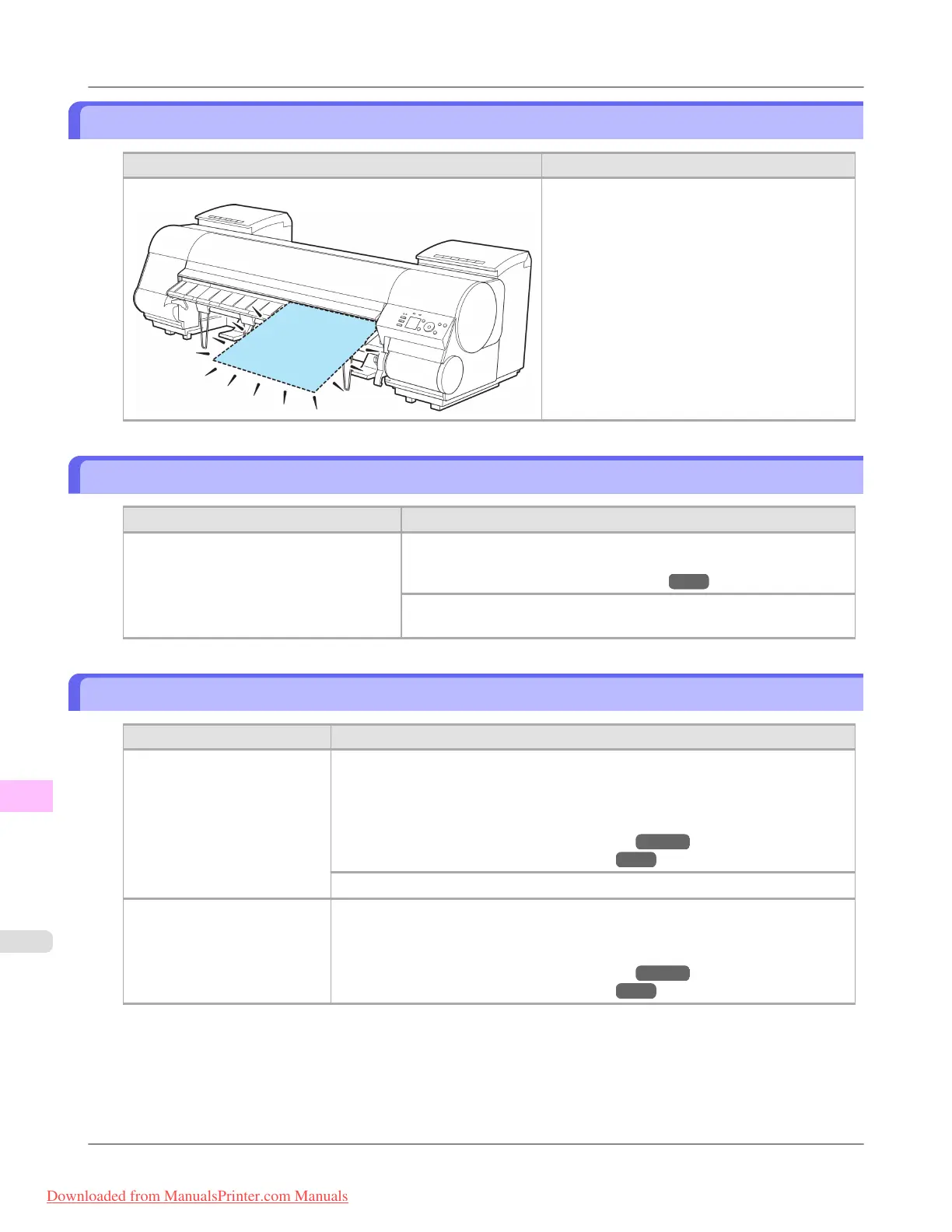
No sheets.
Cause Corrective Action
A sheet has come out of the printer during printing.
1. Lift the Release Lever and remove the paper.
2. If "Not finished printing. Finish printing re-
maining jobs?" is shown on the Display
Screen, press the OK button.
Printing will resume, starting from the page
on which the error occurred.
Sheet printing is selected.
Cause Corrective Action
You have attempted to print on a sheet, but
no sheet is loaded.
Press ▲ or ▼ to select Load Paper, and then press the OK button. Load
a sheet, and then print.
(See "Loading and Printing on Sheets.") →P.6
Press ▲ or ▼ and select Stop Printing or press the Stop button to stop
printing.
Regular printing is selected, but a roll is loaded.
Cause Corrective Action
A print job for printing on
sheets was sent when a roll is
loaded.
1. Press ▲ or ▼ to select Remove Roll Paper, and then press the OK button to
stop printing.
2. After removing the roll, load and print on a sheet of the type and size of paper you
have specified in the printer driver.
(See "Removing the Roll from the Printer.")
→P.786
(See "Loading and Printing on Sheets.")
→P.6
Press ▲ or ▼ to select Stop Printing, and then press the OK button to stop printing.
You are using a roll with the
Media Take-up Unit, but a
print job requiring sheets was
sent.
1. Press the OK button to stop printing.
2. After removing the roll, load and print on a sheet of the type and size of paper you
have specified in the printer driver.
(See "Removing the Roll from the Printer.")
→P.786
(See "Loading and Printing on Sheets.") →P.6
Error Message
>
Messages regarding paper
>
No sheets. iPF8300
13
1088
Downloaded from ManualsPrinter.com Manuals














 To Next Page