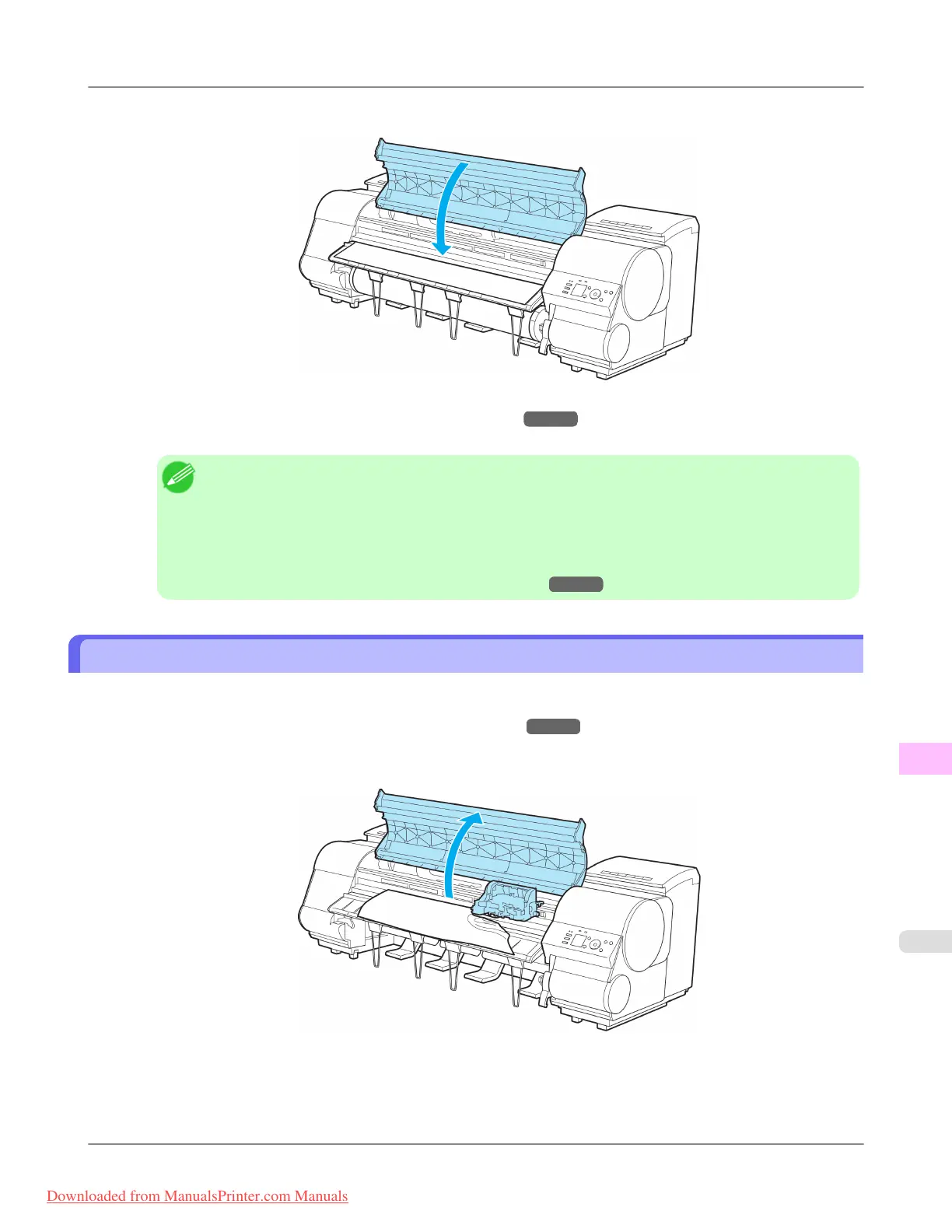
8. Close the Top Cover.
9. Turn the printer on. (See "Turning the Printer On and Off.") →P.893
The roll is now advanced. After it is finished being advanced, you can resume printing.
Note
• To ensure that the edge is cut more neatly, follow these steps to cut it.
1. Press the Feed button.
2. Hold down the ▼ button to advance the paper.
3. Press the Cut button, and then select Yes to cut the edge.
(See "Specifying the Cutting Method for Rolls.")
→P.794
Clearing a Jammed Sheet
If a sheet jams, follow the steps below to remove it.
1. Turn the printer off. (See "Turning the Printer On and Off.")
→P.893
2. Open the Top Cover.
Troubleshooting
>
Problems Regarding Paper
>
iPF8300 Clearing a Jammed Sheet
12
1047
Downloaded from ManualsPrinter.com Manuals














 To Next Page