Note
• If the Tab Selection screen is not displayed, press the Menu button.
2. Press the OK button.
The Paper Menu is displayed.
3. Press ▲ or ▼ to select Chg. Paper Size, and then press the OK button.
4. Press ▲ or ▼ to select Roll Length, and then press the OK button.
5. Press ▲ or ▼ to select the length of paper loaded in the printer, and then press the OK button.
Specify the roll length as follows.
1. Press the ◀ or ▶ button to move to the next field for input.
2. Press the ▲ or ▼ button to enter the value.
3. Repeat steps 1 and 2 to finish entering the value, and then press the OK button.
Removing the Roll from the Printer
Remove rolls from the printer as follows.
Note
• If you need to cut the roll, see "Specifying the Cutting Method for Rolls." →P.794
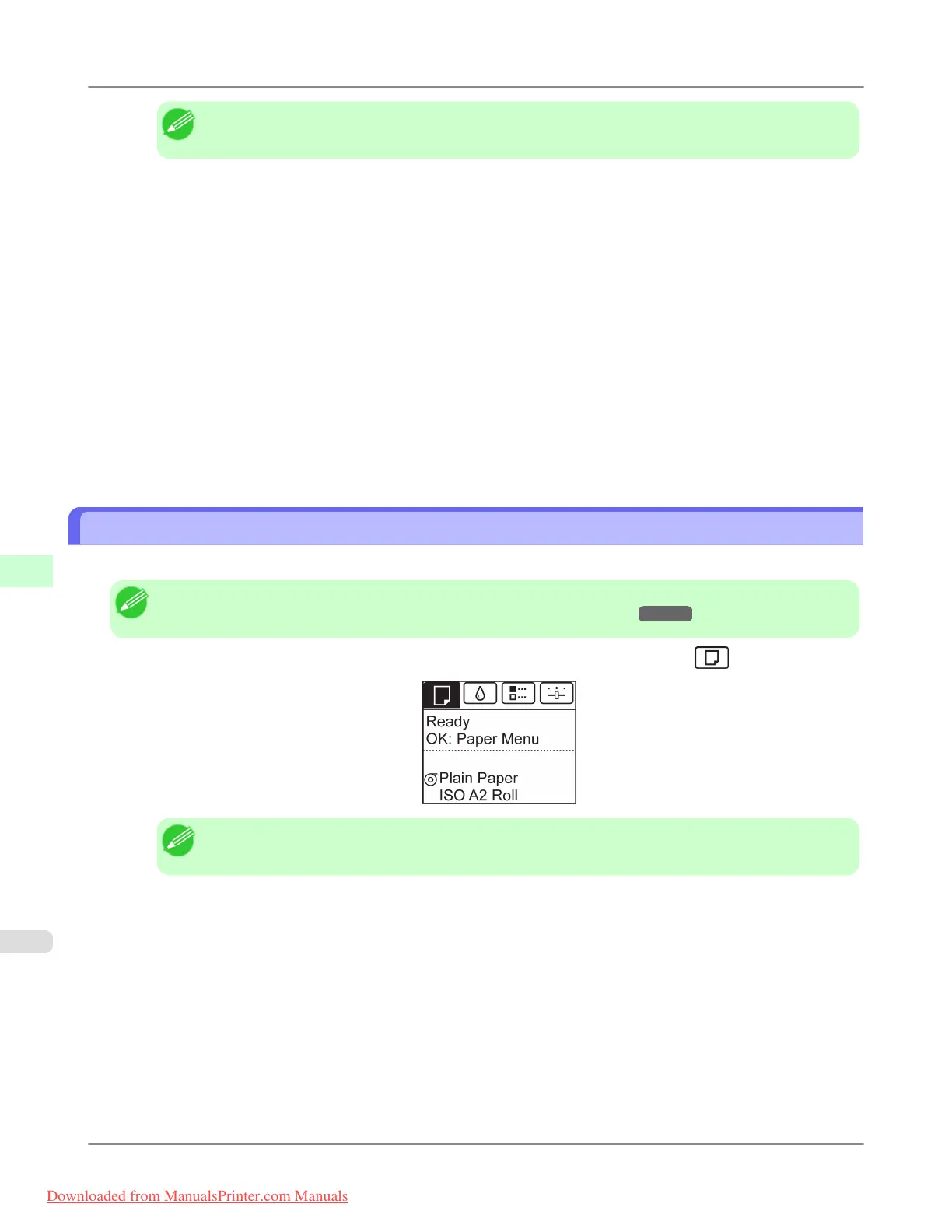
1. On the Tab Selection screen of the Control Panel, press ◀ or ▶ to select the Paper tab ( ).
Note
• If the Tab Selection screen is not displayed, press the Menu button.
2. Press the OK button.
The Paper Menu is displayed.
3. Press ▲ or ▼ to select Eject Paper, and then press the OK button.
Handling Paper
>
Handling rolls
>
Removing the Roll from the Printer iPF8300
7
786
Downloaded from ManualsPrinter.com Manuals














 To Next Page