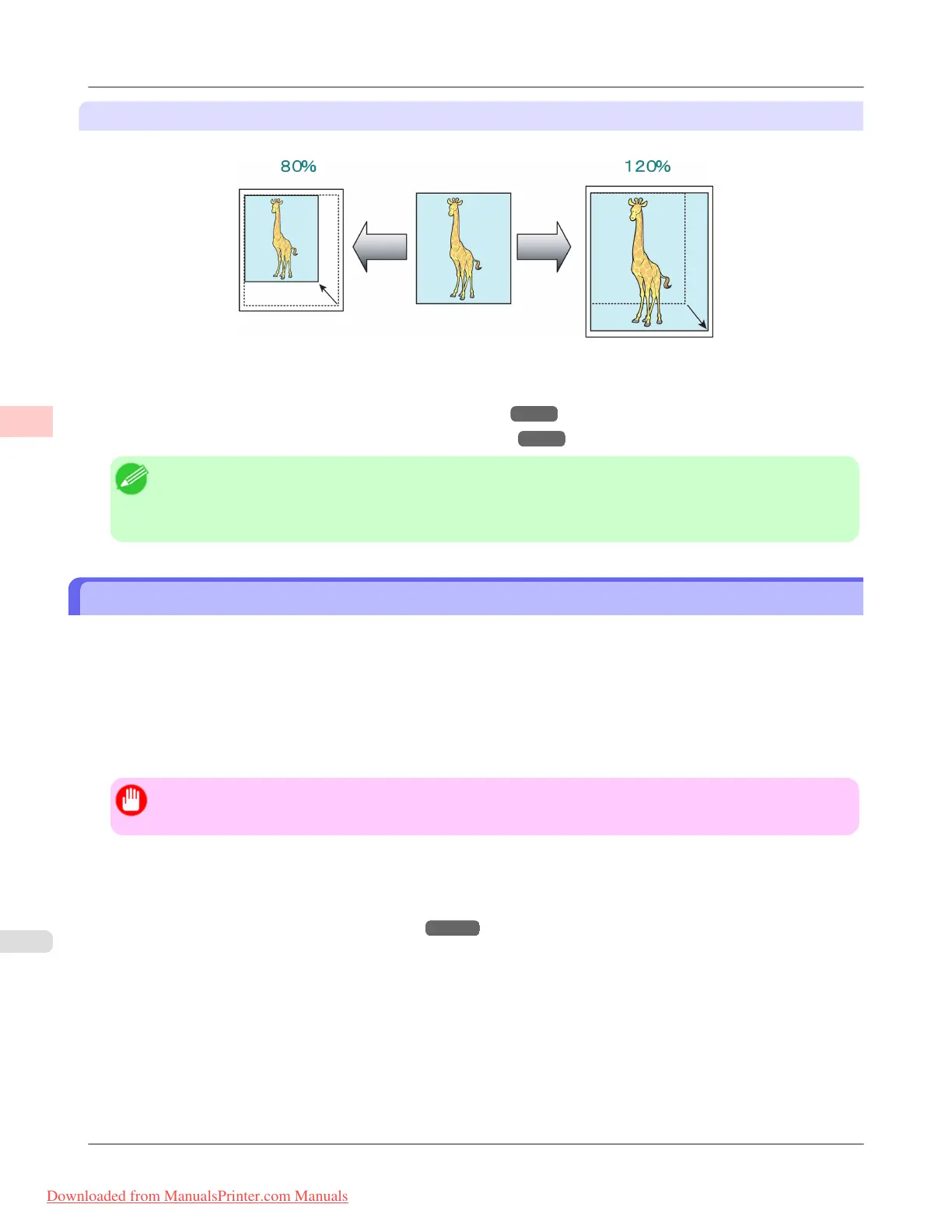
Scaling
Enlarge or reduce originals by a particular amount, as desired.
For instructions on entering a scaling value to resize originals, refer to the following topics, as appropriate for your comput-
er and operating system.
• Resizing Originals by Entering a Scaling Value (Windows)
→P.74
• Resizing Originals by Entering a Scaling Value (Mac OS X) →P.76
Note
• For better printing results when enlarging photos from a digital camera in TIFF or JPEG format, use an im-
age-editing application software such as Adobe Photoshop to specify an image resolution of 150 dpi or more
at actual size.
Resizing Originals by Entering a Scaling Value (Windows)
This topic describes how to enlarge originals before printing by entering a scaling value, based on the following example.
• Document: Any Type
• Page size: A4 (210.0 × 297.0 mm [8.3 × 11.7 in])
• Paper: Roll paper
• Paper type: Plain Paper
• Roll paper width: A2/A3 roll (420.0 mm [16.5 in])
Important
• In borderless printing, you cannot resize originals by entering a scaling value.
1. Choose Print in the application menu.
2.
Select the printer in the dialog box, and then display the printer driver dialog box.(See "Accessing the Printer Driv-
er Dialog Box from Applications (Windows)
→P.205 ")
Enhanced Printing Options
>
Printing enlargements or reductions
>
Resizing Originals by Entering a Scaling Value (Windows) iPF8300
3
74
Downloaded from ManualsPrinter.com Manuals




 To Next Page