Configuring the Printer's TCP/IP Network Settings
Follow the steps below to configure the TCP/IP network settings.
When using an IPv4 IP address
1. Start the web browser and enter the following URL in the Location (or Address ) box to display the RemoteUI
page.
http://printer IP address or name/
Example: http://xxx.xxx.xxx.xxx/
2. Select Administrator Mode and click Logon.
3. If a password has been set on the printer, enter the password.
4. Click Network in the Device Manager menu at left to display the Network page.
5. Click Edit in the upper-right corner of the TCP/IPv4 group to display the Edit TCP/IP Protocol Settings page.
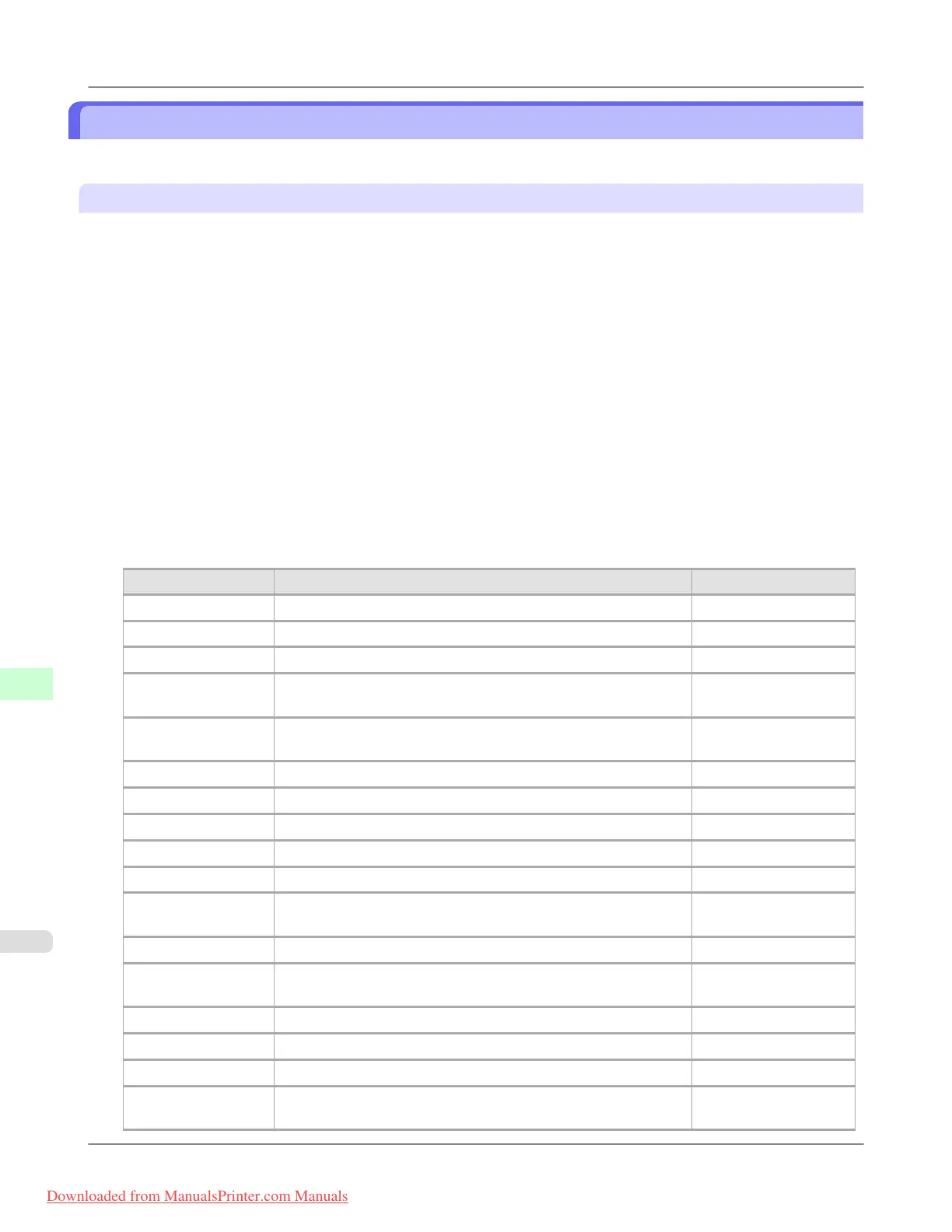
6. Refer to the TCP/IP Settings Items table to complete the settings.
TCP/IP Settings Items
Item Details Default Setting
Use DHCP Activate this setting to use DHCP for configuring the IP address. Off
Use BOOTP Activate this setting to use BOOTP for configuring the IP address. Off
Use RARP Activate this setting to use RARP for configuring the IP address. Off
Enable DNS Dy-
namic Update
Activate this setting to perform DNS server registration automati-
cally.
Off
Use Zeroconf Func-
tion
Activate this setting to use Bonjour. On
IP Address Specify the printer's IP address. 0.0.0.0
Subnet Mask Specify the printer's subnet mask. 0.0.0.0
Gateway Address Specify the printer's default gateway. 0.0.0.0
LPD Printing Activate this setting to use LDP Printing. On
IPP Printing Activate this setting to use IPP Printing. On
IPP Printer URI Specify the URI of the printer used for IPP printing using up to
252 characters.
printer
RAW Printing Activate this setting to use Raw Printing. On
RAW Mode Bi-di-
rection
Activate this setting to use Raw mode bidirectional communica-
tion.
Off
FTP Printing Activate this setting to use FTP Printing. On
Use Discovery Activate this setting to use SLP Discovery function. On
Scope Enter the SLP search range. default
SMTP Server Ad-
dress
Specify the SMTP server's IP address.
You can also specify the SMTP server domain name, if desired.
0.0.0.0
Network Setting
>
Network Setting
>
Configuring the Printer's TCP/IP Network Settings iPF8300
10
956
Downloaded from ManualsPrinter.com Manuals














 To Next Page