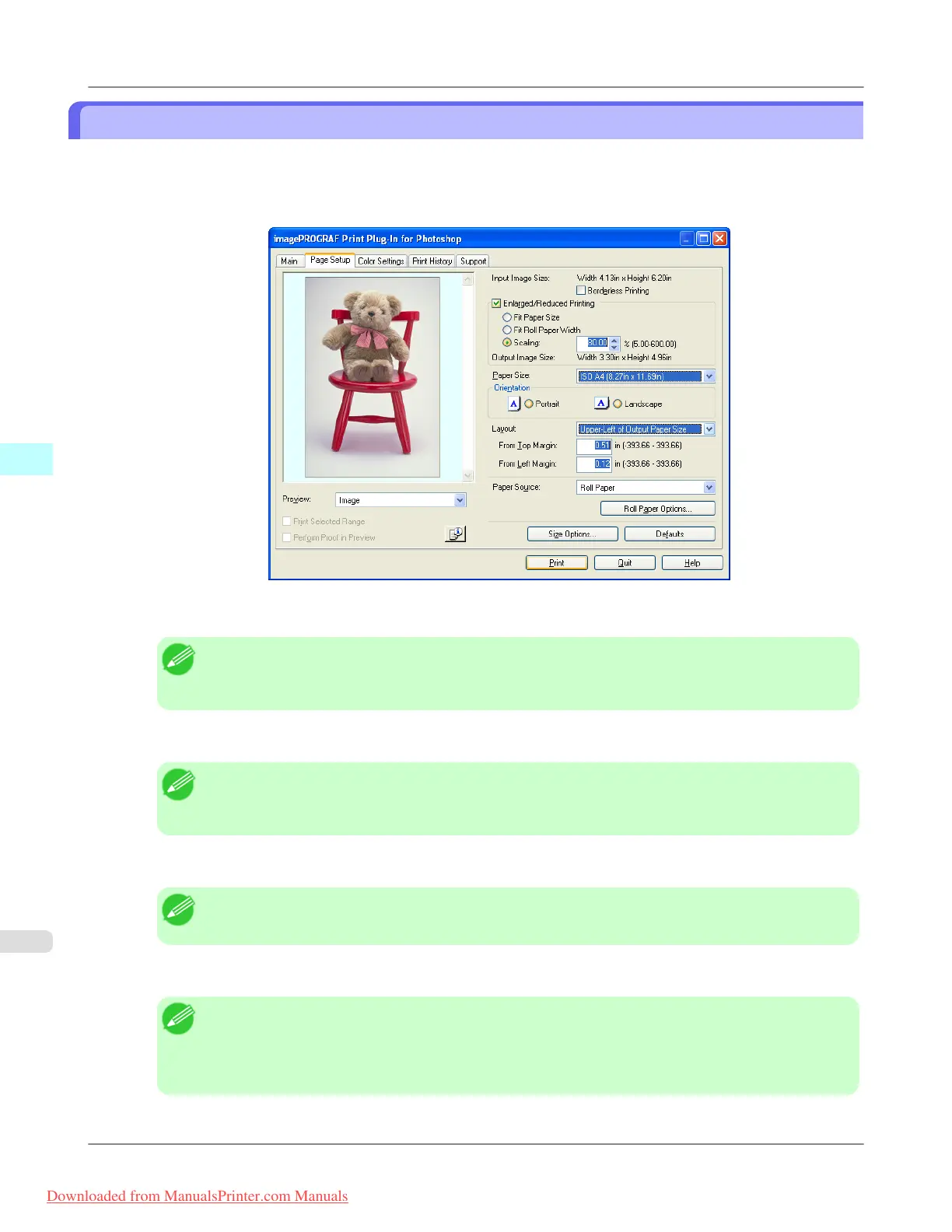
Specify Scaling, Enlarge/Reduce and Print
You can specify scaling to enlarge/reduce an image and print. This is useful when you wish to print an image at a specific
size.
1. Display the Page Setup sheet.
2. Select the size of the media that you want to print in Paper Size.
Note
• This is not displayed when a checkmark is placed in Borderless Printing.
• Fit Roll Paper Widthis set in Enlarged/Reduced Printing.
3. Select either Portrait or Landscape as the media orientation for the image in Orientation.
Note
• When you select Portrait, the image on the media prints as it appears on the screen.
• When you select Landscape, the image on the media prints rotated 90 degrees.
4. Click the Enlarged/Reduced Printing check box on.
Note
• This is not displayed when a checkmark is placed in Borderless Printing.
5. Select Scaling and input the scaling factor or drag the four corners of the image in the Preview display.
Note
• You can specify scaling rate in intervals of 0.01%.
• You can specify a range between 5.00-600.00%.
• The size of the width and height proportionally grow when the image is enlarged/reduced.
Windows Software
>
Print Plug-In for Photoshop/Digital Photo Professional
>
Specify Scaling, Enlarge/Reduce and Print iPF8300
4
350
Downloaded from ManualsPrinter.com Manuals














 To Next Page