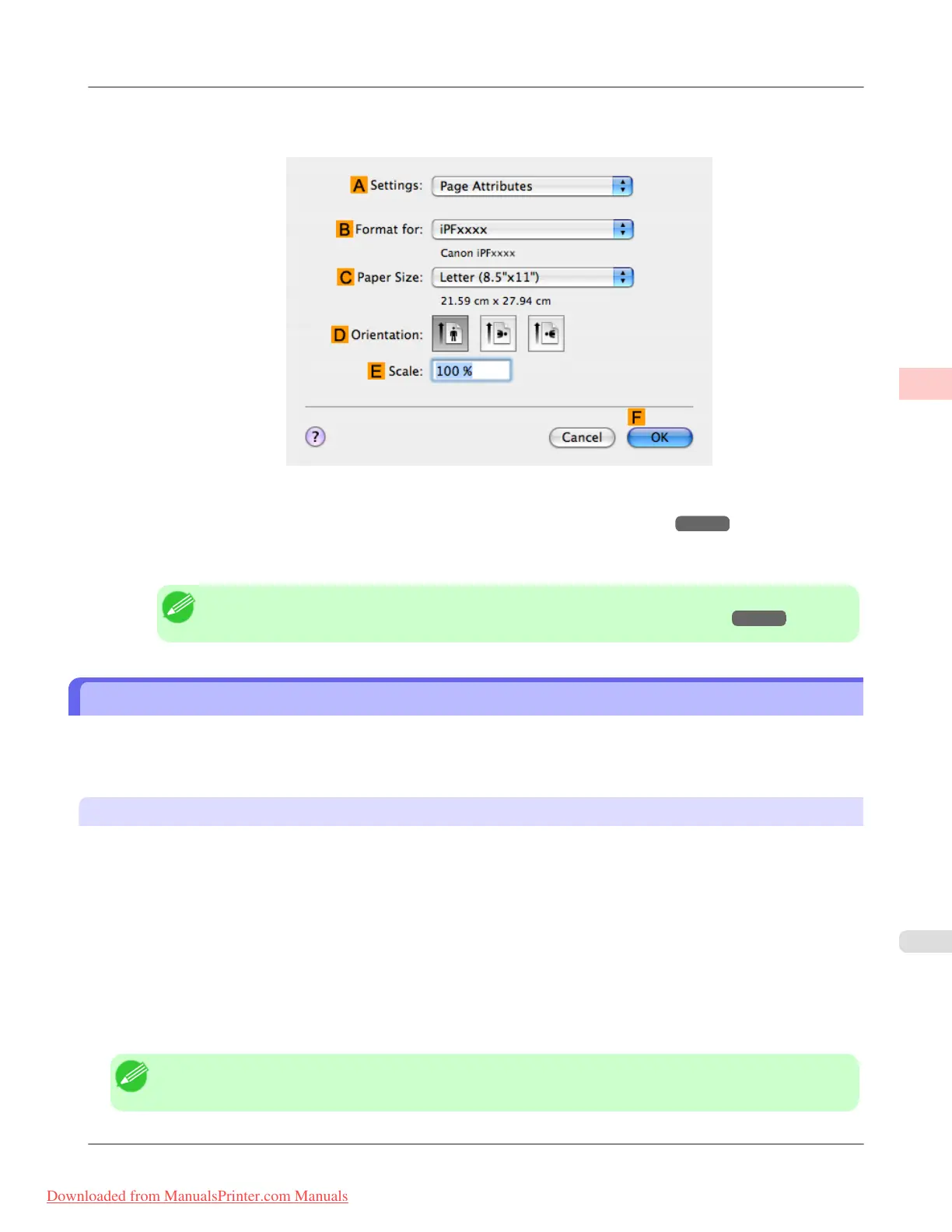
12. Make sure CPage Size on the Page Setup pane shows the original size as specified in C Paper Size in the Page
Attributes dialog box—in this case, 10"x12".
13. Specify additional printing conditions.
For details on available printing conditions, see "Printer Driver Settings (Mac OS X) →P.478 "
14. Confirm the print settings, and then click M Print to start printing.
Note
• For tips on confirming print settings, see "Confirming Print Settings (Mac OS X) →P.482 "
Printing from Photoshop
You can print images in the Adobe RGB color space that you have created in Photoshop, the Adobe Systems photo retouch-
ing application. Using the dedicated Photoshop printer driver plug-in (provided with the printer) makes it easy to print
Adobe RGB images more attractively.
Using the Plug-in to Print
The imagePROGRAF Print Plug-In for Photoshop is a dedicated plug-in provided with the printer that you can load in Pho-
toshop and customize for your printing needs. By using the plug-in, you can print while preserving the 16-bit RGB data
from Photoshop without losing the exceptional color gradations of original image. Some of the settings and customizations
available in the plug-in are as follows.
• Automatic detection of the color space (sRGB or Adobe RGB) for automatic selection of the optimal profile. This fea-
ture eliminates the need to complete intricate settings when printing Adobe RGB images.
• Advanced gray adjustment, including adjustment of tone curves, in addition to an array of standard adjustments for
color balance, brightness, contrast, highlight, and shadow.
• Fine-tune color tones in Photoshop while viewing a preview that accurately reproduces printing results.
• With print log management, you can save and load setting parameters from past print jobs.
Note
• imagePROGRAF Print Plug-In for Photoshop for Windows and Macintosh are provided with the printer.
Working With Various Print Jobs
>
Printing Photos and Images
>
iPF8300 Printing from Photoshop
2
25
Downloaded from ManualsPrinter.com Manuals














 To Next Page