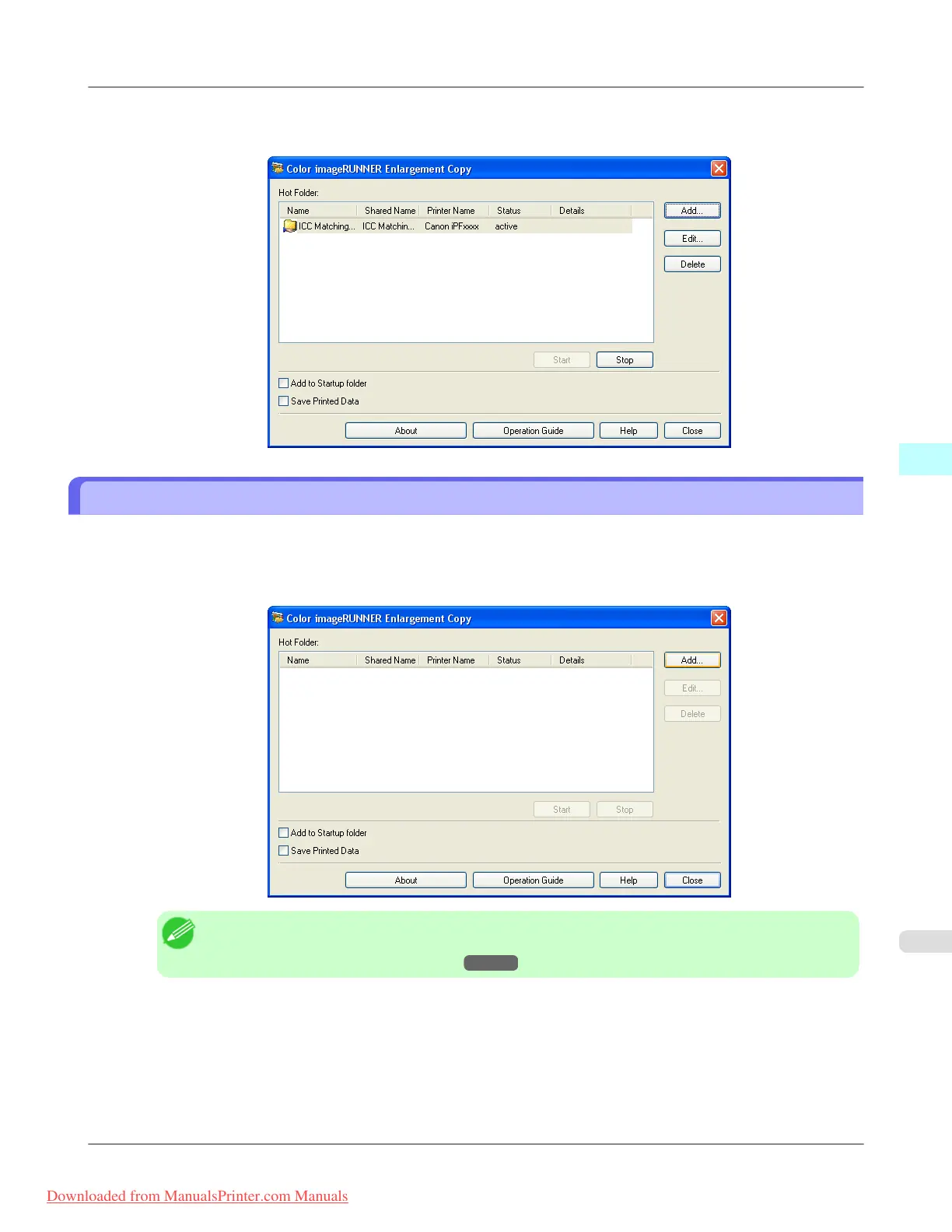
The hot folder you have created appears in the Hot Folder list in the Color imageRUNNER Enlargement Copy
dialog box.
Specifying an Existing Shared Folder as a Hot Folder
1. Share the folder you want to specify as a hot folder.
2. Open the Color imageRUNNER Enlargement Copy dialog box, and then click the Add button.
Note
• For the step to open the Color imageRUNNER Enlargement Copy dialog box, see "Starting Color
imageRUNNER Enlargement Copy." →P.285
Windows Software
>
Color imageRUNNER Enlargement Copy
>
iPF8300 Specifying an Existing Shared Folder as a Hot Folder
4
293
Downloaded from ManualsPrinter.com Manuals














 To Next Page