Setting Item Description, Instructions
Printer Info
System Info Indicates the firmware version, serial number, and inter-
face information.
Error Log Indicates the most recent error messages (up to five).
Other Counter Indicates the total printing volume of the printer.
Status Print
You can print a Status Print report indicating the current status of the printer.
With Status Print, information is printed regarding the printer firmware version, various settings, and the status of consum-
ables.
Printing Status Print reports
1. Load paper.
When using sheets, load paper of A4/Letter size. You will need at least four sheets.
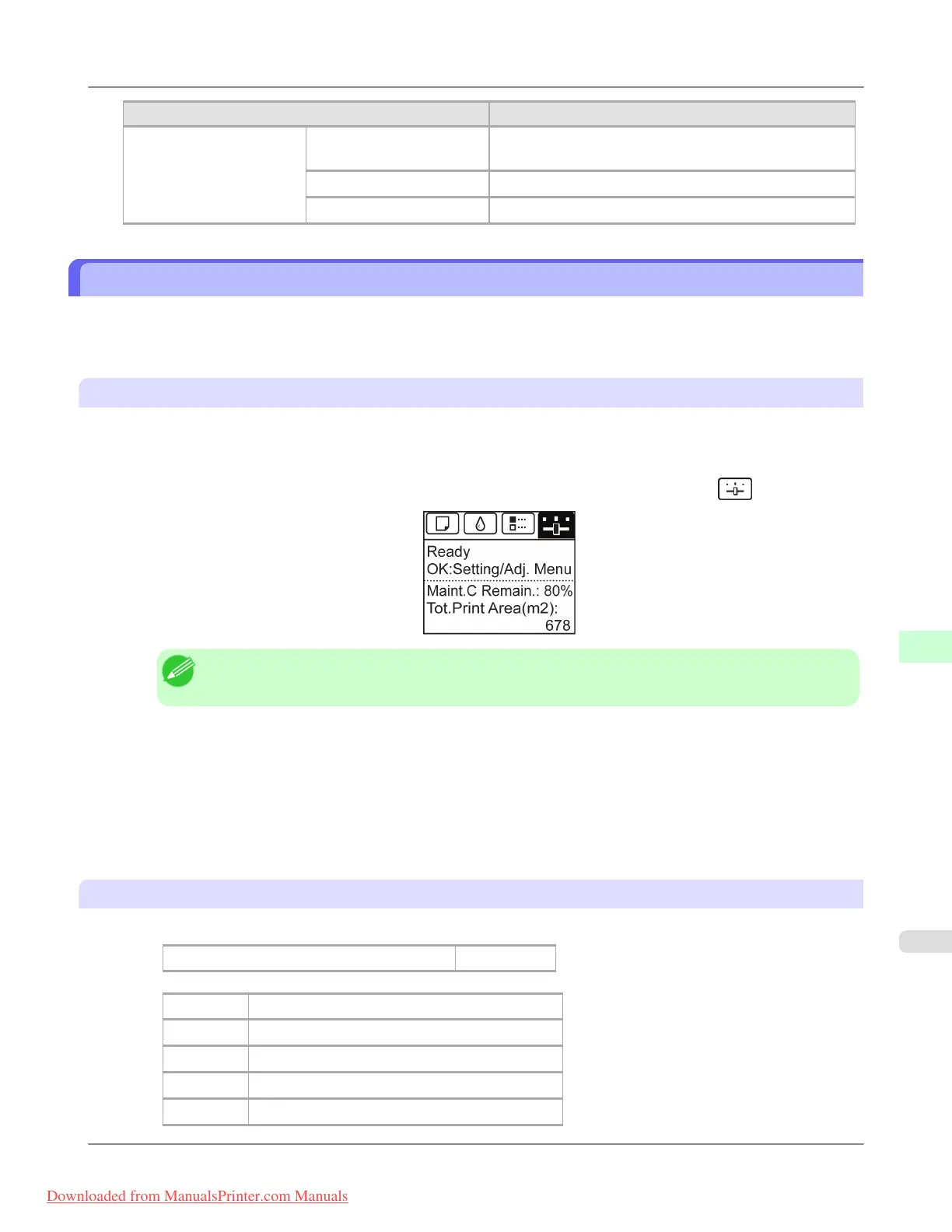
2. On the Tab Selection screen of the Control Panel, press ◀ or ▶ to select Settings/Adj. tab ( ).
Note
• If the Tab Selection screen is not displayed, press the Menu button.
3. Press the OK button.
The Set./Adj. Menu is displayed.
4. Press ▲ or ▼ to select Test Print, and then press the OK button.
5. Press ▲ or ▼ to select Status Print, and then press the OK button.
Checking the information in Status Print reports
The following information is included in Status Print reports.
Canon imagePROGRAF iPFxxxx Status Print
Printer model
Firm Firmware version
Boot Boot ROM version
MIT(DBF) MIT database format version
MIT(DB) MIT database version
S/N Printer serial number
Printer Parts
>
Control Panel
>
iPF8300 Status Print
9
925
Downloaded from ManualsPrinter.com Manuals














 To Next Page