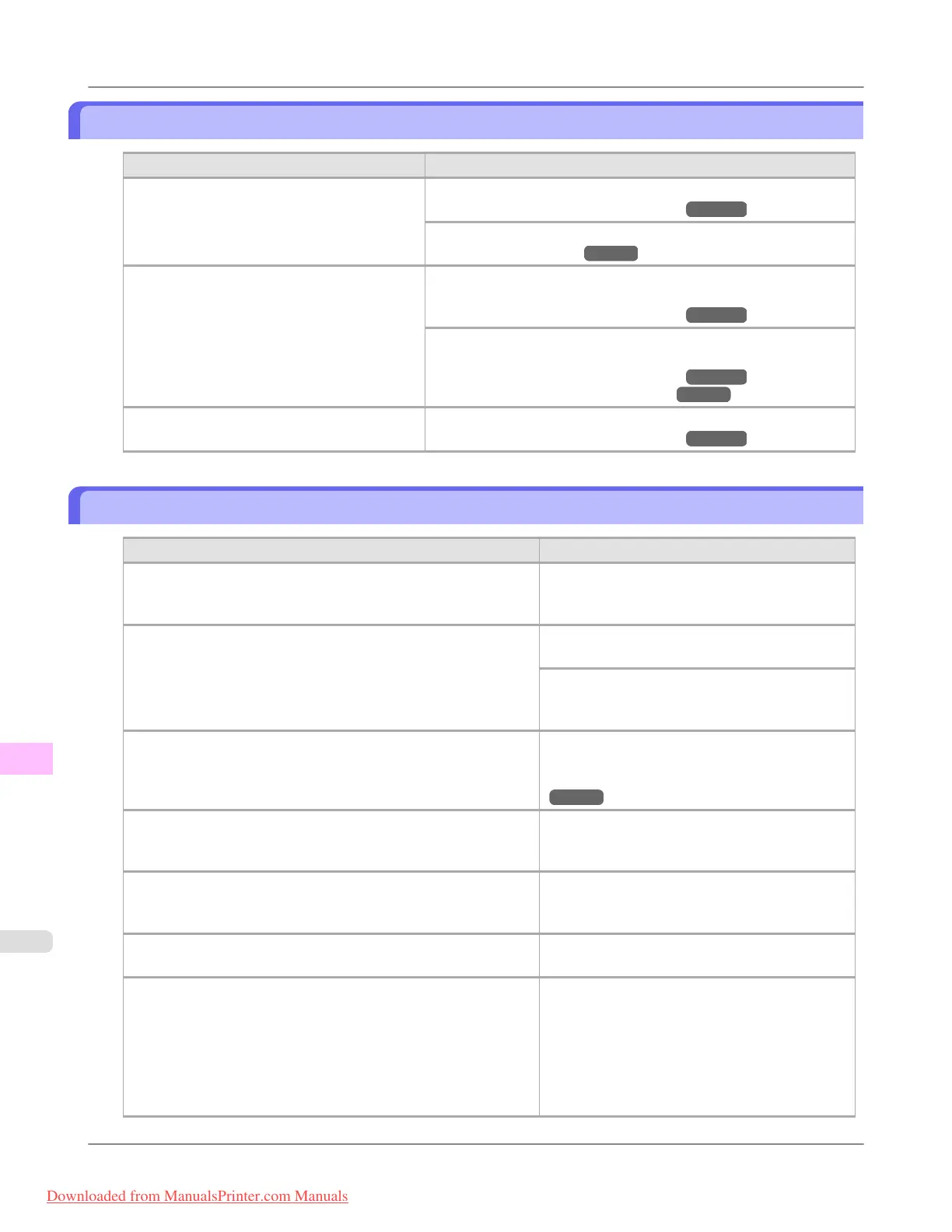
The back side of the paper is dirty
Cause Corrective Action
The Platen has become dirty after borderless
printing or printing on small paper.
Open the Top Cover and clean the Platen.
(See "Cleaning Inside the Top Cover.") →P.1026
In the Control Panel menu, set CarriageScanWdth to Fixed.
(See "Menu Settings.") →P.912
The Platen has become soiled because you
have set Width Detection to Off in the Control
Panel menu.
Set Width Detection to On in the Control Panel menu, and then
open the Top Cover and clean the Platen.
(See "Cleaning Inside the Top Cover.") →P.1026
Open the Top Cover and clean the Platen. After this, manually ad-
vance the roll onto the Platen before printing.
(See "Cleaning Inside the Top Cover.") →P.1026
(See "Feeding Roll Paper Manually.") →P.790
The Paper Retainer is soiled. Clean the Paper Retainer.
(See "Cleaning Inside the Top Cover.") →P.1026
Printed colors are inaccurate
Cause Corrective Action
Color adjustment has not been activated in the Advanced Settings
of the printer driver.
In the Advanced Settings of the printer driver,
access Color Settings in Color Mode to adjust
colors.
Colors have not been adjusted on the computer or monitor. Refer to the computer and monitor documenta-
tion to adjust the colors.
Adjust the settings of the color management soft-
ware, referring to the software documentation as
needed.
The Printhead nozzles are clogged. Print a test pattern to check the nozzles and see if
they are clogged.
(See "Checking for Nozzle Clogging.")
→P.998
In the Windows printer driver, Application Color Matching Pri-
ority is not selected.
Click Special Settings on the Layout sheet of the
printer driver and select Application Color
Matching Priority in the dialog box.
There may be a slight difference in how colors are printed after
Printhead replacement because of individual variation among
printheads.
Execute color calibration.
Printhead characteristics gradually change through repeated use,
and colors may change.
Execute color calibration.
Color may change slightly even on the same model of printer if
you use a different version of the firmware or printer driver, or
when you print under different settings or in a different printing
environment.
Follow these steps to prepare the printing envi-
ronment.
1. Use the same version of firmware or printer
driver.
2. Specify the same value for all settings items.
3. Execute color calibration.
Troubleshooting
>
Problems with the printing quality
>
The back side of the paper is dirty iPF8300
12
1060
Downloaded from ManualsPrinter.com Manuals














 To Next Page