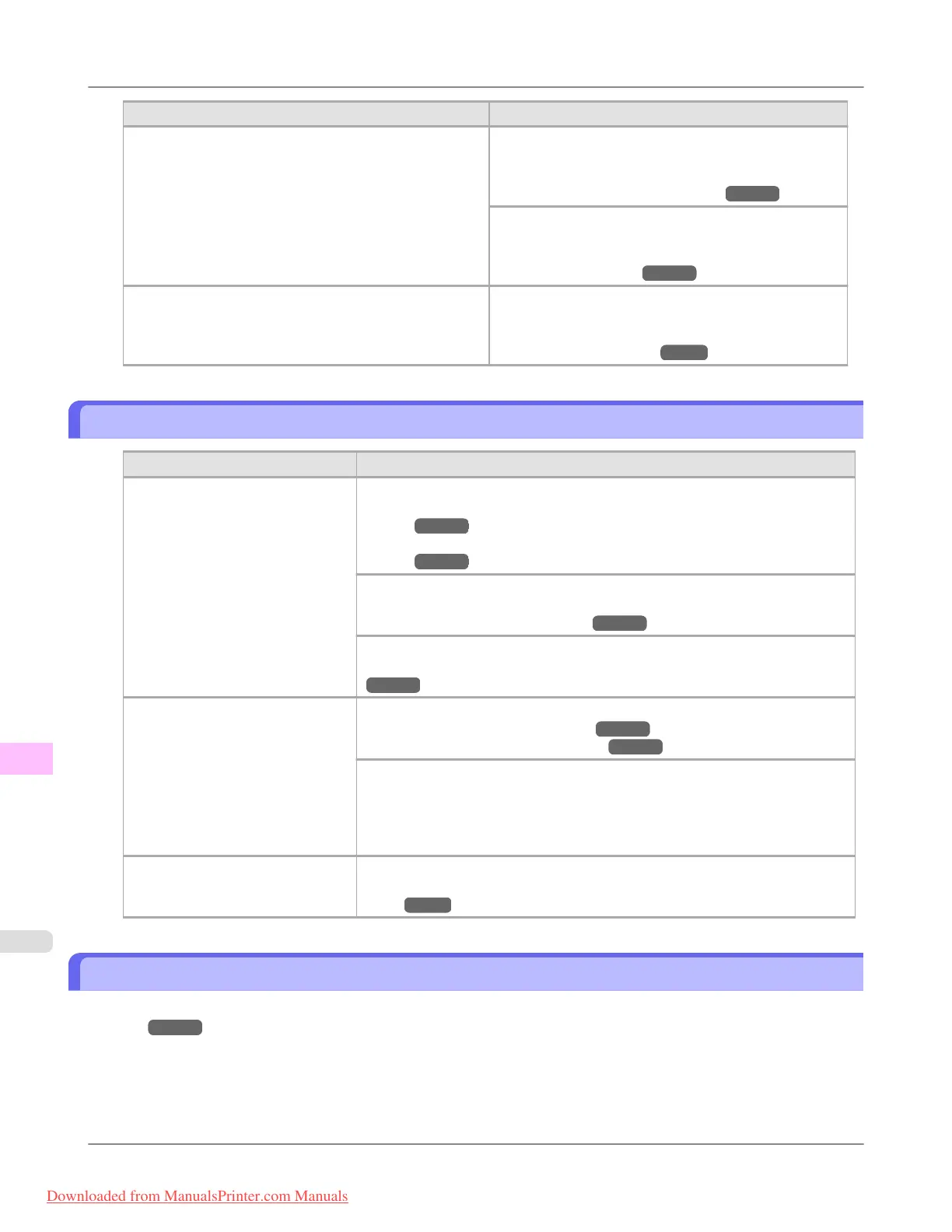
Cause Corrective Action
Incorrect Printhead alignment value. When printing fine lines or text at high precision on
glossy or semi-glossy photo or proofing paper, set the
optimal Printhead height before aligning the printhead.
(See "Enhancing Printing Quality.") →P.837
In the Control Panel menu, use a lower Head Height
setting.
(See "Troubleshooting Paper Abrasion and Blurry Im-
ages (Head Height).") →P.843
Depending on the type of paper, the thickness of printed
lines may be noticeably inconsistent.
Select High-Precision Text and Fine Lines in the print-
er driver.
(See "Giving Priority to Particular Graphic Elements
and Colors for Printing.") →P.51
Lines or colors are misaligned
Cause Corrective Action
The Printhead is not being aligned
correctly.
Adjust the Printhead alignment.
(See "Automatic Adjustment to Straighten Lines and Colors (Head Posi.
Adj.).") →P.839
(See "Manual Adjustment to Straighten Lines and Colors (Head Posi.
Adj.).")
→P.841
When printing fine lines or text at high precision on glossy or semi-glossy photo
or proofing paper, set the optimal Printhead height before aligning the printhead.
(See "Enhancing Printing Quality.") →P.837
In the Control Panel menu, use a lower Head Height setting.
(See "Troubleshooting Paper Abrasion and Blurry Images (Head Height).")
→P.843
The type of paper specified in the
printer driver does not match the
type loaded in the printer.
Load paper of the same type as you have specified in the printer driver.
(See "Loading Rolls in the Printer.") →P.777
(See "Loading Sheets in the Printer.") →P.802
Make sure the same type of paper is specified in the printer driver as you have
loaded in the printer.
1. Press the Stop button and stop printing.
2. Change the type of paper in the printer driver and try printing again.
Depending on the type of paper,
printed lines may be noticeably
misaligned.
Select High-Precision Text and Fine Lines in the printer driver.
(See "Giving Priority to Particular Graphic Elements and Colors for Print-
ing.") →P.51
Problems with the printing quality caused by the type of paper
For paper-specific troubleshooting tips to improve the printing quality, refer to the Paper Reference Guide. (See "Types of
Paper.") →P.768
Troubleshooting
>
Problems with the printing quality
>
Lines or colors are misaligned iPF8300
12
1068
Downloaded from ManualsPrinter.com Manuals














 To Next Page