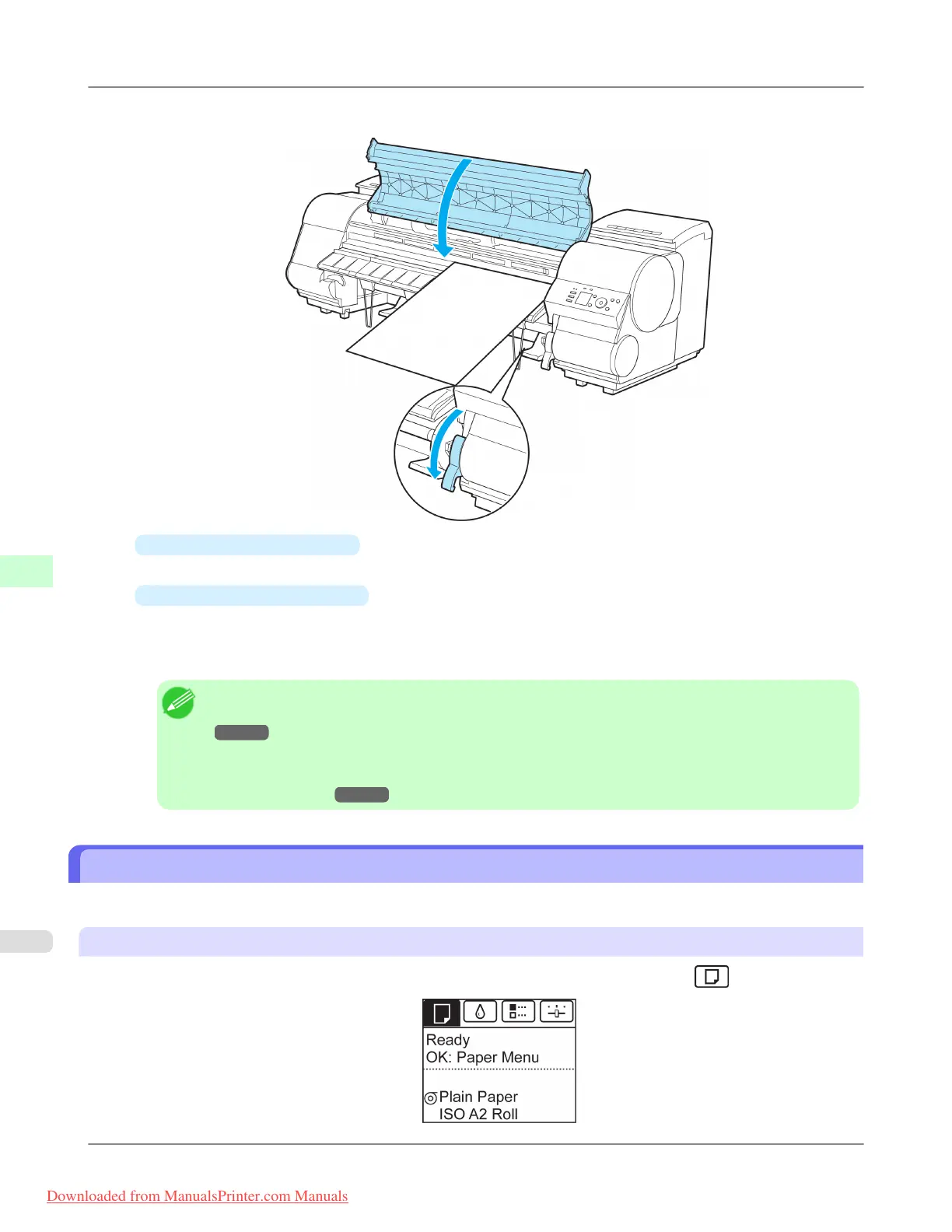
4. Lower the Release Lever and close the Top Cover.
•
If a print job was received
Pressing the OK button will advance the paper, and then printing will begin.
•
If no print job was received
A menu for selection of the type of paper is automatically shown on the Display Screen.
Press ▲ or ▼ to select the type of paper, and then press the OK button.
The printer now starts feeding the paper.
Note
• For details on types of paper to select, see the Paper Reference Guide. (See "Types of Paper.")
→P.768
• When using the Output Stacker, if you will print on large, stiff sheets, we recommend adjusting the
Output Stacker into the lowest position to prevent printed sheets from being bent. (See "Using the
Output Stacker.") →P.813
Printing From a Desired Starting Point
Print on sheets from a desired starting point as follows.
Set Width Detection to Off
1. On the Tab Selection screen of the Control Panel, press ◀ or ▶ to select the Paper tab ( ).
Handling Paper
>
Handling sheets
>
Printing From a Desired Starting Point iPF8300
7
806
Downloaded from ManualsPrinter.com Manuals














 To Next Page