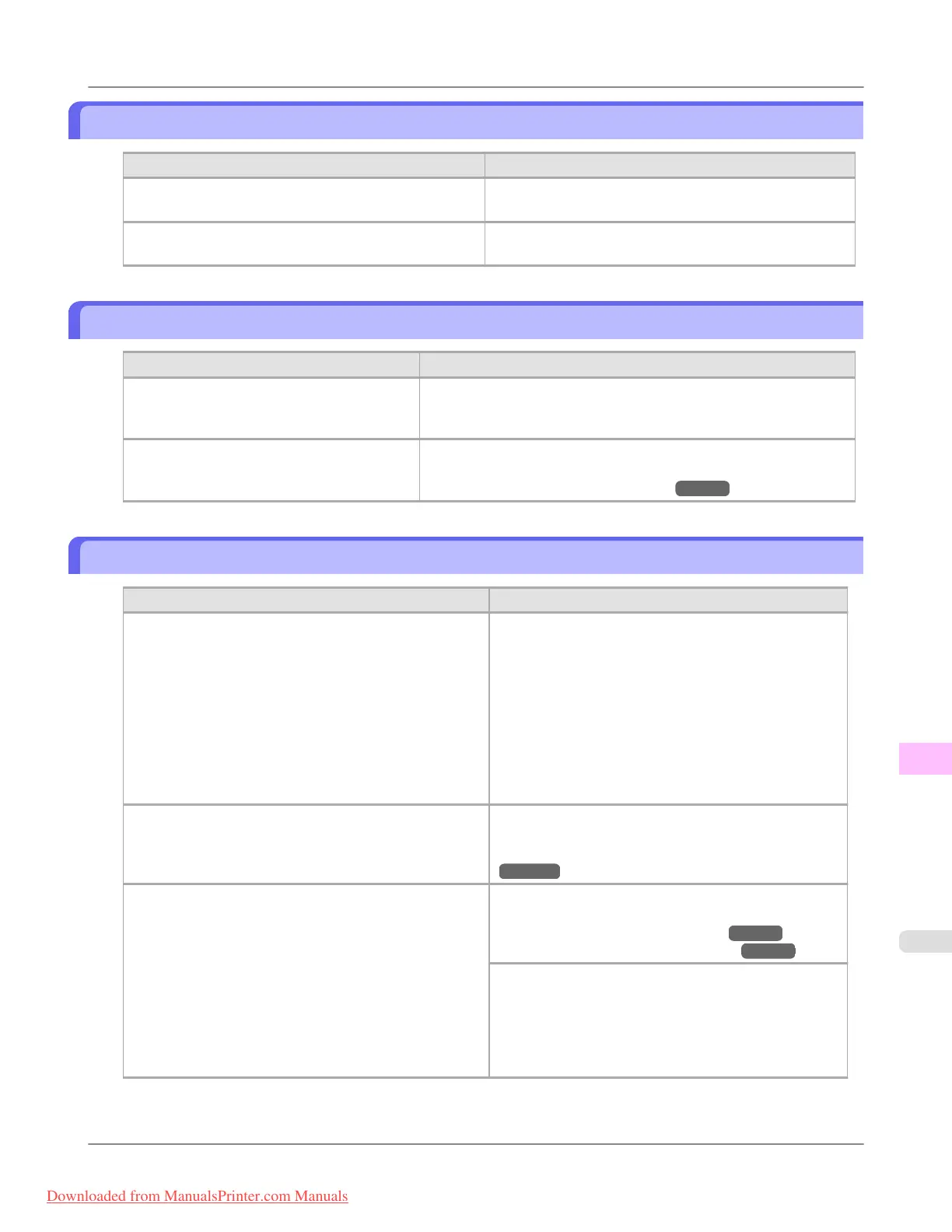
Images are printed crooked
Cause Corrective Action
In the Control Panel menu, Skew Check Lv. is set to
Loose or Off.
In the Control Panel menu, set Skew Check Lv. to Stand-
ard.
In the Control Panel menu, Width Detection is set to
Off.
Set Width Detection to On in the Control Panel menu.
Documents are printed in monochrome
Cause Corrective Action
In the Advanced Settings of the printer driv-
er, Monochrome or Monochrome (Photo), is
specified in Color Mode.
In the Advanced Settings of the printer driver, specify Color in Col-
or Mode and try printing again.
The Printhead nozzles are clogged. Print a test pattern to check the color ink nozzles and see if they are
clogged.
(See "Checking for Nozzle Clogging.") →P.998
Line thickness is not uniform
Cause Corrective Action
In the Special Settings dialog box of the Windows printer
driver, Fast Graphic Process is selected.
Access the printer driver Properties dialog box from
Print in the File menu of the source application, and fol-
low these steps to print.
1. Clear the option Open Preview When Print Job
Starts on the Main sheet.
2. Clear the option Page Layout on the Layout sheet.
3. Click the Special Settings button on the Layout
sheet to display the Special Settings dialog box, and
then clear the option Fast Graphic Process.
The blue Switch on the platen is set incorrectly. Move the Switch numbered corresponding to the size of
paper for printing opposite to the ● position.
(See "Setting the Blue Switch on the Platen.")
→P.1063
The type of paper specified in the printer driver does not
match the type loaded in the printer.
Load paper of the same type as you have specified in the
printer driver.
(See "Loading Rolls in the Printer.") →P.777
(See "Loading Sheets in the Printer.") →P.802
Make sure the same type of paper is specified in the
printer driver as you have loaded in the printer.
1. Press the Stop button and stop printing.
2. Change the type of paper in the printer driver and try
printing again.
Troubleshooting
>
Problems with the printing quality
>
iPF8300 Images are printed crooked
12
1067
Downloaded from ManualsPrinter.com Manuals














 To Next Page