Printing Images to Match Monitor Colors (Mac OS X)
By calibrating your monitor and configuring settings in the source application in advance, you can complete settings to print
in colors that are as close as possible to the colors displayed on the monitor.
Important
• Before using this feature, you must calibrate the monitor and configure settings in the source applica-
tion. (See "Printing Images to Match Monitor Colors.") →P.873
1. Choose Print in the application menu.
2. Select the printer in the dialog box, and then display the printer driver dialog box. (See "Accessing the Printer Driv-
er Dialog Box from Applications (Mac OS X).") →P.485
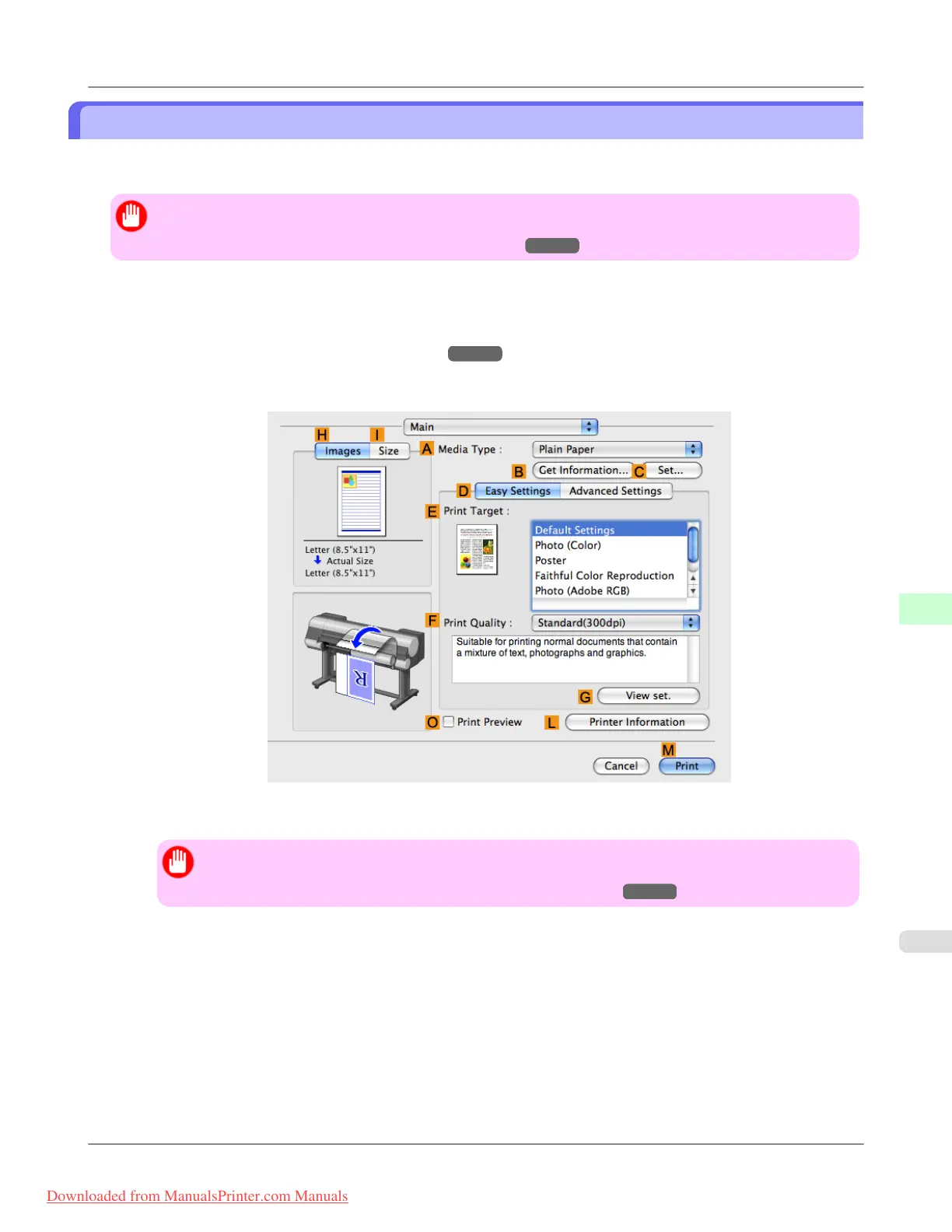
3. Make sure the Main panel is displayed.
4. In the A Media Type list, select the type of paper that is loaded (for example, Premium Glossy Paper 200 ).
Important
• Ambient light matching may not be available, depending on the type of paper used. For more infor-
mation, see the Paper Reference Guide. (See "Types of Paper.") →P.768
Adjustments for Better Print Quality
>
Color adjustment
>
iPF8300 Printing Images to Match Monitor Colors (Mac OS X)
8
877
Downloaded from ManualsPrinter.com Manuals














 To Next Page