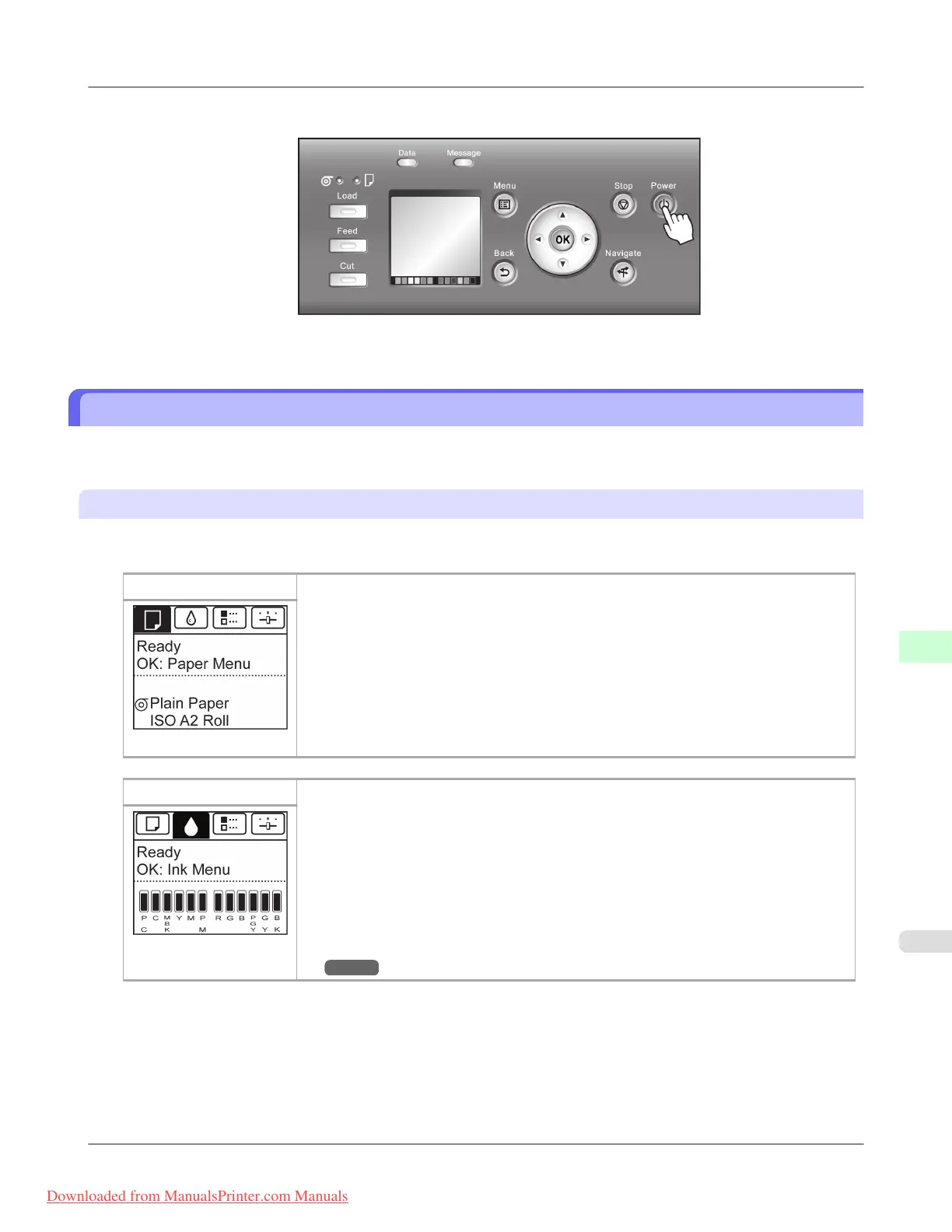
2. Hold down the Power button for more than a second.
After "Shut Down.. Please Wait.." is shown on the Display Screen, the printer shuts off.
Control Panel Display
After the printer starts up, the Tab Selection screen is displayed.
Each of the four tabs presents status, menus, and error information related to the particular tab.
Types of tabs
The Tab Selection screen presents four tabs. Each tab is represented by an icon in the top row. Press the ◀ or ▶ button to
access other tabs.
Paper tab
A tab indicating status and showing menus related to paper. Pressing the OK button when
this tab is highlighted will display the Paper Menu.
• Top line displayed
The paper icon is highlighted.
• Middle line displayed
Indicates the printer status and shows menu names.
• Bottom line displayed
The first and second lines display the paper type and size.
Ink tab A tab indicating status and showing menus related to ink. Pressing the OK button when
this tab is highlighted will display the Ink Menu.
• Top line displayed
The ink icon is highlighted.
• Middle line displayed
Indicates the printer status and shows menu names.
• Bottom line displayed
Here, the remaining ink level is indicated. (See "Checking Ink Tank Levels.")
→P.995
Printer Parts
>
Control Panel
>
iPF8300 Control Panel Display
9
895
Downloaded from ManualsPrinter.com Manuals














 To Next Page