Cutting Roll Paper After Printing (Mac OS X)
This topic describes how to cut roll paper automatically after printing (using the auto cut function), as well as how to print a
cut line for manual cutting.
Note
• The auto cut function is activated on the printer by default and when the printer driver is installed. Follow the
steps below to reactivate the function if it is disabled, or to select the setting for printing a cut line instead.
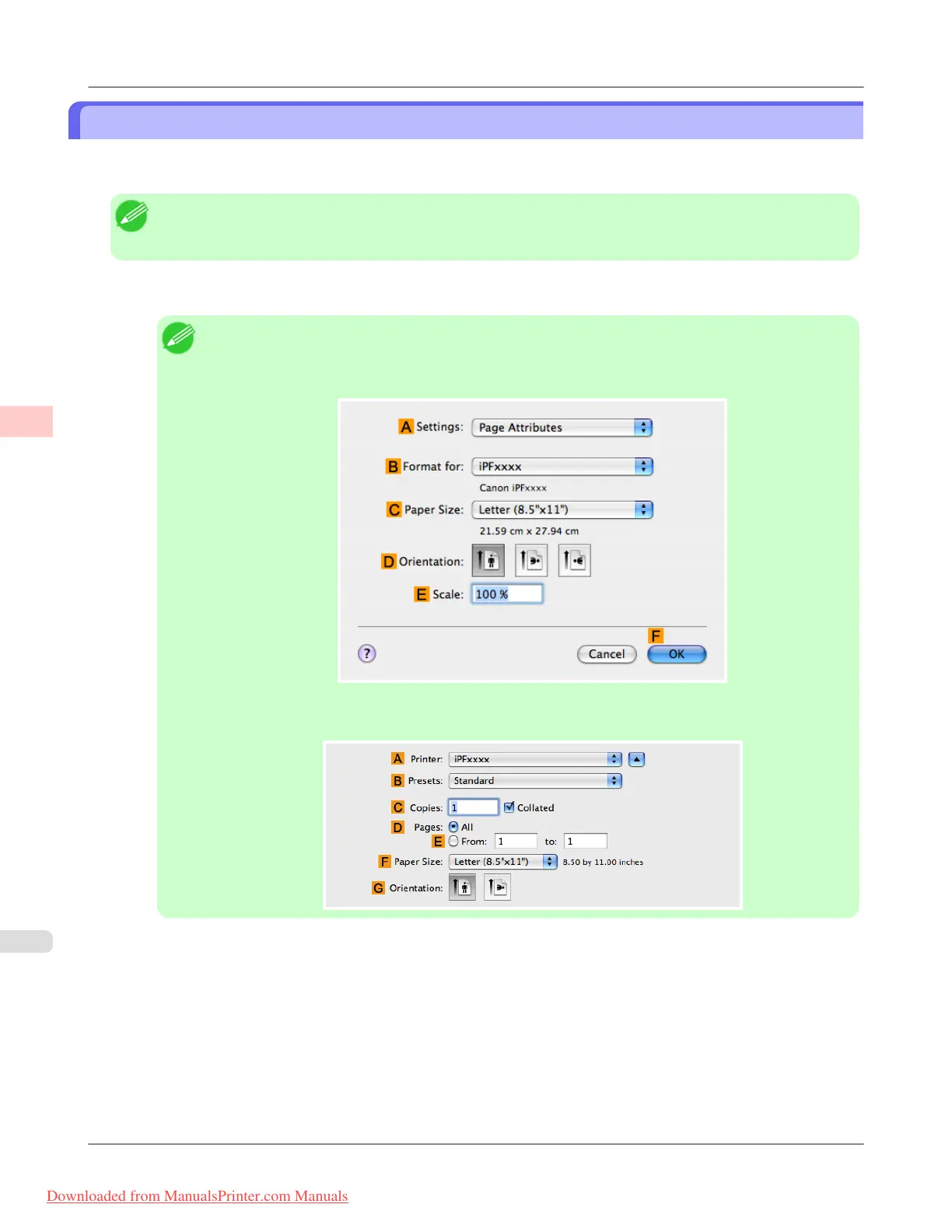
1. This sets the B Format for and C Paper Size.
Note
• The configuration method varies depending on the OS and application software you are using.
If Page Setup is displayed in the application menu, the settings are configured by opening the Page
Attributes dialog box from Page Setup.
If it is not displayed, the settings are configured in the upper part of the printer driver displayed when
you select Print from the application software menu.
2. Select the printer in the A Printer list.
3. Choose the original size in the C Paper Size list.
4. If you configured the settings using the Page Attributes dialog box, click FOK to close the dialog box, and then
select Print from the application software menu.
Enhanced Printing Options
>
Other useful settings
>
Cutting Roll Paper After Printing (Mac OS X) iPF8300
3
192
Downloaded from ManualsPrinter.com Manuals














 To Next Page