Configuring the Communication Mode Manually
This topic gives instructions for configuring the communication mode manually.
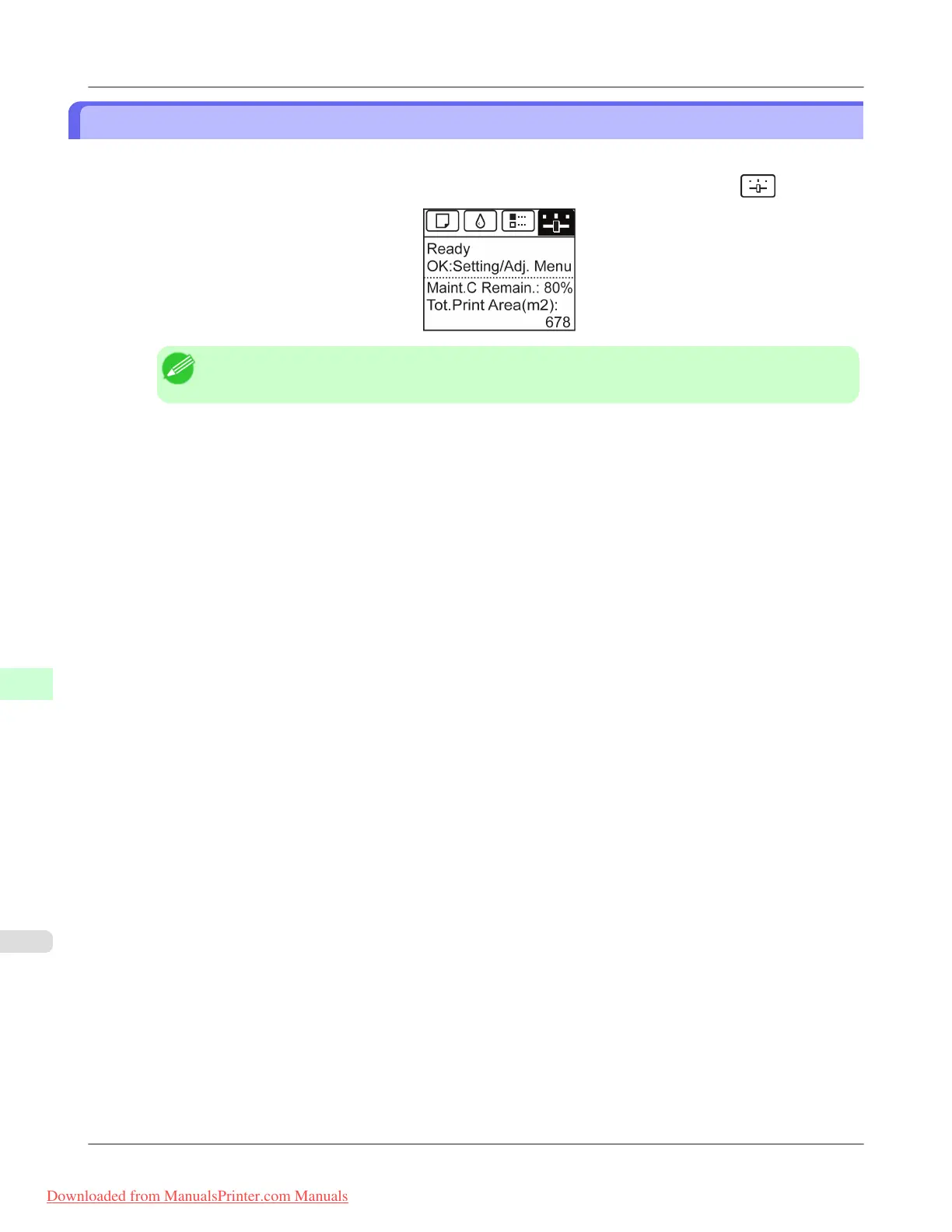
1. On the Tab Selection screen of the Control Panel, press ◀ or ▶ to select the Settings/Adj. tab (
).
Note
• If the Tab Selection screen is not displayed, press the Menu button.
2. Press the OK button.
The Set./Adj. Menu is displayed.
3. Press ▲ or ▼ to select Interface Setup, and then press the OK button.
4. Press ▲ or ▼ to select Ethernet Driver, and then press the OK button.
5. Press ▲ or ▼ to select Auto Detect, and then press the OK button.
6. Press ▲ or ▼ to select Off, and then press the OK button.
The display reverts to the Ethernet Driver menu.
7. Press ▲ or ▼ to select Comm.Mode, and then press the OK button.
8. Press ▲ or ▼ to select the communication mode, and then press the OK button.
The display reverts to the Ethernet Driver menu.
9. Press ▲ or ▼ to select Ethernet Type, and then press the OK button.
10. Press ▲ or ▼ to select the Ethernet type, and then press the OK button.
The display reverts to the Ethernet Driver menu.
11. Press ▲ or ▼ to select Spanning Tree, and then press the OK button.
12. Press ▲ or ▼ to enable or disable spanning tree support, and then press the OK button.
The display reverts to the Ethernet Driver menu.
Network Setting
>
Network Setting
>
Configuring the Communication Mode Manually iPF8300
10
960
Downloaded from ManualsPrinter.com Manuals














 To Next Page