Using the Same Type of Paper Regularly
Configure this setting so that current media type settings will be automatically selected when you load the same type of
paper later.
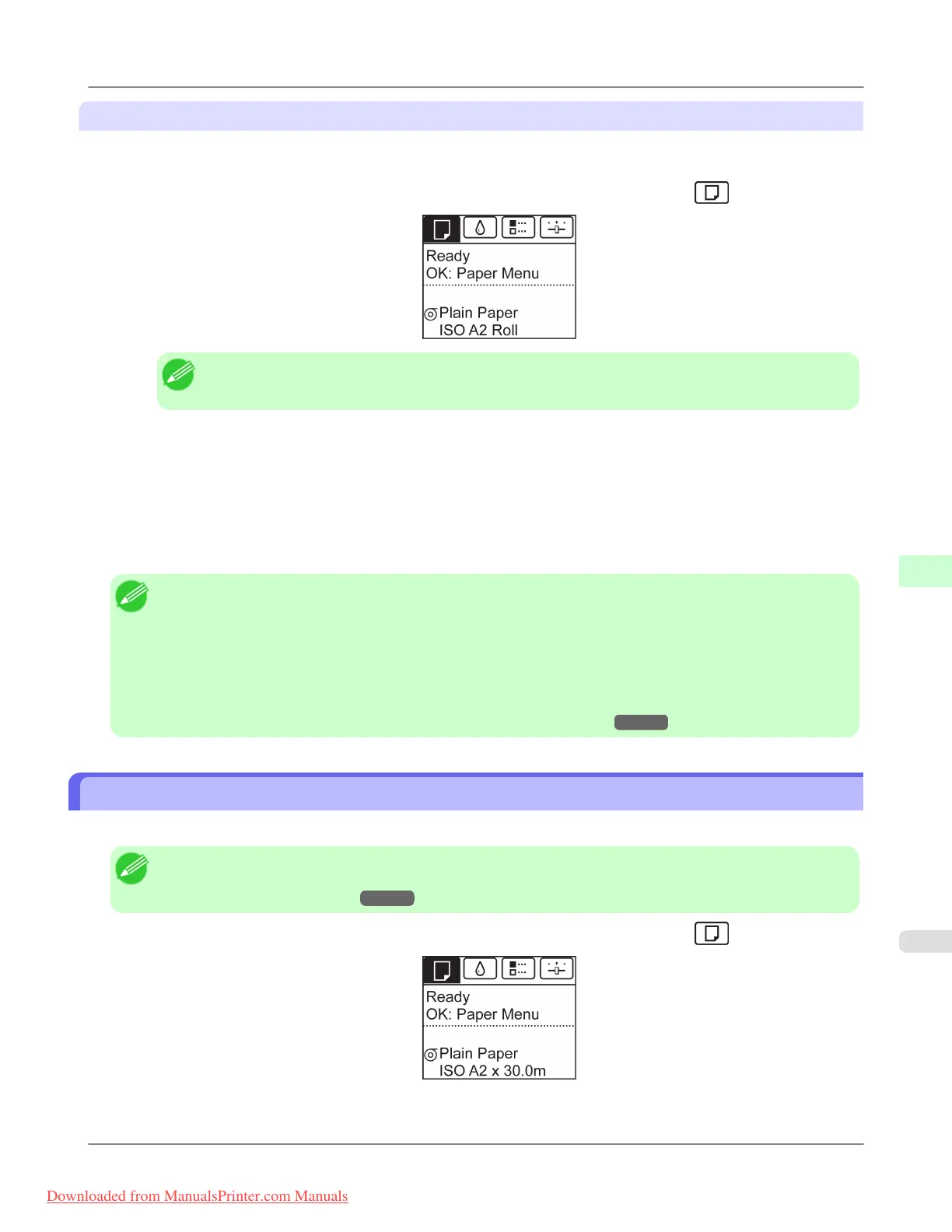
1. On the Tab Selection screen of the Control Panel, press ◀ or ▶ to select the Paper tab ( ).
Note
• If the Tab Selection screen is not displayed, press the Menu button.
2. Press the OK button.
The Paper Menu is displayed.
3. Press ▲ or ▼ to select Keep Paper Type, and then press the OK button.
4. Press ▲ or ▼ to select On, and then press the OK button.
Note
• The specified media type setting is updated in the following situations.
• When using sheets, if you send a print job before loading a sheet, the media type setting is updated to
match the type of paper specified by the print job.
• When you have selected ManageRemainRoll > On on the Control Panel and a barcode is printed on the
roll, the media type setting is updated to match the type of paper specified by the barcode.
• To change the media type setting, see "Changing the Type of Paper."
→P.784
Specifying the Paper Length
When changing the length of paper after the paper has been advanced, specify the length as follows.
Note
• Specify the paper length when you have set ManageRemainRoll to On. (See "Keeping Track of the
Amount of Roll Paper Left.") →P.791
1. On the Tab Selection screen of the Control Panel, press ◀ or ▶ to select the Paper tab ( ).
Handling Paper
>
Handling rolls
>
iPF8300 Specifying the Paper Length
7
785
Downloaded from ManualsPrinter.com Manuals














 To Next Page