•
On
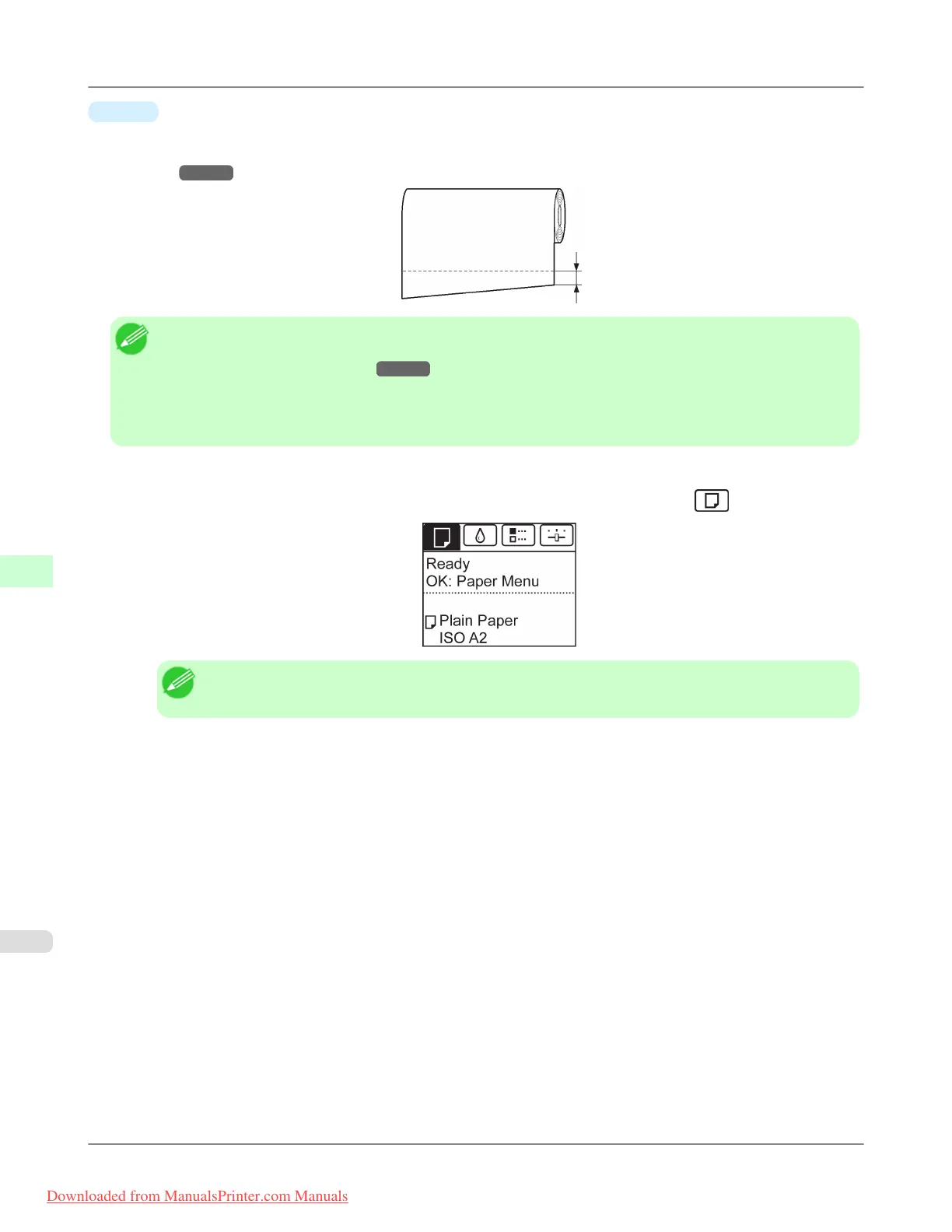
The leading edge is cut off when you load a roll, and scraps are removed. The amount of paper cut from the leading
edge varies depending on the type of paper. For more information, see the Paper Reference Guide. (See "Types of
Paper.") →P.768
Note
• By default, the setting varies depending on the type of paper. For more information, see the Paper Reference
Guide. (See "Types of Paper.") →P.768
• For paper of irregular widths, setting Skew Check Lv. to Loose lowers the skew detection threshold, and
setting it to Off deactivates skew detection. However, if paper is loaded askew when detection is Off, note
that paper jams or Platen soiling may occur.
Follow these steps to change the Trim Edge First setting.
1. On the Tab Selection screen of the Control Panel, press ◀ or ▶ to select the Paper tab (
).
Note
• If the Tab Selection screen is not displayed, press the Menu button.
2. Press the OK button.
The Paper Menu is displayed.
3. Press ▲ or ▼ to select Paper Details, and then press the OK button.
4. Press ▲ or ▼ to select the type of paper, and then press the OK button.
5. Press ▲ or ▼ to select Trim Edge First, and then press the OK button.
6. Press ▲ or ▼ to select the desired setting option, and then press the OK button.
This setting takes effect the next time you load a roll.
Handling Paper
>
Handling rolls
>
Cutting the Leading Edge of Roll Paper Automatically iPF8300
7
800
Downloaded from ManualsPrinter.com Manuals














 To Next Page