Cause Corrective Action
Incorrect Printhead alignment
value.
In the Control Panel menu, set Head Height to a lower height.
(See "Troubleshooting Paper Abrasion and Blurry Images (Head Height).")
→P.843
The type of paper specified in
the printer driver does not
match the type loaded in the
printer.
Load paper of the same type as you have specified in the printer driver.
(See "Loading Rolls in the Printer.") →P.777
(See "Loading Sheets in the Printer.") →P.802
Make sure the same type of paper is specified in the printer driver as you have loa-
ded in the printer.
1. Press the Stop button and stop printing.
2. Change the type of paper in the printer driver and try printing again.
Setting the Blue Switch on the Platen
If printed documents exhibit the following symptoms, adjust the setting of the blue Switch on the Platen.
• Image edges are blurred
• Image edges are affected by white banding
Important
• Always set the blue Switch on the Platen to the ● side for borderless printing. Printing quality may be affec-
ted if the Switch is incorrectly set.
1. Remove any loaded paper that will not be used.
• Rolls (See "Removing the Roll from the Printer.") →P.786
• Sheets (See "Removing Sheets.") →P.810
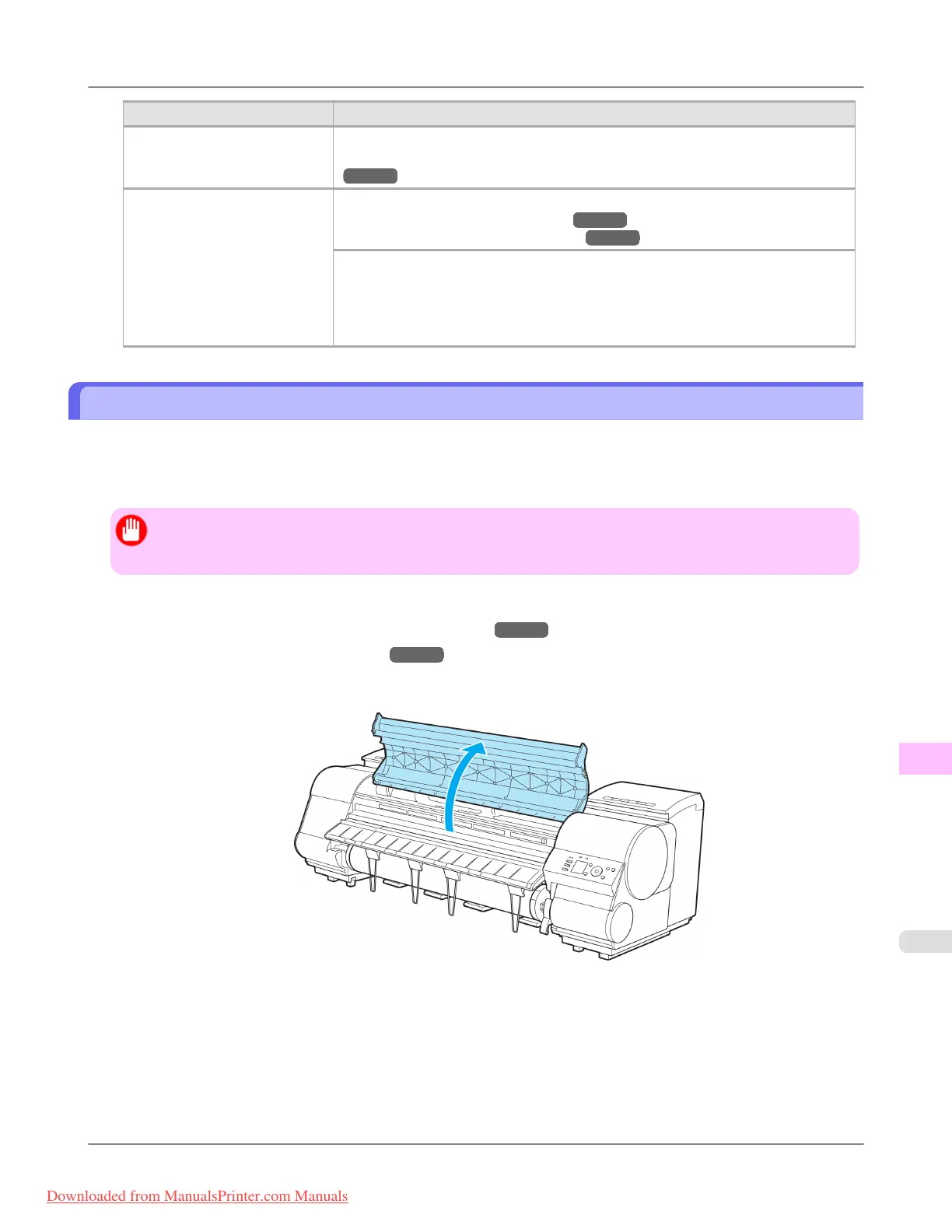
2. Open the Top Cover.
Troubleshooting
>
Problems with the printing quality
>
iPF8300 Setting the Blue Switch on the Platen
12
1063
Downloaded from ManualsPrinter.com Manuals














 To Next Page