Caution
• Do not remove the Maintenance Cartridge or ink tanks during either Head Cleaning A or Head Cleaning B.
Note
• If printing does not improve after Head Cleaning B, try repeating Head Cleaning B once or twice. If this
still does not improve printing, the Printhead may have reached the end of its useful life. Contact your Canon
dealer for assistance.
• Nozzles are periodically checked to ensure they are clear. Configure the settings on the Control Panel menu
in Nozzle Check. (See "Menu Settings.") →P.912
Perform cleaning as follows.
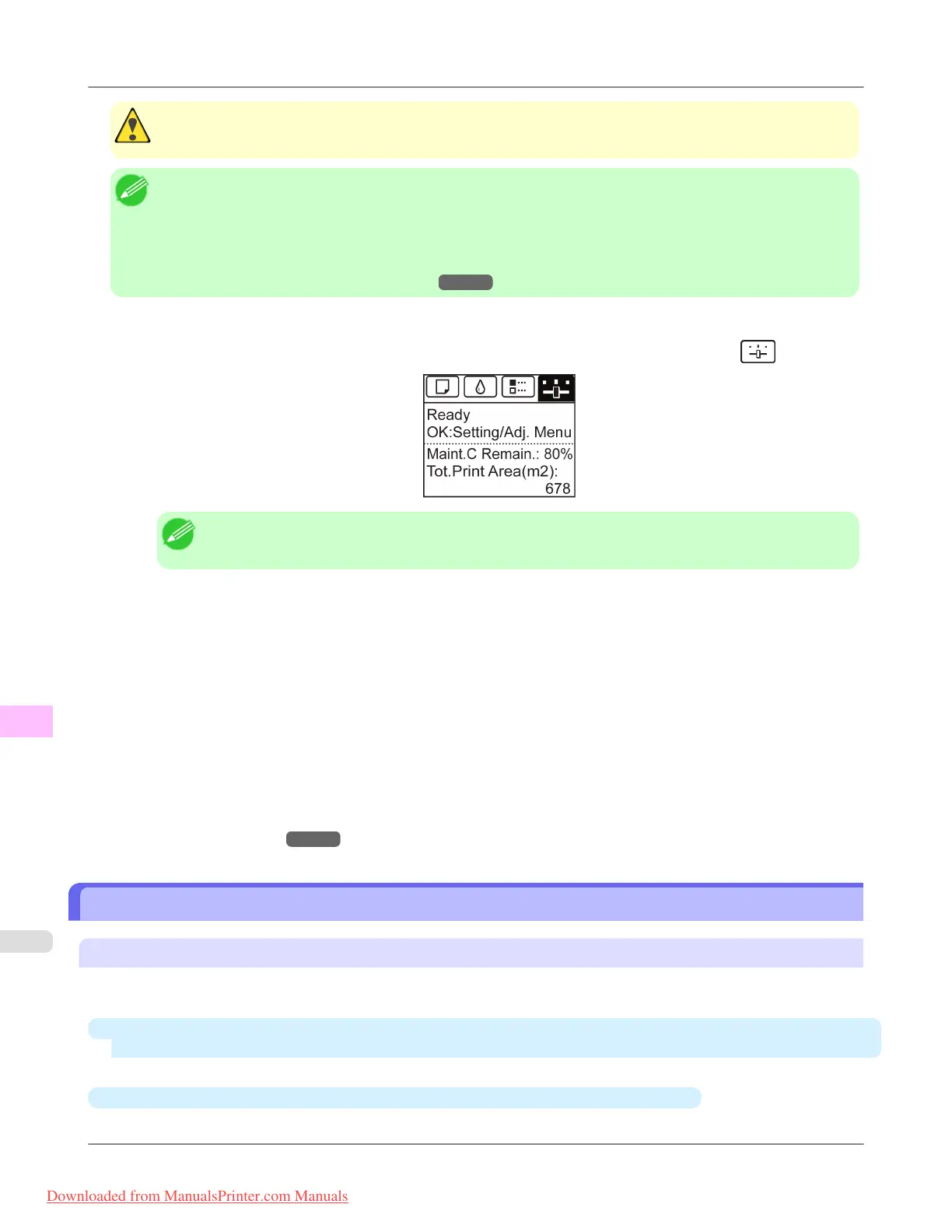
1. On the Tab Selection screen of the Control Panel, press ◀ or ▶ to select the Settings/Adj. tab (
).
Note
• If the Tab Selection screen is not displayed, press the Menu button.
2. Press the OK button.
The Set./Adj. Menu is displayed.
3. Press ▲ or ▼ to select Maintenance, and then press the OK button.
4. Press ▲ or ▼ to select Head Cleaning, and then press the OK button.
5. Press ▲ or ▼ to select Head Cleaning A or Head Cleaning B, and then press the OK button.
Head cleaning is now executed.
6. Print a test pattern to check the nozzles, and determine whether cleaning has cleared the nozzles. (See "Checking
for Nozzle Clogging.")
→P.998
Replacing the Printhead
When to replace the Printhead
This printer is equipped with two printheads.
Replace one or both printheads in the following situations.
•
If the printing quality does not improve even after one or two cycles of
Head Cleaning B from the printer
menu
Replace any printheads with poor printing performance.
•
If the Display Screen indicates "
Open top cover and replace the left printhead."
Replace the Printhead on the left side.
Maintenance
>
Printheads
>
Replacing the Printhead iPF8300
11
1000
Downloaded from ManualsPrinter.com Manuals














 To Next Page