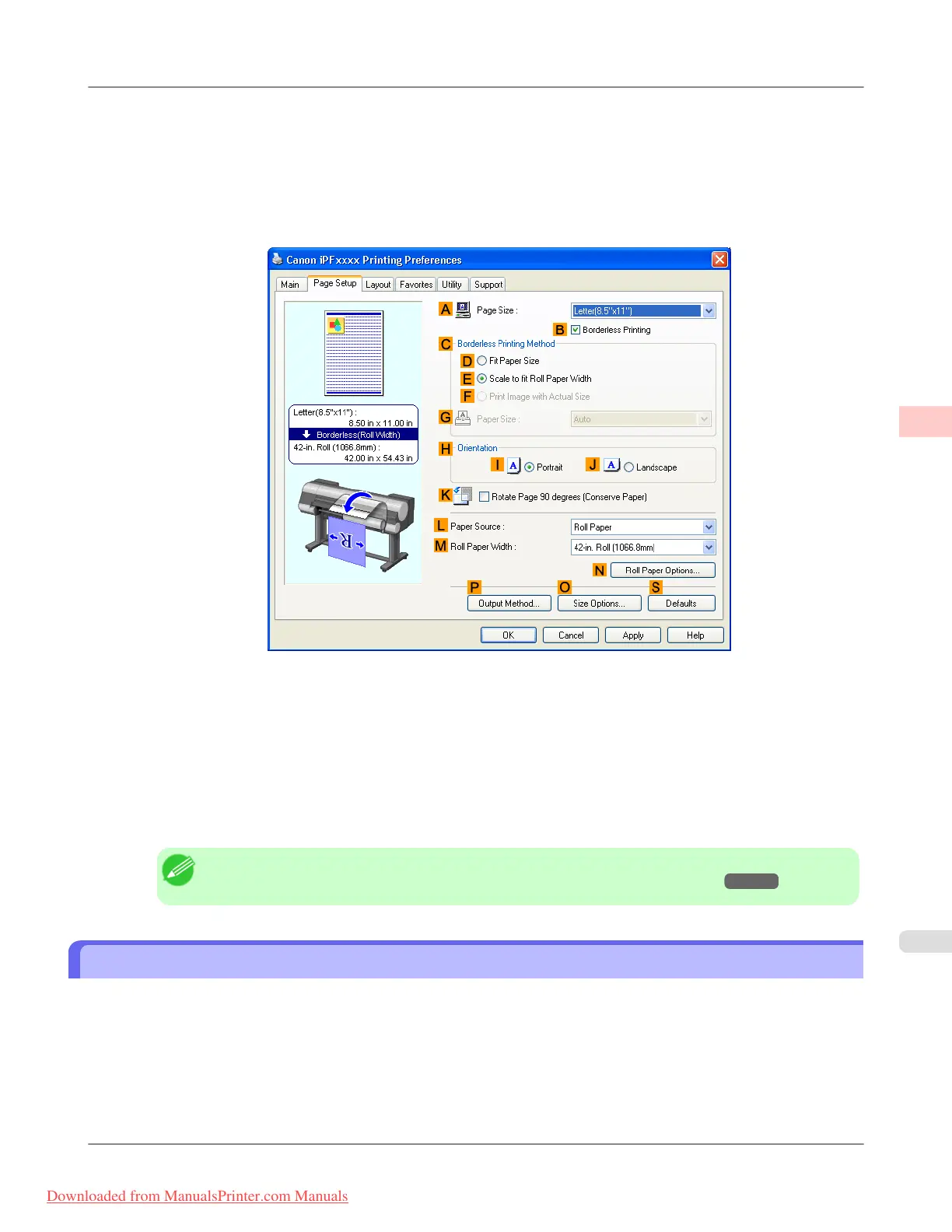
8. In the A Page Size list, click the size of the original as specified in the source application. In this case, click
10"x12".
9. Select and click a roll paper in the L Paper Source list.
10. Select the B Borderless Printing check box to display the Information dialog box.
11. Select the width of the loaded roll in the Roll Paper Width list—in this case, click 10-in. Roll (254.0mm).
12. Click OK to close the Information dialog box.
13. In C Borderless Printing Method, click F Print Image with Actual Size.
14. Confirm the print settings and print as desired.
Note
• For tips on confirming print settings, see "Confirming Print Settings (Windows) →P.200 "
Borderless Printing at Actual Size (Mac OS X)
This topic describes how to print borderlessly at actual size based on the following example.
• Document: Any Type
• Page size: 10 × 12 inches (254.0×304.8 mm)–Borderless
• Paper: Roll paper
• Paper type: Heavyweight Coated Paper
Enhanced Printing Options
>
Printing at full size
>
iPF8300 Borderless Printing at Actual Size (Mac OS X)
3
91
Downloaded from ManualsPrinter.com Manuals














 To Next Page