10. Disassemble and repackage the Stand by following the installation procedure in reverse.
11. Repack the Roll Holder, Holder Stopper, and printer in shipping materials, and then package them in a shipping box.
Updating the Firmware
Update the printer firmware to take advantage of new and improved printer functions.
Confirming the firmware version
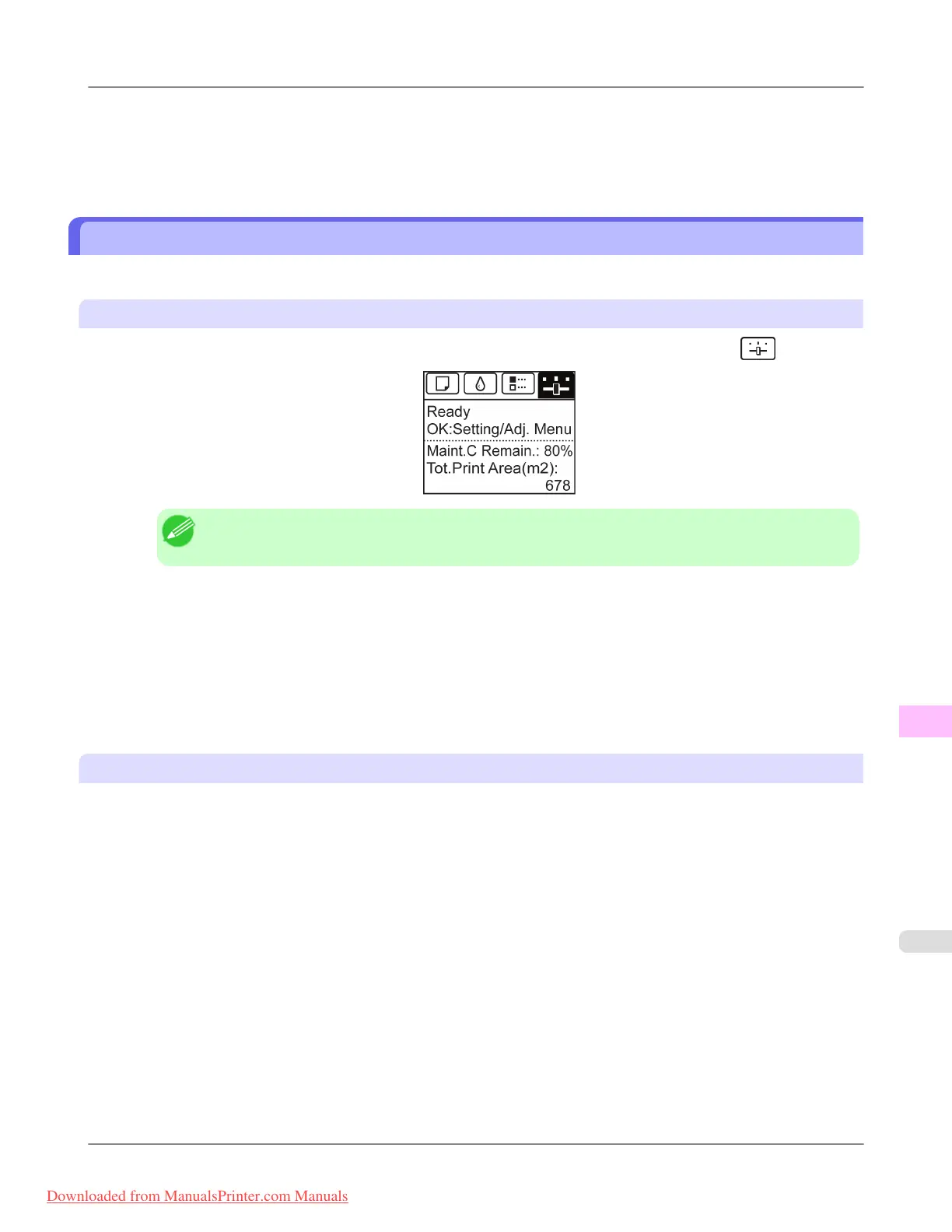
1. On the Tab Selection screen of the Control Panel, press ◀ or ▶ to select the Settings/Adj. tab ( ).
Note
• If the Tab Selection screen is not displayed, press the Menu button.
2. Press the OK button.
The Set./Adj. Menu is displayed.
3. Press ▲ or ▼ to select Printer Info, and then press the OK button.
4. Press ▲ or ▼ to select System Info, and then press the OK button.
The firmware version is displayed.
Updating the Firmware
To obtain the latest firmware, visit the Canon website. If the firmware available online is newer than the installed firmware,
update the printer firmware. For details on downloading and updating the firmware, visit the Canon website.
Maintenance
>
Other Maintenance
>
iPF8300 Updating the Firmware
11
1039
Downloaded from ManualsPrinter.com Manuals














 To Next Page