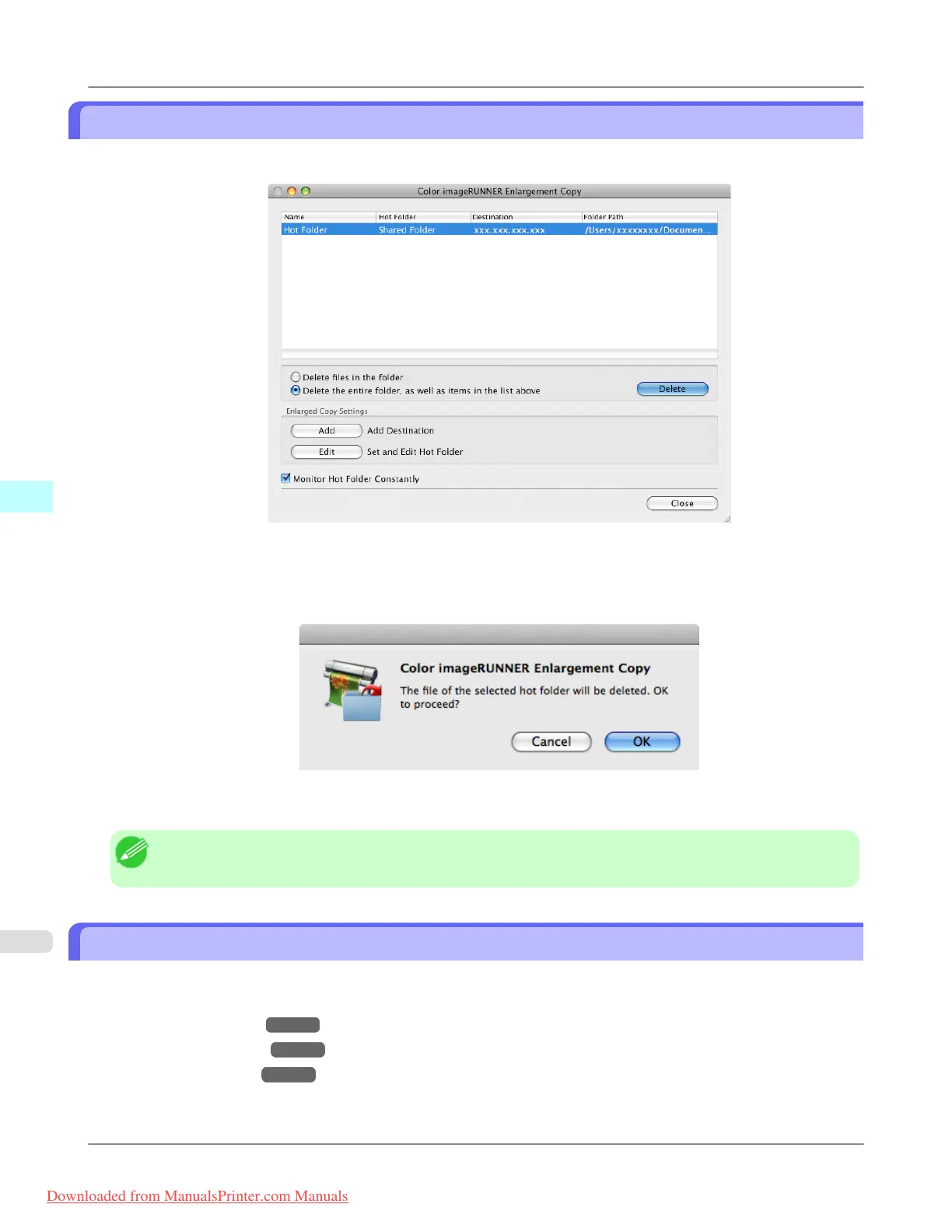
Deleting a Hot Folder
1. Open the Color imageRUNNER Enlargement Copy dialog box.
2. Select the Hot Folder you want to delete from the Hot Folder list.
3. Select Delete the entire folder, as well as items in the list above, and then click the Delete button.
4. Read the messag,e and then click the OK button.
Note
• Select Delete files in the folder to delete only files in the hot folder.
Setting the Print Parameters
You can set the print conditions in the setting panels within the Add/Edit Hot Folder dialog box.
The settings available on each panel are as follows.
• Paper Settings Panel →P.587
• Output Settings Panel →P.592
• Color Settings Panel →P.594
Mac OS X Software
>
Color imageRUNNER Enlargement Copy
>
Deleting a Hot Folder iPF8300
5
586
Downloaded from ManualsPrinter.com Manuals














 To Next Page