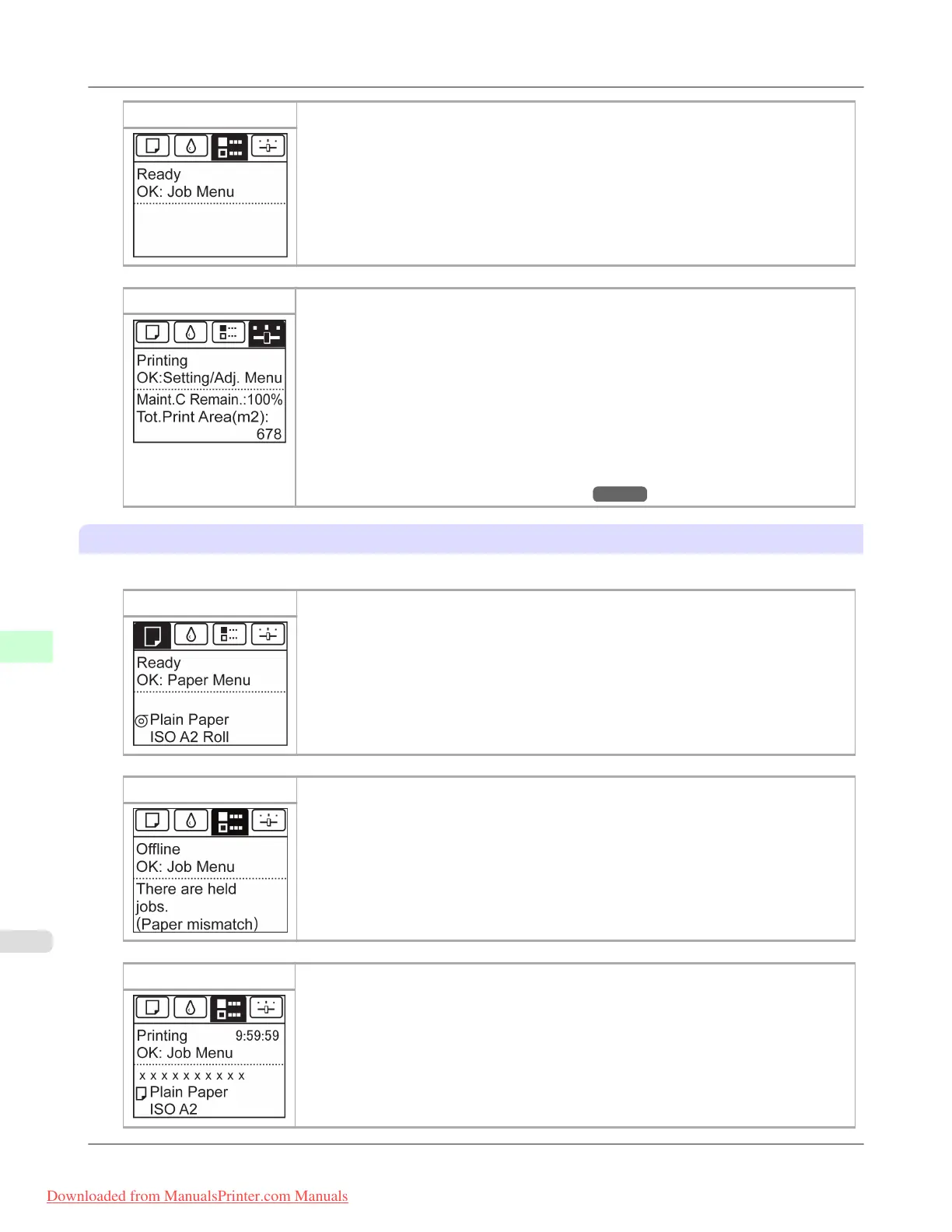
Job tab A tab indicating status and showing menus related to print jobs. Pressing the OK button
when this tab is highlighted will display the Job Menu menu.
• Top line displayed
The job icon is highlighted.
• Middle line displayed
Indicates the printer status and shows menu names.
Settings/Adj. tab A tab indicating status and showing menus related to settings and adjustment. Pressing the
OK button when this tab is highlighted will display the Set./Adj. Menu.
• Top line displayed
The settings/adjustment icon is highlighted.
• Middle line displayed
Indicates the printer status and shows menu names.
• Bottom line displayed
The remaining Maintenance Cartridge capacity is shown on the first line and Tot.Print
Area on the second. The display unit for Tot.Print Area can be specified in the
Length Unit menu. (See "Menu Settings.") →P.912
Printer status and modes
Printer status is classified according to the following five modes.
Standby
The printer is ready to receive jobs sent from the computer. Jobs sent from the computer
are printed immediately.
Printing Paused Printing is paused on the printer. Any jobs sent from the computer are held without being
printed.
Printing Printing is in progress on the printer. Jobs sent from the computer are printed after the cur-
rent job. The time left until printing is finished is indicated in the upper-right corner of the
screen. (Values exceeding 10 hours are not shown.)
Printer Parts
>
Control Panel
>
Control Panel Display iPF8300
9
896
Downloaded from ManualsPrinter.com Manuals














 To Next Page