• Paper: Roll
• Paper type: Plain Paper
• Roll paper width: A2/A3 roll (420.0 mm [16.5 in])
1. Choose Print in the application menu.
2. Select the printer in the dialog box, and then open the printer driver dialog box.(See "Accessing the Printer Driver
Dialog Box from Applications (Windows) →P.205 ")
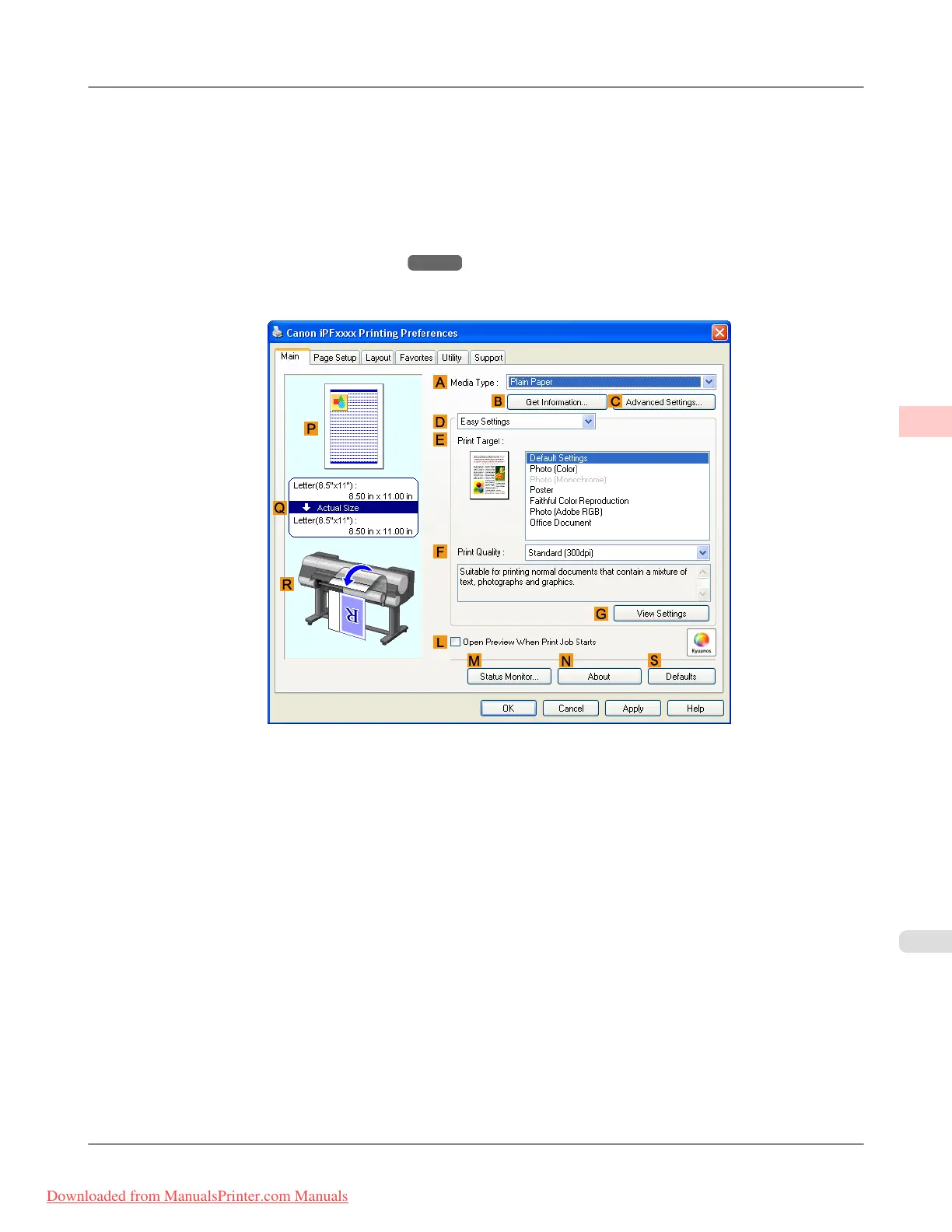
3. Make sure the Main sheet is displayed.
4. In the A Media Type list, select the type of paper that is loaded. In this case, click Plain Paper.
5. Make your selection in the E Print Target list.
6. Make your selection in the F Print Quality list.
Enhanced Printing Options
>
Tiling and multiple pages per sheet
>
iPF8300 Printing Multiple Pages Per Sheet (Windows)
3
139
Downloaded from ManualsPrinter.com Manuals














 To Next Page